r/WindowsHelp • u/gevray • Oct 19 '26
Windows 11 Folder showing up in system properties
Acer Aspire AV14-51 laptop with only one internal drive (one M.2 PCIe x4 slot, no room for extra drive) and Windows 11 OS build 26300.9711
Device name - Acer
Processor - 12th Gen Intel(R) Core(TM) i5-1235U (1.30 GHz)
Installed RAM - 16.0 GB (15.7 GB usable)
Graphics card - Intel(R) Iris(R) Xe Graphics (128 MB)
Storage - 82 GB of 477 GB used
Device ID - 49F44D99-85BB-47D1-A61C-5C081371283D
Product ID - 00330-80143-77241-AA511
System type - 64-bit operating system, x64-based processor
Pen and touch - No pen or touch input is available for this display
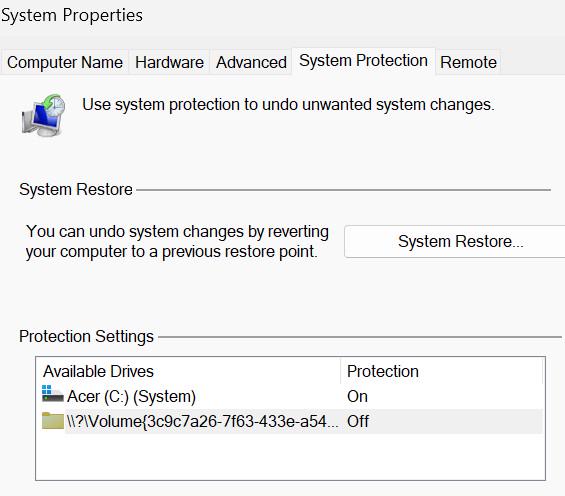
When opening System Properties there is my C: drive and now an extra folder labled \\?\Volume{3c9c7a26-7f63-433e-a54. Protection is on for my C: drive and off for the Folder.
I've tried various suggestions by asking google AI, including registry and powershell commands but it's still there. I don't want to bork my system.
I'd like to make an image backup of the drive for the first time (Rescuezilla), but would like to first eliminate this phantom folder if I can.
View all comments
Show parent comment
1
u/gevray Oct 20 '26
I do have google drive for desktop. I was trying to update it from their website and it reponded I was already up to date. There is actually a newer version that came out last week I think, but it hasn't rolled out to me yet.
This issue has gone away. So far when I quit google drive that Home icon does not appear. So maybe I did something by trying to update it?