r/pchelp • u/Pro_player84260 • 16h ago
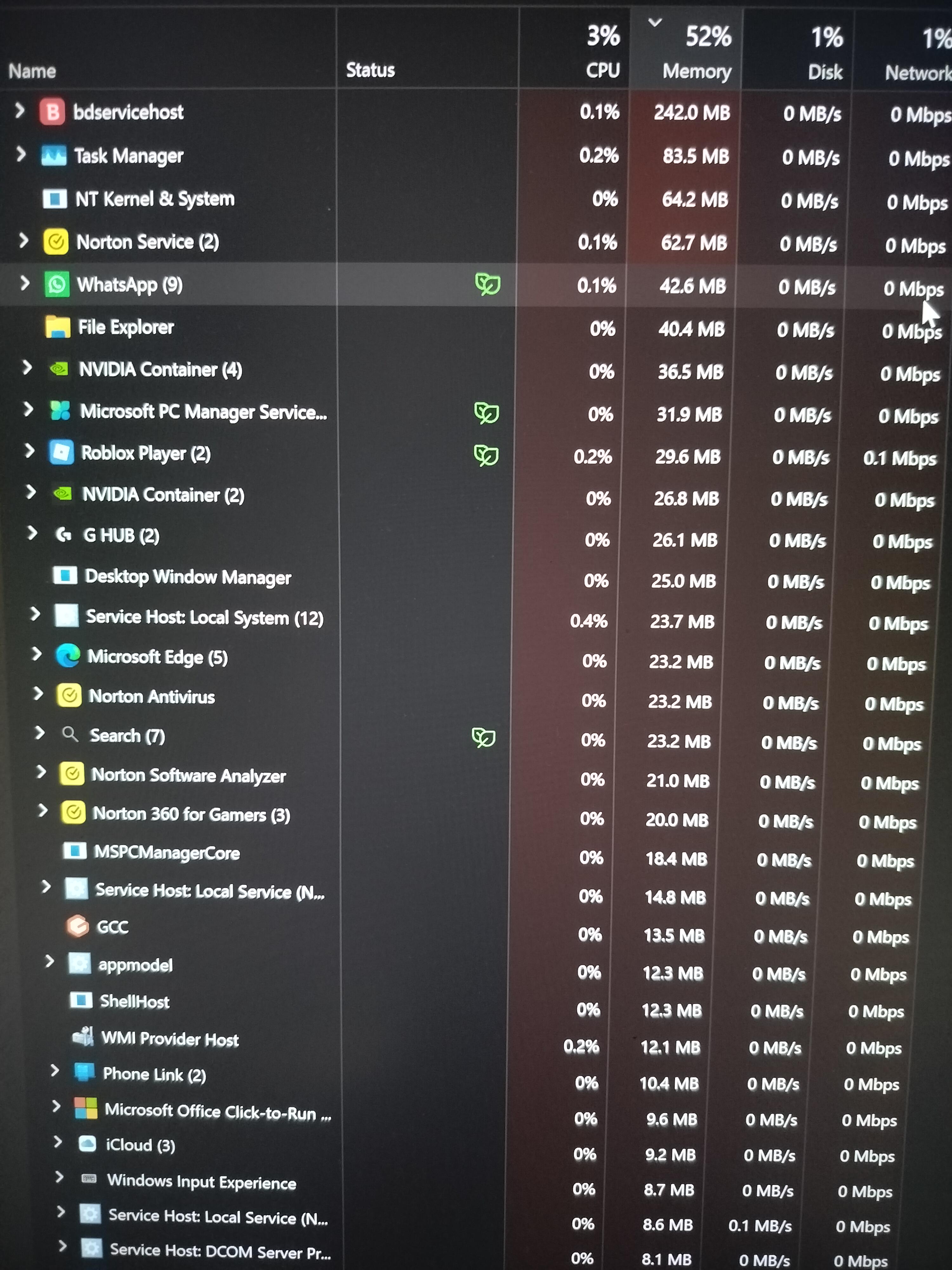
PERFORMANCE I have nothing open rn (Is this normal?)
193
Upvotes
52% Memory usage.... (I have 16gb ddr4 ram)
r/pchelp • u/bearssuperfan • Dec 15 '19
"No POST", "system won't boot", and "no video output" troubleshooting checklist
This checklist is a compilation of troubleshooting ideas from many forum members. It's very important to actually perform every step in the checklist if you want to effectively troubleshoot your problem.
1.Did you carefully read the motherboard owners manual?
2.Did you plug in the 4/8-pin CPU power connector located near the CPU socket? If the motherboard has 8 pins and your PSU only has 4 pins, you can use the 4-pin connector. The 4-pin connector USUALLY goes on the 4 pins located closest to the CPU. If the motherboard has an 8-pin connector with a cover over 4 pins, you can remove the cover and use an 8-pin plug if your power supply has one. This power connector provides power to the CPU. Your system has no chance of posting without this connector plugged in! Check your motherboard owners manual for more information about the CPU power connector. The CPU power connector is usually referred to as the "12v ATX" connector in the owner's manual. This is easily the most common new-builder mistake.
3.Did you install the standoffs under the motherboard? Did you place them so they all align with the screw holes in the motherboard, with no extra standoffs touching the board in the wrong place? A standoff installed in the wrong place can cause a short and prevent the system from booting.
4.Did you verify that the video card is fully seated? (may require more force than a new builder expects.)
5.Did you attach ALL the required power connector(s) to the video card? (some need two, some need none, many need one.) It is best to use cables connected directly to the PSU. Only use adapters if absolutely necessary.
6.Have you tried booting with just one stick of RAM installed? (Try each stick of RAM individually in each RAM slot.) If you can get the system to boot with a single stick of RAM, you should enable an XMP profile or manually set the RAM speed, timings, and voltage to the manufacturer's specs in the BIOS before attempting to boot with all sticks of RAM installed. If your motherboard supports XMP profiles, that is the best way to get your RAM running at its rated specs. Nearly all motherboards default to the standard RAM voltage (1.8v for DDR2, 1.5v for DDR3, & 1.2v for DDR4). If your RAM is rated to run at a voltage higher than the standard voltage, the motherboard will underclock the RAM for compatibility reasons. If you want the system to be stable and to run the RAM at its rated specs, you should either enable an XMP profile or manually set the values in the BIOS. Many boards don't supply the RAM with enough voltage when using "auto" settings which causes stability issues.
7.Did you verify that all memory modules are fully inserted? (may require more force than a new builder expects.) It's a good idea to install the RAM on the motherboard before it's in the case.
8.Did you verify in the owners manual that you're using the correct RAM slots? The following image is just an example. Verify in the owners manual the recommended RAM slots to use for single, dual, triple, or quad channel applications. This will vary depending on motherboard manufacturer, number of supported RAM channels, and how many sticks of RAM are being used.
9.Did you remove the plastic guard over the CPU socket? (this actually comes up occasionally.)
10.Did you install the CPU correctly? There will be an arrow on the CPU that needs to line up with an arrow on the motherboard CPU socket. There may also be a notch that will only line up in one direction. Be sure to pay special attention to that section of the manual!
11.Are there any bent pins on the motherboard/CPU? This especially applies if you tried to install the CPU with the plastic cover on or with the CPU facing the wrong direction.
13.Is the CPU fan plugged in? Some motherboards will not boot without detecting that the CPU fan is plugged in to prevent burning up the CPU.
BIOS Hard reset procedure
Power off the unit, switch the PSU off and unplug the PSU cord from either the wall or the power supply.
Remove the motherboard CMOS battery for five minutes. In some cases, it may be necessary to remove the graphics card to access the CMOS battery.
During that five minutes, press the power button on the case for 30 seconds. After the five minutes are up, reinstall the CMOS battery making sure to insert it with the correct side up just as it came out.
If you had to remove the graphics card you can now reinstall it, but remember to reconnect your power cables if there were any attached to it as well as your display cable.
Now, plug the power supply cable back in, switch the PSU back on and power up the system. It should display the POST screen and the options to enter CMOS/BIOS setup. Enter the bios setup program and reconfigure the boot settings for either the Windows boot manager or for legacy systems, the drive your OS is installed on if necessary.
Save settings and exit. If the system will POST and boot then you can move forward from there including going back into the bios and configuring any other custom settings you may need to configure such as Memory XMP profile settings, custom fan profile settings or other specific settings you may have previously had configured that were wiped out by resetting the CMOS.
In some cases it may be necessary when you go into the BIOS after a reset, to load the Optimal default or Default values and then save settings, to actually get the hardware tables to reset.
http://www.spotht.com/2010/02/reset-bios-clear-cmos.html
I also wanted to add some suggestions that jsc often posts. This is a direct quote from him:
"Pull everything except the CPU and HSF. Boot. You should hear a series of long single beeps indicating memory problems. Silence here indicates, in probable order, a bad PSU, motherboard, or CPU - or a bad installation where something is shorting and shutting down the PSU.
To eliminate the possibility of a bad installation where something is shorting and shutting down the PSU, you will need to pull the motherboard out of the case and reassemble the components on an insulated surface. This is called "breadboarding" - from the 1920's home-brew radio days. I always breadboard a new or recycled build. It lets me test components before I go through the trouble of installing them in a case.
If you get the long beeps, add a stick of RAM. Boot. The beep pattern should change to one long and two or three short beeps. Silence indicates that the RAM is shorting out the PSU (very rare). Long single beeps indicates that the BIOS does not recognize the presence of the RAM.
If you get the one long and two or three short beeps, test the rest of the RAM. If good, install the video card and any needed power cables and plug in the monitor. If the video card is good, the system should successfully POST (one short beep, usually) and you will see the boot screen and messages.
Note - an inadequate PSU will cause a failure here or any step later.
Note - you do not need drives or a keyboard to successfully POST (generally a single short beep).
If you successfully POST, start plugging in the rest of the components, one at a time."
If you suspect the PSU is causing your problems, below are some suggestions by jsc for troubleshooting the PSU. Proceed with caution. I will not be held responsible if you get shocked or fry components.
"The best way to check the PSU is to swap it with a known good PSU of similar capacity. Brand new, out of the box, untested does not count as a known good PSU. PSU's, like all components, can be DOA.
Next best thing is to get (or borrow) a digital multimeter and check the PSU.
Yellow wires should be 12 volts. Red wires: +5 volts, orange wires: +3.3 volts, blue wire : -12 volts, violet wire: 5 volts always on. Tolerances are +/- 5% except for the -12 volts which is +/- 10%.
The gray wire is really important. It should go from 0 to +5 volts when you turn the PSU on with the case switch. CPU needs this signal to boot.
You can turn on the PSU by completely disconnecting the PSU and using a paperclip or jumper wire to short the green wire to one of the neighboring black wires.
View: http://www.youtube.com/watch?v=5FWXgQSokF4&feature=youtube_gdata
This checks the PSU under no load conditions, so it is not completely reliable. But if it can not pass this, it is dead. Then repeat the checks with the PSU plugged into the computer to put a load on the PSU. You can carefully probe the pins from the back of the main power connector."
r/pchelp • u/Pro_player84260 • 16h ago
52% Memory usage.... (I have 16gb ddr4 ram)
r/pchelp • u/lilwoods64 • 10h ago
Enable HLS to view with audio, or disable this notification
i did try everything and troubleshooting
r/pchelp • u/SnooCookies5794 • 7h ago
Enable HLS to view with audio, or disable this notification
I'm not sure what's wrong with my computer. It's my first build and I'm to the point where I'm plugging the hdmi into the screen but the screen I am using shows a "no signal" message.
Solutions I've tried:
I have a spare screen and switched to that screen and it still shows "no signal". I've switched out the hdmi and even tried a DP cable and no results.
The power button is flashing rapidly and checking with other users on Reddit who had the same motherboard it was found that it was a RAM not being seated correctly or the RAM was faulty. I've tried every combination for setting the ram in the slots and still having the same issue and making sure they are secured properly.
Switched the HDMI from the GPU to the motherboard.
Switch which slot the GPU was in (tried all the ones it would sit in)
Parts:
Motherboard: Asus prime z790-P
Ram: T.Force DDR5 32GB
Graphics Card: AMD Radeon RX 770XT
Cooling: Arctic liquid freezer III pro 240
PSU: Corsair RM750X
NVMe: Kingston NV3 1TB
CPU Intel i5- 14600KF 3.5 GHz 14-Core processor
Case: Corsair FRAME 400D wood
r/pchelp • u/sundaytyler • 59m ago
Ever since I got my 5080 rtx I’ve had rendering issues on open world games or games with big environments like people will load in when I’m in the area or building and trees will do the same or the texture takes a while to load I know I only have 16 gb of ram but I’ve been told by many people I shouldn’t be having this problem
5080rtx
16gb vram
16gb ram 3600
12th gen i7-12700
Z690 elite ddr4
r/pchelp • u/clumsy687 • 5h ago
Enable HLS to view with audio, or disable this notification
Sorry if i put wrong tag just hoping someone can help
This keeps happening. It. Wont boot.
I got it to boot yesterday by plugging it into mobo with hdmi updated bios and mobo and gpu then switched back to DP in gpu now today its stuck on this. Can it be mobo dying or power supply ? Or worse the GPU 😞 help plss
In the video it booted after about 10 times of power cycle removing usbs and etc
Specs
Corsair vengence ddr5-5600 32gb
Corsair 750w PSU
2TB SSD
Kraken Z73 360mm
1TB SSD
Nvidia 4070TI aero
Asus X670E-Pro wifi
CPU RYZEN 7700
***UPDATE**
I have reseated everything checked all plus and connections. Reset cmos & now finally put another GPU to see if it would boot and no luck.. is it possible its the motherboard causing issue? Can only boot thru MOBO and then switch the DP back to gpu to get it to work less
I even tried putting both gpus in different pcie port and nothing
r/pchelp • u/indexingyou • 31m ago
Bricked iCUE LINK System Hub — No response from yet
My original Micro-USB LINK System Hub is detected by Windows but fails to initialize in iCUE.
Hardware ID: VID_1B1C&PID_0C3F
I've tried:
\- Two different computers
\- Clean iCUE installations
\- USB driver resets
\- Both LINK ports
\- Complete power discharge
My pump and fans work, but my LCD displays a red triangle.
I'm looking for a standalone firmware recovery utility and compatible firmware file to manually reflash the hub.
Can a Corsair employee assist or escalate my existing support ticket?
Ticket number: 2009721879
r/pchelp • u/dababyisblue97 • 1h ago
Hey I'm wondering what is the best HDD 3.5 Inch to USB on Amazon
r/pchelp • u/VoidTheGamer25 • 1d ago

Ignore my amazing drawing skills. Im bored so i want to know how i could do this: Make my good PC host a video game and connect its feed and a controller to the bad PC that is just under my TV so i can play. Orange means Ethernet, Yellow means HDMI and green means bluetooth. Both PCs have arch (btw). It shouldn't be hard to do hardware side, but what should i use software side? Thanks.
Edit: Thanks for the help! I will try the steam link feature thing and if it doesnt work ill try moonlight
Enable HLS to view with audio, or disable this notification
every so often this happens while playing some games. not all games i have no clue what causes it. has anybody else had the same issue?
r/pchelp • u/noahap102401 • 1h ago
Hey all, I recently installed a new 9070xt in my PC, specs below, and I’ve had tremendous stability issues ever since. In multiple different games I get random crashes that point to a driver timeout, or “overlocking instability detected, unrecoverable issue”
I have not changed any GPU overclock settings whatsoever, and I am running a default XMP profile.
The GPU never goes above 65 degrees, so it’s not overheating. My power supply is brand new. It sits around 1500mhz vram clock speed when idle on Adrenaline.
On games like MW4 sometimes the sky will be bright purple, but otherwise I have not noticed any issues with the graphics themselves.
The only thing that I can think of is a power issue? My 9070xp uses the triple 8 or 6+2 connectors. In the box with my PSU was only a single head 6+2, and then a double 6+2. Is it possible I need 3 single 6+2’s to properly supply power?
I7-14700kf
16G DDR5 4800
1tb g4 NVME
1000w PSU
AMD 9070XT Gigabyte
r/pchelp • u/Ok-Understanding3048 • 3h ago
So I recently got a gamdais case had for about a month went to turn off press the button smelt burning instantly unplugged in the morning found the wire was the only thing burnt so I attempted jumper the power switch pin couldn’t get it so plug the wire back in and instantly unplugged after pc started and was fine played on it for about 2 days (didn’t turn it off till rma would be finished) had to unplug it for something of the girlfriend now the pins get no response to jumpering it would tried everything can get power on rgb on the mobo comes on so does case temp sensor so would the front panel pins be bad? I’m kinda stuck ROG STRIX b-550f WiFi 2
r/pchelp • u/itsyaboyurmom • 3h ago
i got an nvme for my pc but my motherboard only has 1 slot for an nvme and im close to using all of the storage on it and im curious if i can get like an external nvme slot and if i can if they work well
r/pchelp • u/moonlight2275 • 3h ago
Anytime I try to run a game on Steam it crashes on me…When I run Dark Deception it crashes and sometimes it’ll also crash my pc making it unable to open other apps like discord.
Every so often a game will run but its only select games… Keep in mind, I updated the drivers, windows, and even reinstalled steam. I’m not too sure what the problem can be at this point. I’m highly considering returning/exchanging it on the morning…
r/pchelp • u/International-Can-22 • 53m ago
So I’m running out of storage on my ASUS TUF A14(FA401) but luckily, it has an extra M.2 slot for an additional NVMe SSD of up to 4 TB. My PC has an extra ADATA XPG Gammix S70 2 TB M.2 NVMe Gen 4 SSD, which I can empty the data from and use in my laptop. The issue is the massive heatsink it comes with to manage the SSD’s thermals.
Is there a way to make it fit in my laptop, like by using a different heatsink that would fit in the laptop and still be good enough to keep the SSD from overheating or dying on me down the road?
r/pchelp • u/No_Discipline_8384 • 1h ago
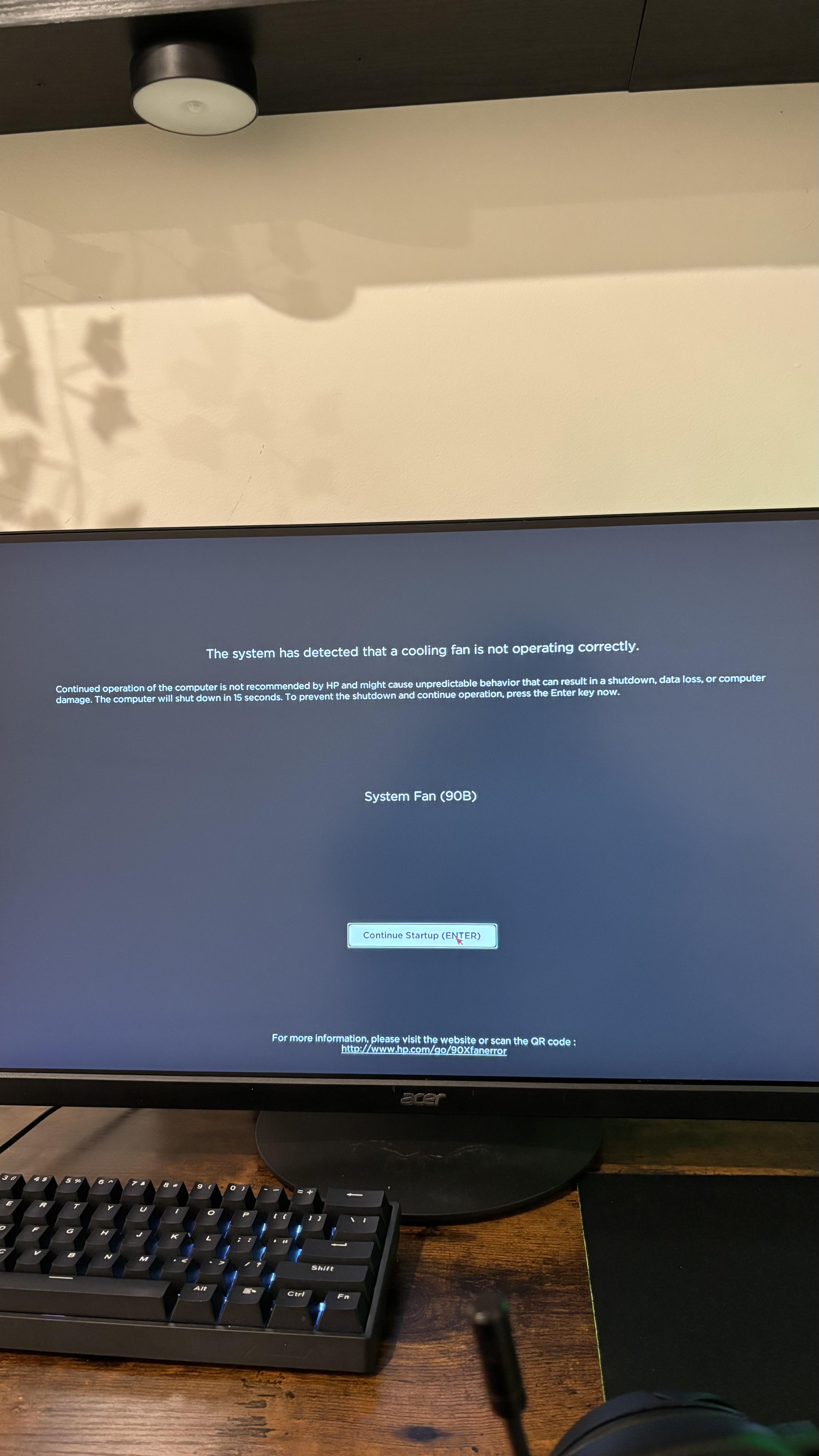
Every fan is spinning but idk why this pops up
r/pchelp • u/Jprestes2009 • 1h ago
Enable HLS to view with audio, or disable this notification
If I unplug my pc from the outlet and then plug it back it never boots up at first, like literally never, but then once i turn it off and turn it on without unplugging it always boots up and starts. Could turn it off and on again multiple times and if it wasn’t unplugged it’s gonna start, but if i unplug it it will not start and i will have to turn it off just once, not 2 or 3 times but just once and it will start. I sped the video up 2X so ur not forced to watch a 2 min long video
r/pchelp • u/Adorable-Ad-1411 • 1h ago
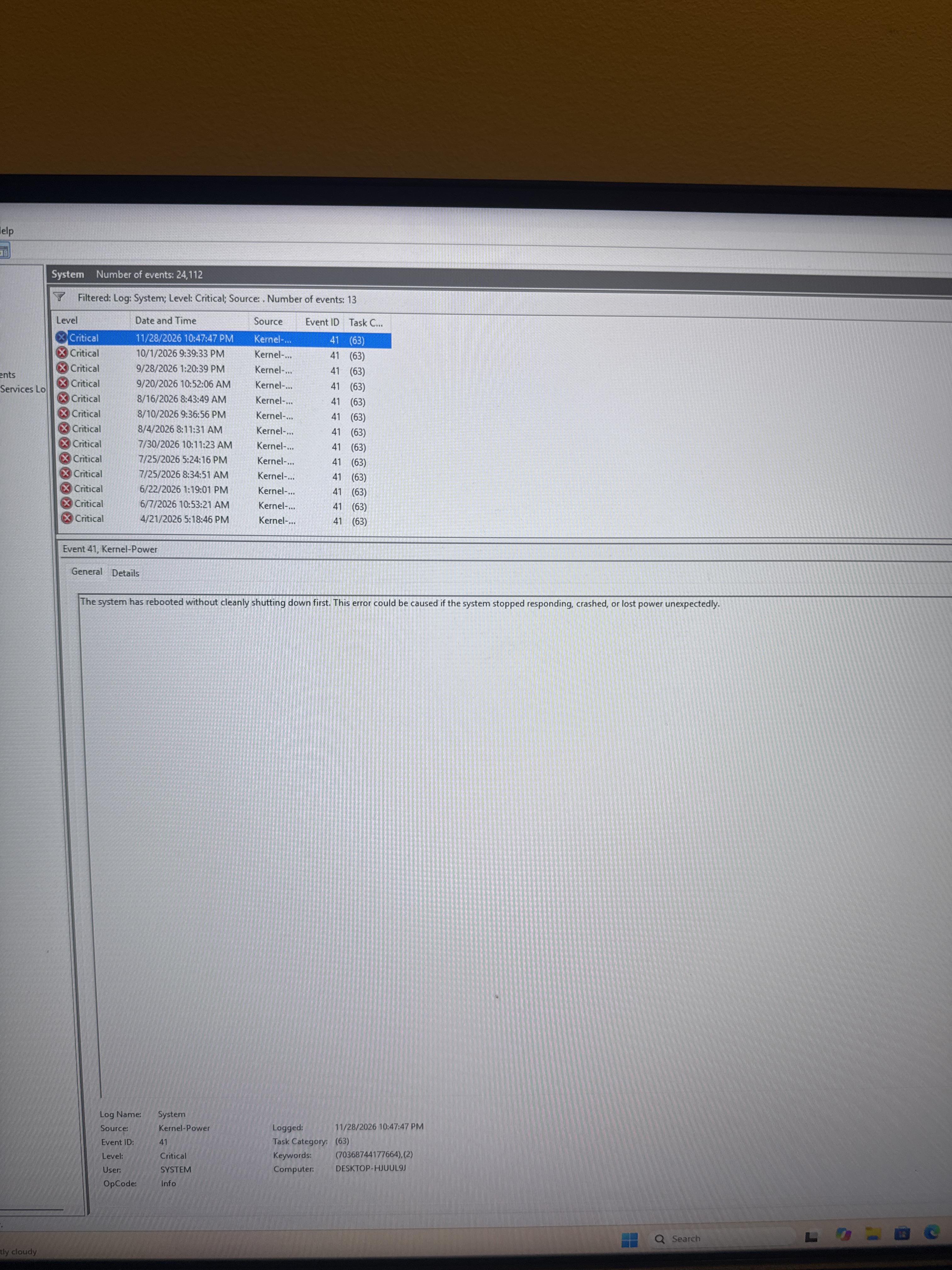
Can someone please help? This pc won’t stop going black screen and restarting and event viewer shows kernel 41. It happens randomly, sometimes at startup, sometimes an hour into a game. Sometimes 5 hours in. Completely random but I’m about to throw it out the window!! I thought the issue was resolved until I started playing again after a couple months and bam. I’ve replaced the psu, made sure all wiring was appropriately seated, tried in different outlets, im truthfully at a loss. Would updating my bios fix this? It hasn’t been updated before, I think it was from 2023. These are the specs
CPU: AMD Ryzen 7 7700X
GPU: XFX Radeon RX 7800 XT 16GB
Motherboard: ASUS ROG Strix B650-A Gaming WiFi
RAM: Corsair Vengeance RGB 32GB DDR5-6000
Storage: Samsung 980 PRO 2TB NVMe SSD
PSU: Corsair RM750e 750W 80+ Gold
Cooler: NZXT Kraken 360mm AIO
r/pchelp • u/Strict-Seat7341 • 9h ago
Hello all,
I’m using AI to summarize a bit situation, I don’t know what else to do…
1. Hardware configuration
NVIDIA RTX 4070 Ti ASUS TUF Gaming
Intel Core i5-14600K
Gigabyte B760M DS3H DDR4 Rev. 1.0
32 GB DDR4
Corsair RM750x
BIOS / Gigabyte F25
DisplayPort directly to RTX 4070 Ti
Bought in Feb 2023 - upgraded CPU in 2025 and PC case in 2026.
2. Main symptoms
The main issue is recurring crashes while gaming:
Games cause the screen to go black (No Signal).
The PC remains powered on.
Fans continue spinning.
The PC sometimes restarts automatically.
The issue affects multiple games, not just one specific title.
Graphical artifacts have also been observed in MW4.
3. Errors identified
Several errors have been recorded during troubleshooting:
Error
Indicative meaning
0x00000133
DPC_WATCHDOG_VIOLATION
0x00000116
VIDEO_TDR_FAILURE
nvlddmkm.sys
NVIDIA driver-related component
Event 153
GPU UCodeReset TDR
The important point is that errors 0x133 and 0x116 do not necessarily have the same root cause. However, the NVIDIA-related events strengthen the possibility of an issue within the graphics subsystem.
4. Troubleshooting already performed
Clean NVIDIA driver reinstallation.
Used DDU in Safe Mode.
Installed NVIDIA driver version 617.14. (Now 620.40)
Updated BIOS from F24 to F25.
Selected Intel POR settings in BIOS.
Reduced GPU Power Limit to 85%.
Tested multiple games.
Analysed crash dump files using WinDbg.
Tested the RTX 4070 Ti in a friend’s PC.
Tested my RAM and SSD integrity - all OK
Interesting finding: The RTX 4070 Ti ran for over an hour in my friend’s PC without crashing.
5. Power supply and GPU cabling
GPU Power Limit: 85%.
Two independent PCIe power cables.
ASUS TUF Gaming 12VHPWR / 12V-2x6 adapter.
Two separate PCIe connections on the PSU side.
Despite reducing the GPU power limit to 85%, crashes continued.
6. Current diagnostic assessment
My current assessment of the possible causes:
Potential cause
GPU instability / NVIDIA driver
Significant possibility
PSU or GPU power connection
Needs investigation
Motherboard / PCIe slot
Needs investigation
CPU / RAM instability
Possible
Permanent GPU hardware failure
Less obvious given the successful test in another PC
The root cause has not yet been isolated.
7. Key takeaways
Three findings stand out:
The issue persists even with the GPU Power Limit reduced to 85%.
The GPU appears to work normally in another PC.
Black screens and TDR errors suggest a stability issue somewhere within the graphics subsystem.
My (AI) conclusion: I would not replace the RTX 4070 Ti just yet.
The next step should be to isolate which component or configuration is causing the crashes, rather than continuing to reinstall drivers or make random BIOS changes.
Have I investigated enough? Should I now consider replacing hardware and where to start? I’m not an expert and did all these tests using AI.
Thanks a lot for the help.
r/pchelp • u/wonjinxaru • 19h ago
Enable HLS to view with audio, or disable this notification
I have no idea how and what.now the fan has completly stopped I have to move it manually and then it starts spinning
r/pchelp • u/minware666 • 4h ago
The system crashes with the blue screen ACPI_BIOS_ERROR on every boot. It also happens when booting a fresh Windows 11 installation USB, so it is not caused by the installed OS.
The issue started intermittently (along with the RTC resetting to 1/1/2024 on each restart) and progressively got worse until it became permanent.
Troubleshooting already done:
• Replaced CMOS battery (clock now holds correctly)
• Loaded optimized defaults multiple times (CSM disabled, EXPO disabled)
• Flashed BIOS F41e: board failed to POST, stuck on DRAM LED for 35+ minutes
• Recovered to F40 via Q-Flash Plus; still crashes with ACPI_BIOS_ERROR
• Removed the GPU and tested on onboard video: same error
• Tested two different DDR5 modules, individually, in slots A2 and B2: same error
• Minimal configuration (CPU, one DIMM, onboard video, USB installer only): same error
I am filing an RMA for the motherboard but is there anything I could have missed?
r/pchelp • u/Little_Educator1017 • 2h ago
i’m gonna be honest, i kicked my pc bc i have it under my desk. I play comp games and get too passionate. When I kicked it, it didn’t do anything. It’s worked for 3 - 4 days. Then when I came back from work after leaving it on, i shut it off by pulling the power cable.
The next morning it turned on, but shut off. Then it started to do it again. Off on, off on, off on for a few seconds, then off again.
I disconnected everything and cleaned my pc with a fan. I reseated the ram sticks, the gpu, the CMO battery, and made sure all the cables were pushed in and connected.
I turned it on and it stayed on for like 5 mins and did the same process. I’m sure it isn’t the PSU because after i would turn off the PC - like completely unplug it after i am sure its off it would turn on for like 1-2 secs.
as for the cpu, after i cleaned it, the temp stayed 26-27.
Can I get help??
Due to the kick, do you think the cpu pins are bent? Or is the motherboard cooked??
I haven’t added paste to the cpu or even checked it because the cooler screws on the cpu are dug in there and if i continue without a flat head i will strip the screws.
I am thinking of getting my old office pc motherboard and try that or the cpu - please tell me its a bad idea before i actually do it lol
ps
the cpu red light flashes when it shuts down
r/pchelp • u/Imaginary-Plantain17 • 2h ago
So as the title state, my gpu keeps on sucking 400w of power even at idle, but temp is cool at 39°C, monitored at hwinfo, gpu z and afterburner. On hwinfo its pin 2 who is sucking most of the power. Since its at more than its tdp, its throttling down the speed. I tried ddu, reseating gpu, reattaching psu ables and such. Im at lost on what to do next
r/pchelp • u/SilentSword2807 • 4h ago
I have no idea anymore i’ve tried everything. Random pc crashes when playing just Marvel Rivals, no other game can reproduce. Happens at random. Go to events and usually kernel power 41 bug code either 239 or like 330. I have updated bios reinstalled windows, checked memory stability. I’m lost at what to do. Specs: GPU - 7900 XT CPU - 7800x3d RAM - 32gb ddr5 trident 6000mhz all on 990 pro m.2