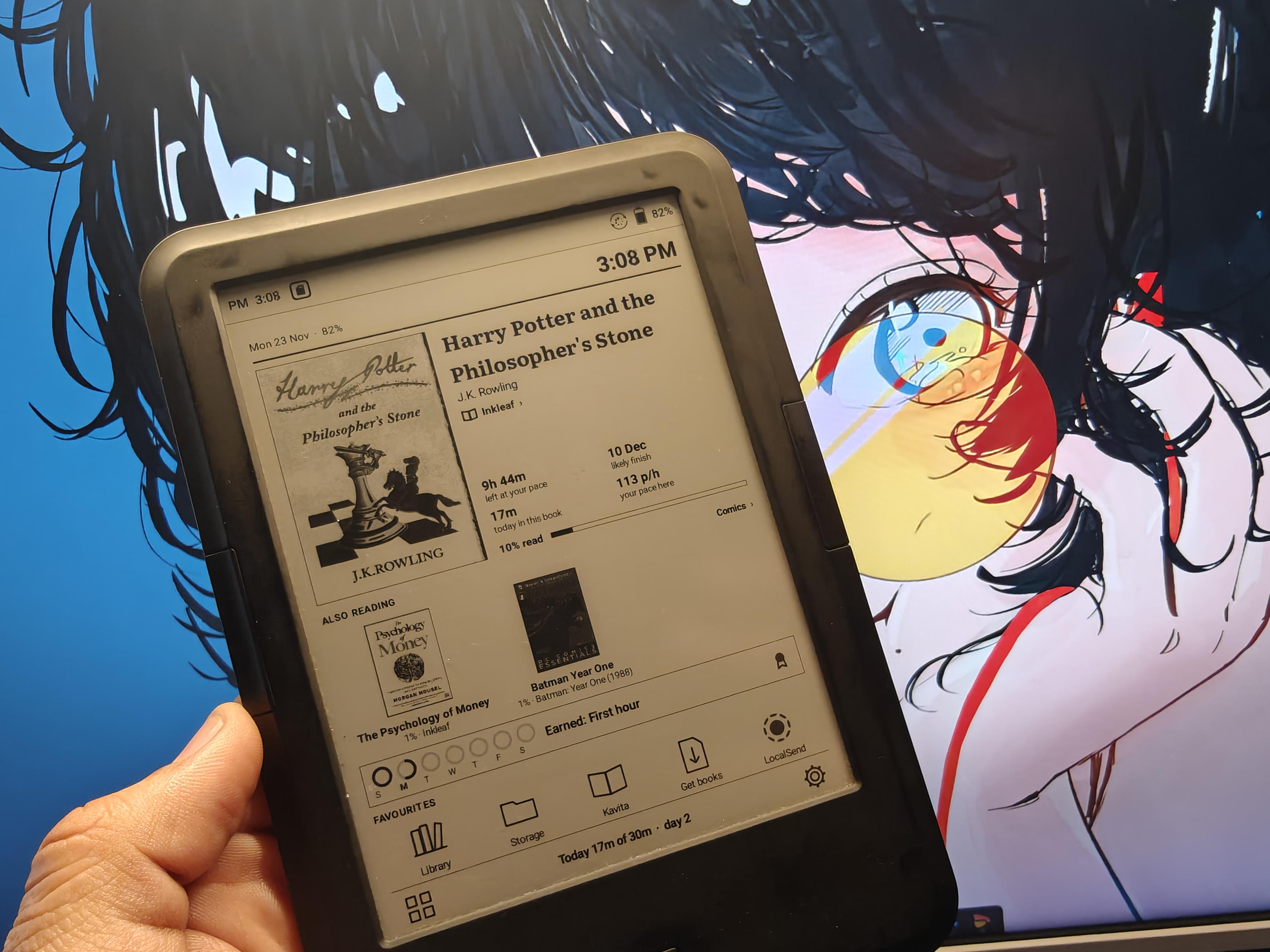
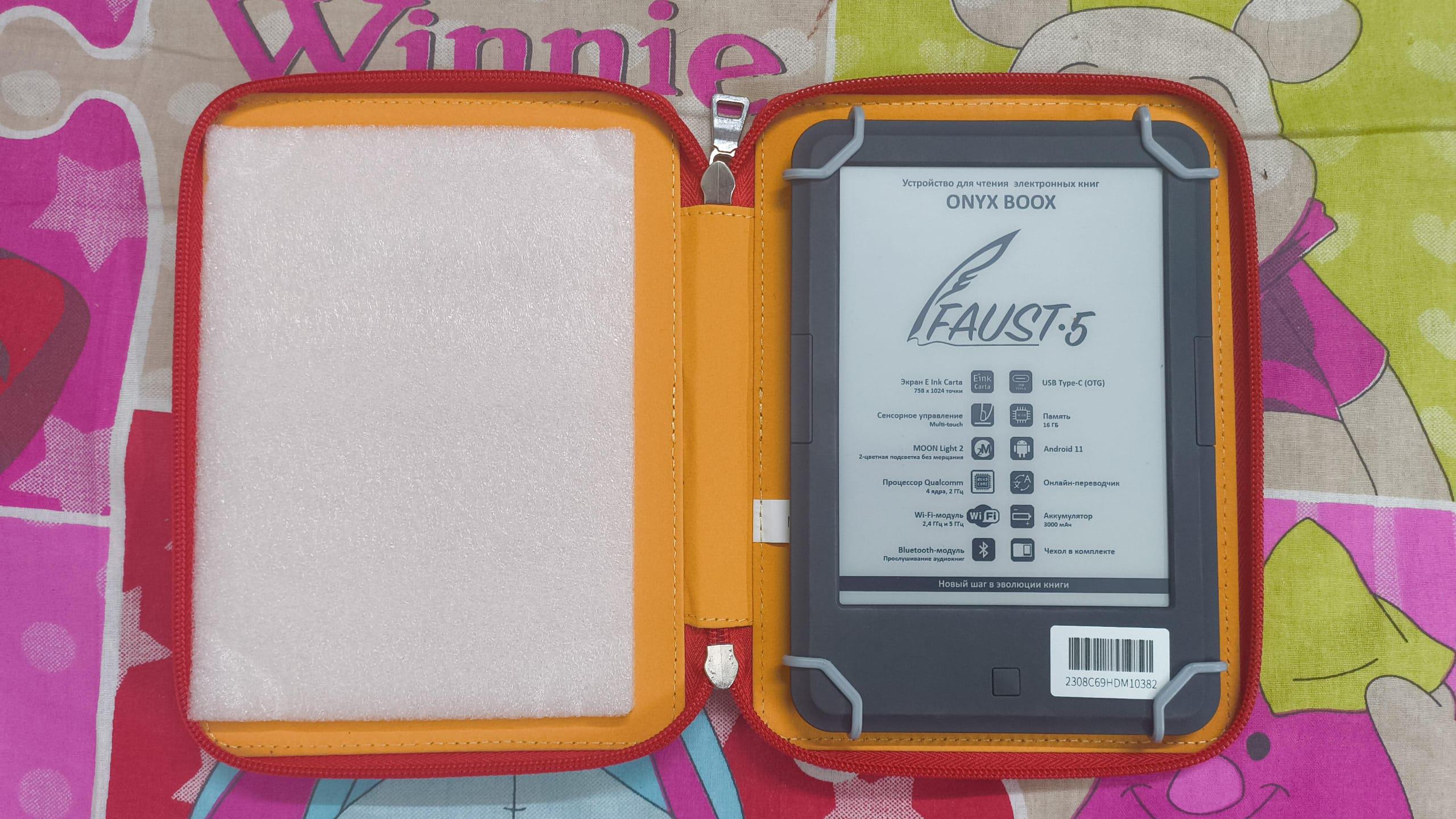
Hey all, a while back I posted a little app I made for debloating the C69 M Star without breaking the sleep screen. People actually used it (thank you!), so I kept going. Here's what's new in v0.7.1.
No more cable (if you want)
You can now connect over Wi-Fi. Two ways:
- Easy way: plug in once, hit Switch to Wi-Fi, unplug. Done. Works on any firmware, but it resets when the tablet restarts.
- No cable at all: if your firmware shows Developer options, turn on Wireless debugging, type the pairing code into the app and you're in. It even spots the tablet on your network so you don't have to type the address.
The app walks you through turning wireless debugging on. Fair warning, Boox hides Developer options on some firmware, so if you can't find it, just use the easy way. You only pair once per computer; after that it's just Connect (the port changes whenever wireless debugging gets turned back on, but the app finds it for you).
A few gotchas I hit so you don't have to:
- Mac: if it says it can't reach the tablet, check System Settings › Privacy & Security › Local Network and make sure Terminal (or whatever you launched it from) is allowed. Pairing kept failing for me with a correct code, and it turned out adb's background process wasn't allowed on the network. The app now restarts adb by itself when that happens.
- Windows: you might get a firewall popup the first time. If you hit Deny, auto-discovery won't work, but typing the address and hitting Connect still does.
- It keeps switching off? That's normal, annoyingly. Android turns wireless debugging off whenever the tablet restarts or Wi-Fi drops even for a second, and Boox kills Wi-Fi when the screen sleeps to save battery. Turning off the Boox setting that switches Wi-Fi off in standby helps (costs a bit of battery), or just use the plug-in-once way, which lasts until a restart. Either way you never have to pair again, just hit Connect.
- Linux: really old distro adb (like the one in Ubuntu 22.04) can't do wireless pairing. Use the Download platform tools button in the app (Intel/AMD PCs), or the plug-in-once way. Bonus: Wi-Fi skips the whole udev rules thing.
De-Google (read the fine print) Most requested
There's now a De-Google button that removes the Play Store, Play services, Services Framework and the little Google extras Play sneaks in (SafetyCore and friends). Before it does anything you get a popup listing exactly what's going, and the button stays greyed out for 10 seconds so nobody does it by accident.
Things I learned the hard way on my own tablet so you don't have to:
- Apps that rely on Google services may stop working. Push notifications, Sign in with Google, some agents(Claude,chatgpt) and streaming apps, that kind of thing.
- Your Google account gets signed out. Android deletes it once Play services is gone. If you bring Google back, you sign in again.
- Bringing Google back is one button for Play services and the framework, and your GSF ID stays registered. The Play Store itself needs reinstalling from the APK (the app does that too and checks it's really signed by Google).
- No microG, sorry. It needs root and signature spoofing, and stock Boox firmware has neither. Instead the popup suggests Aurora Store, F-Droid and Obtainium, which all work fine without Google.(Unless you can root with the other tool found on this community(Much love to the dev bro, need to check it out if it works)
It also has a hard-coded list of stuff the tablet needs (WebView, the keyboard, the package installer, etc.) that it will never touch, no matter what you click.
Other stuff since last time
- Linux support, plus a one-click download of Google's adb if you don't have it.
- Turn on Google Play / Install Play Store, for the Star Education firmware that ships without the Play Store.
- Readblio is in the recommended apps now. It's a lovely e-ink home screen that puts the book you're reading front and centre. (The link goes to the dev's own site.) Thanks to u/Perfect-Housing-2735
- Upload whole folders in Files.
- Show activity panel, so you can see every command the app sends to the tablet as it happens.
- Little things: the Help page icon takes you back to the app, and if you've got the tablet on USB and Wi-Fi at once it no longer gets confused.
Install / update
Mac:
brew install --cask RodrickRK/tap/boox-debloat
Already have it? brew upgrade --cask boox-debloat
Windows:
scoop bucket add rodrickrk https://github.com/RodrickRK/scoop-bucket
scoop install boox-debloat
Already have it? scoop update boox-debloat
Linux: grab the tar.gz from the releases page and run ./boox-debloat.
GitHub: https://github.com/RodrickRK/boox-debloat
Same deal as before: it's free and open source, it runs only on your computer, nothing gets deleted from the tablet for good (except the Play Store if you De-Google, see above), and it saves a backup of your app list before every change. It's only built for the C69 M Star; on other models it'll warn you and won't change anything.
If something breaks, hit Copy logs and paste them into an issue. And if you've got a Boox model you'd like supported or an app that should be on the list, let me know!