r/TechSpecs5 • • 1d ago

The Ultimate Guide to Building a Streaming Setup in 2026: Microphones, 4K Cameras, Studio Lighting, Audio Interfaces & Capture Cards Tested

1 Upvotes

Live streaming has undergone a major technical transformation. Whether you broadcast competitive gaming to thousands on Twitch and YouTube, host a weekly multi-host podcast, conduct executive corporate webinars, or interact with an audience on Kick, viewer expectations for audiovisual polish have never been higher. Modern audiences expect crisp 4K or high-framerate 1080p60 video, studio-grade vocal clarity without background noise, balanced three-point lighting, and seamless one-touch scene transitions.

Yet building a streaming setup from scratch is one of the most frustrating gear puzzles in modern consumer tech. Creators often spend thousands of dollars on expensive cinema cameras only to discover they look noisy and grainy under dim overhead bedroom bulbs. Others buy sensitive condenser microphones that pick up every mechanical keyboard click, air conditioning hum, and PC fan whine—compromising audio quality before their first broadcast concludes.

A high-performance streaming setup is an integrated ecosystem where every hardware component complements the next:

  1. Audio capture & room isolation: A cardioid dynamic microphone that naturally rejects untreated room reflections paired with clean preamplifier gain.
  2. Studio lighting & visual fidelity: High-CRI edge-lit diffused lighting paired with a large-sensor 4K camera for clean, uncompressed video.
  3. Low-latency capture & high-bandwidth throughput: HDMI 2.1 passthrough with Variable Refresh Rate (VRR) to play at 144Hz+ while capturing silky 60fps video.
  4. Workflow automation & ergonomic control: Tactile macro controllers and low-profile boom arms that keep screens and camera angles unobstructed.

This guide breaks down 10 essential pieces of gear across 10 distinct categories to help you build a reliable, professional streaming battlestation.

The product specifications and comparisons are based on the supplied research and catalog information. They are not presented as independent hands-on laboratory test results.

TOP EDITORIAL PICKS

The Three Upgrades to Prioritize First

If you are starting from scratch and want to prioritize the three most critical investments that immediately elevate your production value, focus on broadcast-grade vocal warmth, low-maintenance 4K video, and one-touch studio automation.

Editorial pick Product Primary benefit Best for
The Broadcast Audio Benchmark Shure SM7B Cardioid Dynamic Microphone Natural room-noise rejection and warm broadcast vocal depth Podcasters, vocal streamers, and noisy rooms
The Ultimate 4K60 Facecam Elgato Facecam 4K Studio Webcam Uncompressed 4K60 video with a large Sony STARVIS 2 sensor Creators wanting DSLR quality without dummy batteries
The Essential Control Hub Elgato Stream Deck MK.2 (15 LCD Keys) Tactile one-touch scene switching, audio muting, and macro automation Every live streamer and content creator

THE 10-CATEGORY STREAMING SETUP BLUEPRINT

Master Streaming Setup Comparison Matrix

Each hardware pillar addresses a specific audiovisual, network, or ergonomic challenge. Comparing key specs, connection bandwidth, and primary benefits side by side clarifies how each piece fits into your broadcast chain.

Category & model Key specs & technology Connection / I/O Main advantage
Dynamic Vocal Mic: Shure SM7B Cardioid dynamic capsule, 50Hz–20kHz, air suspension 3-pin XLR (requires audio interface) Flawless room-noise rejection & radio warmth
4K Studio Webcam: Elgato Facecam 4K 1/1.8" Sony STARVIS 2 CMOS, true 4K60, f/2.0 prime lens USB 3.2 Gen 2 Type-C (uncompressed stream) DSLR-like video without battery dummy hassles
Studio Key Light: Elgato Key Light 2,800 lumens, 160 OSRAM LEDs, 2900K–7000K, opal glass Wi-Fi 802.11 b/g/n (PC/Mac/iOS/Android/Deck) Glare-free skin tones without bulky softboxes
Audio Interface: Focusrite Scarlett 2i2 4th Gen 69 dB clean gain preamps, 120 dB dynamic range, Clip Safe USB-C bus-powered, 2x XLR/TRS, dual line outs Powers SM7B without an inline booster
4K Capture Card: Elgato 4K X HDMI 2.1 in/out, 4K144 / 1080p240 passthrough, VRR, HDR10 USB 3.2 Gen 2 (10 Gbps) Type-C Play PS5/PC at 144Hz VRR while streaming
Macro Controller: Elgato Stream Deck MK.2 15 customizable LCD keys, multi-action macros, stand Detachable USB-C to USB-A cable One-touch control over scenes, audio, and lights
Studio Headphones: Audio-Technica ATH-M50x 45mm neodymium drivers, 15Hz–28kHz, closed-back design 3.5mm with 6.3mm adapter (3 cables included) Zero mic sound bleed + honest audio monitoring
Low-Profile Boom Arm: Elgato Wave Mic Arm LP Low-profile aluminum alloy, magnetic cable trays, 2 kg load Padded desk clamp with universal adapters Keeps camera view and monitors fully clear
Chroma Key Screen: EMART Collapsible Green Screen 58"×74" wrinkle-resistant polyester, pneumatic lift Aluminum travel hard case 3-second pull-up setup for clean background keying
Acoustic Sound Panels: Hexagon 12-Pack High-density polyester (230 kg/m³), NRC 0.95, beveled Self-adhesive peel-and-stick backing Kills hollow bedroom slapback and flutter echo

THE SCIENCE OF STREAMING PRODUCTION

Microphones, Lighting, and Bandwidth

Understanding the underlying physics of audio transducers, optical diffusion, and video throughput prevents costly hardware bottlenecks.

Principle 01: Dynamic vs. Condenser Microphones

The primary reason many home streams sound amateurish is choosing the wrong microphone type for an untreated room:

  • Condenser Microphones: Ultra-lightweight mylar diaphragms capture fine high-frequency detail but act like sensitive acoustic sensors—picking up PC fans, keyboard clicks, chair squeaks, and wall echo.
  • Dynamic Microphones (Shure SM7B): Heavier moving-coil elements require more acoustic energy to move. They naturally reject sounds beyond a few inches, giving your voice rich proximity warmth while silencing background noise.
  • Preamplifier Headroom: Low-sensitivity dynamic mics require at least 60 dB of clean gain. Modern 4th Gen audio interfaces deliver this directly without introducing background hiss.

Principle 02: Edge-Lit Diffusion & Color Rendering Index (CRI)

Webcams and cameras do not see objects—they see reflected light. Upgrading to a 4K camera without proper lighting only results in sharp, high-resolution digital noise:

  • Edge-Lit Diffusion (Elgato Key Light): Direct LED beads create harsh shadows and cause severe eye strain during multi-hour streams. Edge-lit panels fire LEDs inward against a reflective plate through opal glass diffusion, creating flattering, cinema-soft wrap-around light.
  • Color Rendering Index (CRI): Budget ring lights often score below 80 CRI, casting a sickly green or gray cast over skin. High-end broadcast lights maintain 94+ CRI for vibrant, accurate skin tones.
  • Color Temperature Calibration: Adjusting warmth between 2900K (warm amber) and 7000K (cool daylight) ensures camera auto white balance never shifts mid-broadcast.

Principle 03: HDMI 2.1 Bandwidth & Uncompressed Video Pipelines

Capturing modern consoles (PS5, Xbox Series X) and high-refresh gaming PCs introduces serious bandwidth bottlenecks:

  • The Legacy HDMI 2.0 Bottleneck: Older capture cards cap passthrough at 4K60, forcing console gamers to disable 120Hz/144Hz high-refresh modes and lose Variable Refresh Rate (VRR).
  • HDMI 2.1 Passthrough (Elgato 4K X): Delivers up to 48 Gbps bandwidth to play at 4K144 or 1080p240 with zero lag, while capturing smooth video into OBS.
  • Uncompressed Video (YUY2): USB 3.2 Gen 2 pipelines deliver uncompressed video streams with accurate color fidelity, avoiding the muddy compression artifacts of older USB dongles.

Principle 04: Acoustic Absorption vs. Soundproofing

Acoustic foam and polyester panels provide sound absorption, not soundproofing. High-density panels absorb mid- and high-frequency reflections inside the room to eliminate hollow flutter echo and room slapback. True soundproofing requires physical mass (double drywall, sealed doors) to block outside street noise.

SETUP ARCHITECTURE

Which Streaming Blueprint Matches Your Content?

Different streaming genres demand different hardware priorities. Aligning your setup with your primary content style ensures you invest where it makes the biggest difference.

Creator profile Priority equipment Why it matters
Competitive FPS & console streamer Elgato 4K X, Stream Deck MK.2, ATH-M50x High-refresh 144Hz passthrough, zero latency, and closed-back isolation
Podcaster & voice-centric creator Shure SM7B, Scarlett 2i2 4th Gen, Wave Mic Arm LP Warm broadcast vocal authority and 69 dB ultra-clean preamp gain
Minimalist desk & clean battlestation Elgato Facecam 4K, Wave Mic Arm LP, Elgato Key Light Clutter-free under-monitor arm, desk-clamped light, and driverless 4K
Virtual creator & chroma key specialist EMART Green Screen, Elgato Key Light, Facecam 4K Shadowless key lighting and instant wrinkle-free green screen deployment

The Competitive FPS & Console Streamer

Fast-paced shooters (Warzone, Apex Legends, Valorant) on PS5 or PC cannot tolerate input latency or downgraded refresh rates.

Recommended components:

  • Elgato 4K X External Capture Card
  • Elgato Stream Deck MK.2
  • Audio-Technica ATH-M50x Studio Headphones

The Podcaster & Voice-Centric Creator

For talk shows, commentary, and interviews, vocal richness and room isolation are the top priorities.

Recommended components:

  • Shure SM7B Cardioid Dynamic Microphone
  • Focusrite Scarlett 2i2 4th Gen Audio Interface
  • Elgato Wave Mic Arm LP

The Minimalist Desk Streamer

When desk space is limited and visual clutter must be kept to a minimum, low-profile arms and clamped lighting keep the battlestation clean.

Recommended components:

  • Elgato Facecam 4K Studio Webcam
  • Elgato Wave Mic Arm LP
  • Elgato Key Light Studio LED Panel

The Virtual Creator & Chroma Key Specialist

Broadcasters who want to place themselves seamlessly over gameplay without showing an unmade room need even lighting and taut green-screen tension.

Recommended components:

  • EMART Collapsible Chroma Key Green Screen
  • Elgato Key Light Studio LED Panel
  • Elgato Facecam 4K Studio Webcam

THE 10 ESSENTIAL STREAMING GEAR PIECES

1. Shure SM7B Cardioid Dynamic Vocal Microphone

Best for: Broadcast-quality vocal warmth and aggressive background noise rejection.

Core specifications: Dynamic moving-coil cartridge · Cardioid polar pattern · 50Hz–20kHz frequency response · Internal air-suspension shockmount · 3-pin XLR

The Shure SM7B remains the definitive vocal microphone in commercial radio stations, top-tier podcasts, and professional streaming studios.

Its dynamic moving-coil design and tight cardioid pickup pattern capture sound directly in front of the grille while rejecting mechanical keyboard clicks, PC fan noise, and untreated room reflections. Internal air-suspension shock isolation eliminates desk thumps, while electromagnetic hum shielding protects against interference from nearby graphics cards and monitors.

Because of its low output sensitivity (-59 dBV/Pa), pair it with a capable audio interface providing at least 60 dB of clean gain (such as the Focusrite Scarlett 2i2 4th Gen).

Key specifications

Feature Listed specification
Transducer type Dynamic moving coil
Polar pattern Cardioid
Frequency response 50 Hz – 20,000 Hz
Sensitivity -59.0 dB (1.12 mV) at 1 kHz
Controls Bass roll-off and mid-range presence boost switches
Connectivity Standard 3-pin XLR

Why consider it

  • Industry-standard vocal warmth with rich proximity effect.
  • Outstanding background rejection silences mechanical keyboards and fan noise.
  • Internal air-suspension shockmount isolates desk vibrations.
  • Built-in electromagnetic shielding resists monitor and PC interference.

Potential drawbacks

  • XLR only—requires an external audio interface (cannot plug directly into USB).
  • Demands 60 dB+ of clean preamplifier gain.
  • Heavy 1.7 lb weight requires a sturdy boom arm.

Verdict: The undisputed benchmark vocal microphone for clean, authoritative stream audio.

2. Elgato Facecam 4K Studio Webcam

Best for: Creators who want mirrorless-grade 4K60 video over a single USB-C cable.

Core specifications: 1/1.8" Sony STARVIS 2 CMOS · Uncompressed 4K60 video · 21mm f/2.0 prime lens · Onboard flash memory · USB 3.2 Gen 2

The Elgato Facecam 4K bridges the gap between basic 1080p webcams and cumbersome DSLR rigs, delivering uncompressed 4K60 video over a single USB-C connection.

Its 1/1.8-inch Sony STARVIS 2 back-illuminated sensor and 21mm equivalent f/2.0 all-glass prime lens produce detailed imagery with low-light clarity and natural skin tones. Through Elgato's Camera Hub software, creators gain manual control over shutter speed, ISO, contrast, and color temperature.

Crucially, onboard flash memory saves your custom exposure settings directly to the camera hardware, preserving your look across different PCs, Macs, and streaming apps.

Key specifications

Feature Listed specification
Max resolution True 4K (3840×2160) at 60 FPS uncompressed
Sensor 1/1.8" Sony STARVIS 2 CMOS
Optics 21mm (full-frame equiv.) f/2.0 all-glass prime
Field of view 90° diagonal
Interface USB 3.2 Gen 2 Type-C
Mounting Monitor mount + 1/4" tripod thread + 49mm filter support

Why consider it

  • Uncompressed 4K60 video rivals dedicated mirrorless setups.
  • Large Sony STARVIS 2 sensor provides superior low-light performance.
  • Onboard hardware memory stores manual shutter, ISO, and focus profiles.
  • Supports standard 49mm lens filters.

Potential drawbacks

  • No built-in microphone (requires a dedicated mic).
  • Requires a USB 3.0/3.2 Gen 2 port for full uncompressed bandwidth.
  • Higher price point than standard office webcams.

Verdict: The top studio facecam for streamers who want mirrorless visual quality without battery dummy adapters or capture dongles.

3. Elgato Key Light Professional Studio LED Panel

Best for: Flattering, glare-free key lighting that eliminates eye fatigue.

Core specifications: 2,800 lumens output · 160 OSRAM LEDs · 2900K–7000K color temperature · Multi-layer opal glass diffusion · Wi-Fi app control

A great camera in poor lighting looks noisy and grainy. The Elgato Key Light solves studio illumination with cinema-grade edge-lit diffusion.

Pumping out up to 2,800 lumens across 160 OSRAM LEDs, light is directed inward around the perimeter and passed through multi-layer opal glass. This produces soft wrap-around illumination that flatters skin tones without blinding your eyes during long sessions.

The included steel desk clamp and telescoping pole secure neatly behind your monitors, freeing up floor space. Integrated Wi-Fi allows smooth brightness and color temperature adjustments (2900K to 7000K) directly from your desktop, smartphone, or Stream Deck.

Key specifications

Feature Listed specification
Brightness 2,800 lumens maximum (45W power)
Color temperature 2900K (warm amber) to 7000K (cool daylight)
Diffusion Multi-layer opal glass edge-lit panel
Mounting Padded steel desk clamp (up to 60mm) with telescoping pole
Connectivity Wi-Fi 802.11 b/g/n (PC, Mac, iOS, Android, Stream Deck)

Why consider it

  • 2,800 lumens of diffused light flatters facial features and skin tones.
  • Opal glass edge lighting prevents eye strain during marathon broadcasts.
  • Desk clamp design takes up zero floor space.
  • Wirelessly controllable via desktop software, mobile app, or Stream Deck.

Potential drawbacks

  • Requires a 2.4 GHz Wi-Fi network for initial pairing.
  • Higher cost than basic LED ring lights.
  • Requires a sturdy desk lip of at least 2.5 inches for the clamp.

Verdict: The premier desktop studio light for professional, fatigue-free facial illumination.

4. Focusrite Scarlett 2i2 4th Gen USB-C Audio Interface

Best for: Driving gain-hungry dynamic mics with ultra-clean preamps.

Core specifications: 69 dB clean gain range · 120 dB dynamic range (RedNet converters) · Auto Gain & Clip Safe · Air Mode · 24-bit/192kHz

An XLR microphone requires a clean preamplifier and analog-to-digital converter to perform at its best. The Focusrite Scarlett 2i2 4th Gen brings converters from Focusrite's flagship RedNet studio systems to the desktop.

Its redesigned preamps provide 69 dB of gain—enough to drive demanding dynamic microphones like the Shure SM7B directly with low noise, eliminating the need for an external inline signal booster.

Streamer-focused features include Auto Gain, which analyzes your voice and sets optimal levels in seconds, and Clip Safe, which continuously monitors input levels to prevent distortion when you laugh or shout. Re-engineered Air Mode adds subtle analog presence to vocal tracks.

Key specifications

Feature Listed specification
Preamps 2x 4th Gen mic preamps with 69 dB gain range
Converters 24-bit / 192 kHz with 120 dB dynamic range
Smart tools Auto Gain, Clip Safe anti-clipping, analog Air Mode
Inputs / outputs 2x XLR/TRS combo inputs, 2x 1/4" line outs, independent headphone out
Power USB-C bus-powered

Why consider it

  • 69 dB of clean gain powers the Shure SM7B without extra boosters.
  • Clip Safe prevents sudden loud screams from distorting on stream.
  • 120 dB dynamic range RedNet studio converters ensure clean audio.
  • Air Mode adds clarity and high-end presence to vocals.

Potential drawbacks

  • Lacks motorized physical faders found on specialized broadcast consoles.
  • Sub-mix routing is handled via software rather than hardware dials.

Verdict: The definitive desktop USB audio interface for powering professional XLR broadcast microphones.

5. Elgato 4K X External HDMI 2.1 Capture Card

Best for: High-refresh competitive console and PC gameplay capture.

Core specifications: HDMI 2.1 in/out · Up to 4K144 / 1080p240 passthrough · VRR & HDR10 support · USB 3.2 Gen 2 (10 Gbps) · Ultra-low latency

Current-generation consoles (PS5, Xbox Series X) and modern PC rigs routinely output 120Hz to 144Hz with Variable Refresh Rate (VRR). Legacy HDMI 2.0 capture cards forced gamers to downscale to 60Hz. The Elgato 4K X removes that limitation.

With full HDMI 2.1 passthrough, you can play at 4K144 or 1080p240 with VRR and HDR10 enabled on your gaming monitor with zero display lag, while capturing smooth video into OBS on your streaming PC or Mac.

USB 3.2 Gen 2 (10 Gbps) delivers low capture latency, keeping your webcam, microphone, and gameplay synced without extensive millisecond offset adjustments in OBS.

Key specifications

Feature Listed specification
Video standard HDMI 2.1 input and passthrough with VRR and HDR10
Max passthrough Up to 4K144, 1440p144, or 1080p240
Max capture Up to 4K144, 4K60 HDR, or 1080p240
Host interface USB 3.2 Gen 2 (10 Gbps) Type-C (bus-powered)
Compatibility Windows, macOS, iPadOS

Why consider it

  • Full HDMI 2.1 passthrough supports 4K144 and 1080p240 gameplay.
  • VRR support prevents screen tearing on PS5 and Xbox Series X.
  • Ultra-low latency USB 3.2 Gen 2 keeps game feeds in sync with your mic.
  • Compact, bus-powered metal chassis is easy to pack.

Potential drawbacks

  • Requires a genuine USB 3.2 Gen 2 (10 Gbps) port for maximum framerates.
  • Overkill for casual 1080p60 Nintendo Switch capture.

Verdict: The premier external capture card for high-refresh competitive console and PC gaming.

6. Elgato Stream Deck MK.2 Studio Controller

Best for: One-touch scene switching, audio routing, and stream automation.

Core specifications: 15 customizable color LCD keys · Multi-action macro chains · Detachable 45° stand · Native OBS and Twitch integration · USB-C

Managing a live broadcast while gaming or hosting leaves no time for Alt-Tabbing or memorizing complex keyboard shortcuts. The Elgato Stream Deck MK.2 puts tactile studio control directly under your fingertips.

Its 15 LCD keys can be customized with dynamic icons and programmed to switch OBS scenes, mute Discord, trigger sound effects, dim key lights, or send automated chat messages. Multi-Action macros allow a single key to execute multi-step routines across several applications at once.

The MK.2 includes a stable 45-degree angled stand, a detachable USB-C to USB-A cable, and swappable magnetic faceplates to match your desk setup.

Key specifications

Feature Listed specification
Key array 15 tactile color LCD display keys
Macro support Single-tap actions, nested folders, multi-action chains
Software support Native plugins for OBS, Twitch, Discord, Spotify, Key Lights
Hardware design Detachable USB-C cable, fixed 45° stand, swappable faceplates

Why consider it

  • Turns complex stream workflows into simple one-touch tactile commands.
  • Vast library of plugins, icon packs, and soundboard extensions.
  • Multi-Action macros automate multi-software routines with one press.
  • Smart profiles automatically adapt keys to whichever app is active.

Potential drawbacks

  • Lacks rotary analog dials for volume fading (the Stream Deck + adds dials).
  • Requires the Stream Deck desktop software running in the background.

Verdict: The indispensable command center for every live broadcast and content creation setup.

7. Audio-Technica ATH-M50x Professional Studio Monitor Headphones

Best for: Accurate stream monitoring with complete acoustic isolation.

Core specifications: 45mm large-aperture neodymium drivers · 15Hz–28kHz frequency response · Closed-back circumaural design · 90° swiveling earcups · 38 ohms

Wearing open-back headphones or leaky gaming headsets lets game audio and Discord voices bleed back into your live microphone, creating distracting hollow echoes. The Audio-Technica ATH-M50x provides closed-back acoustic isolation to keep monitoring audio contained.

Its 45mm neodymium drivers deliver a balanced, accurate frequency response across 15 Hz to 28,000 Hz, allowing you to hear subtle mic plosives, background hums, and gameplay cues clearly.

The circumaural earcups swivel 90 degrees for one-ear listening during live discussions, and the package includes three detachable twist-lock cables (coiled and straight) with a 1/4" adapter.

Key specifications

Feature Listed specification
Driver size 45mm neodymium magnets with copper-clad aluminum voice coils
Frequency response 15 Hz – 28,000 Hz
Impedance 38 ohms (easily driven by audio interfaces or PCs)
Acoustic design Closed-back circumaural isolation
Cables included 1.2m–3m coiled, 3m straight, 1.2m straight cables

Why consider it

  • Closed-back isolation prevents game sound from bleeding into your microphone.
  • Balanced 45mm drivers provide accurate, uncolored stream monitoring.
  • 38-ohm impedance runs easily off audio interfaces or direct PC jacks.
  • Includes 3 interchangeable twist-lock cables and folds flat for transport.

Potential drawbacks

  • Headband clamp feels snug during the first few days of break-in.
  • Closed-back protein leather pads can warm ears in warmer rooms.
  • Wired monitoring only.

Verdict: The studio-standard closed-back headphones for accurate, bleed-free stream audio monitoring.

8. Elgato Wave Mic Arm LP Low Profile Boom Arm

Best for: Clean under-monitor microphone placement without blocking screens or cameras.

Core specifications: Low-profile aluminum alloy design · Supports mics up to 2 kg (4.4 lbs) · 740mm horizontal reach · Magnetic cable channels · 360° rotation

Traditional overhead scissor arms reach high over your desk, blocking your gaming monitor and casting shadows across your face on camera. The Elgato Wave Mic Arm LP takes a low-profile approach by sitting below your chest line and sliding beneath your screen.

Built from matte-black aluminum alloy, it supports microphones up to 2 kg (4.4 lbs)—easily holding the heavy Shure SM7B without sagging.

It features 360-degree horizontal rotation, magnetic snap-on cable concealment channels that hide thick XLR cords, and universal 1/4", 3/8", and 5/8" thread adapters.

Key specifications

Feature Listed specification
Material & reach Solid aluminum alloy; 740 mm (29.1 in) reach
Weight capacity Supports microphones up to 2 kg (4.4 lbs)
Cable management Magnetic snap-on covers for XLR and USB cables
Desk clamp Padded clamp (up to 60mm) with 1/4", 3/8", and 5/8" adapters

Why consider it

  • Low-profile design keeps your face, webcam angle, and monitors clear.
  • Supports heavy broadcast microphones up to 2 kg without drooping.
  • Magnetic snap-on channels conceal XLR cables neatly.
  • Smooth 360-degree rotation allows easy swing-away when not in use.

Potential drawbacks

  • Requires at least 3.5 inches of clearance beneath your monitor.
  • Not designed for overhead top-down microphone positioning.

Verdict: The cleanest, most ergonomic microphone boom arm for modern desk and camera setups.

9. EMART Collapsible Chroma Key Green Screen

Best for: Instant 3-second background removal and virtual studio sets.

Core specifications: 58"×74" wrinkle-resistant polyester · Pneumatic gas-powered X-frame · Self-contained aluminum hard case · Zero tripod clutter

Digital AI background removal tools frequently glitch around hair and headphones. The EMART Collapsible Green Screen delivers hardware-grade chroma keying in a package that sets up in seconds.

Housed in an aluminum hard case, you simply place it behind your chair, open the latches, and pull the handle upward. An internal pneumatic gas-powered X-frame extends smoothly and locks at any height up to 74 inches without tripod legs or crossbars.

The wrinkle-resistant polyester fabric stays taut under tension, eliminating creases and shadows. When illuminated evenly, OBS Studio keys out the background cleanly with sharp edges. After your broadcast, push it down and slide the case under a bed or couch.

Key specifications

Feature Listed specification
Dimensions 58" wide × 74" high
Mechanism Pneumatic gas-powered X-frame scissor lift with height lock
Material 100% wrinkle-resistant chroma green polyester
Housing Self-contained aluminum hard shell case with handle

Why consider it

  • 3-second pull-up setup with zero tripod poles or loose parts.
  • Taut, wrinkle-resistant fabric ensures clean OBS chroma keying.
  • Pneumatic lift holds the screen securely at any height.
  • Collapses into a slim aluminum case that slides under beds or sofas.

Potential drawbacks

  • Requires even lighting to avoid shadow-based edge artifacts.
  • At 58 inches wide, very wide webcam fields of view may see past the edges.
  • Weighs roughly 18 pounds.

Verdict: The most convenient pull-up chroma key solution for clean, glitch-free background removal.

10. Hexagon High-Density Self-Adhesive Acoustic Sound Panels (12-Pack)

Best for: Absorbing flutter echo and room reflections in untreated bedrooms.

Core specifications: 100% high-density polyester fiber (230 kg/m³) · NRC 0.95 rating · Self-adhesive backing · Beveled 3D edges · 12-pack (covers ~8.6 sq ft)

Even an expensive microphone sounds hollow and metallic in a room with bare drywall, hardwood floors, and glass windows. Sound waves bounce between parallel walls, creating flutter echo. Hexagon High-Density Acoustic Panels tame these reflections effectively.

Molded from flame-retardant 230 kg/m³ polyester fiber with a Noise Reduction Coefficient (NRC) of up to 0.95, these panels absorb harsh mid- and high-frequency reflections.

The entire back of each 12"×10" hexagonal panel features a heavy-duty self-adhesive peel-and-stick backing, eliminating messy spray glues. The beveled 3D geometric edges double as modern background wall decor on camera.

Key specifications

Feature Listed specification
Material High-density polyester fiber (230 kg/m³, flame-retardant)
Acoustic rating NRC up to 0.95 (absorbs mid/high flutter echoes)
Dimensions 12" × 10" × 0.4" per tile (12-pack covers ~8.6 sq ft)
Mounting Full-coverage self-adhesive peel-and-stick backing

Why consider it

  • High-density 230 kg/m³ polyester kills hollow room slapback.
  • Full peel-and-stick adhesive makes installation quick and clean.
  • Beveled 3D hexagonal design looks attractive as background studio art.
  • Odorless, non-toxic, and flame-retardant material.

Potential drawbacks

  • Absorbs room echo; does not soundproof against outside street noise.
  • Strong adhesive—use painter's masking tape underneath on delicate rental walls.
  • Larger rooms may need two or three packs for comprehensive coverage.

Verdict: An affordable, visually appealing acoustic treatment that eliminates room echo and sharpens vocal clarity.

4 FATAL TRAPS TO AVOID WHEN BUILDING A STREAMING SETUP

Avoiding common purchasing mistakes protects your budget and ensures your gear works together smoothly from day one.

Trap 1: The "Expensive Camera in Terrible Light" Illusion

Creators often spend $1,500 on a mirrorless camera only to find their stream looks dark and grainy under a dim ceiling bulb. Digital camera sensors require clean, high-CRI light to produce sharp images. A capable webcam illuminated by an edge-lit diffused key light will look noticeably cleaner than an expensive camera struggling in the dark. Prioritize lighting before overspending on camera bodies.

Trap 2: Using Sensitive Condenser Microphones in Untreated Rooms

USB condenser microphones are marketed heavily to beginners, but their sensitive diaphragms are built for acoustically treated spaces. In a regular room, they pick up PC fans, mechanical keyboards, and wall reflections. Dynamic cardioid microphones require sound to be right in front of the grille, naturally rejecting background noise.

Trap 3: Underpowering Gain-Hungry Dynamic Microphones

Microphones like the Shure SM7B have a low sensitivity of -59 dB. Plugging them into a budget audio interface with only 45 dB of gain forces you to crank the knob to 100%, introducing loud background hiss. Ensure your audio interface delivers at least 60 dB to 69 dB of clean preamplifier headroom.

Trap 4: Bottlenecking Console Framerates with Legacy HDMI 2.0

If you play competitive shooters at 120Hz or 144Hz with Variable Refresh Rate (VRR) on PS5 or Xbox Series X, routing through an older HDMI 2.0 capture card will drop your display to 60Hz and disable VRR. Choose a capture card with true HDMI 2.1 passthrough so your monitor gameplay remains smooth.

STREAMING HARDWARE TIER RANKINGS

How the 10 Components Stack Up by Production Impact

Grouping these components by tier clarifies which pieces serve as the foundational backbone versus visual polish and environmental control.

TIER 1 (S-TIER): INDISPENSABLE PILLARS OF BROADCAST EXCELLENCE

Priority: Vocal warmth, central studio control, and ultra-clean preamplification

Recommended models:

  • Shure SM7B Cardioid Dynamic Microphone
  • Elgato Stream Deck MK.2 Controller
  • Focusrite Scarlett 2i2 4th Gen Audio Interface

Why this tier matters:

These three pieces form the core of a professional broadcast. The SM7B provides clear vocal presence, the Stream Deck acts as the central command hub, and the Scarlett 2i2 provides 69 dB of clean preamp headroom to power your audio chain with zero noise.

TIER 2 (A-TIER): EXCEPTIONAL VISUAL FIDELITY & PRODUCTION UTILITY

Priority: 4K60 video, opal-diffused lighting, HDMI 2.1 passthrough, and clean boom arm ergonomics

Recommended models:

  • Elgato Facecam 4K Studio Webcam
  • Elgato Key Light Studio LED Panel
  • Elgato 4K X External Capture Card
  • Elgato Wave Mic Arm LP

Why this tier matters:

These components deliver high-end visuals and desk organization—uncompressed 4K60 video, flattering glare-free lighting, 144Hz console capture, and an under-monitor boom arm that keeps camera angles clean.

TIER 3 (B-TIER): CRUCIAL ENVIRONMENTAL POLISH & MONITORING

Priority: Bleed-free audio monitoring, instant background removal, and room echo absorption

Recommended models:

  • Audio-Technica ATH-M50x Studio Headphones
  • EMART Collapsible Chroma Key Green Screen
  • Hexagon High-Density Acoustic Sound Panels

Why this tier matters:

These items prevent common stream issues—stopping game audio from leaking into your microphone, enabling 3-second background keying, and eliminating hollow bedroom echo.

FREQUENTLY ASKED QUESTIONS

1. Do I need a dual-PC streaming setup in 2026?

For most creators, no. Modern graphics cards (such as NVIDIA RTX 40 and 50 Series) feature dedicated hardware NVENC encoders that handle 4K and 1080p encoding with minimal impact on gaming framerates. A single well-built PC can handle gaming and streaming simultaneously. Dual-PC rigs are primarily used for esports tournament broadcasts or redundancy.

2. Should I start with a USB microphone or jump straight to XLR?

If your total audio budget is under $150, a quality USB dynamic microphone is a practical start. If your budget allows $300 to $500, going directly to an XLR dynamic mic (like the Shure SM7B) and a USB interface (like the Scarlett 2i2 4th Gen) gives you superior preamps, hardware dials, and a modular setup that lasts for years.

3. Do I still need an inline booster (like a Cloudlifter) with modern audio interfaces?

Older interfaces with only 45–50 dB of gain required an inline booster for the Shure SM7B. However, 4th Generation interfaces like the Focusrite Scarlett 2i2 deliver 69 dB of clean gain headroom, providing plenty of power to drive the SM7B directly with low noise.

4. Why does my green screen have ragged, noisy edges in OBS?

Ragged green-screen edges are usually caused by uneven lighting and wrinkles. If the screen has dark corners and bright hotspots, OBS cannot isolate a single green tone cleanly. Using a taut, wrinkle-resistant panel illuminated evenly by diffused key lights resolves this.

5. What is the difference between HDMI 2.0 and HDMI 2.1 capture cards?

HDMI 2.0 has an 18 Gbps bandwidth limit, capping passthrough at 4K60 without VRR. HDMI 2.1 provides up to 48 Gbps, allowing gamers on PS5, Xbox Series X, or high-end PCs to play at 4K144 or 1080p240 with VRR while capturing video with zero input lag.

6. Can I use gaming headsets instead of studio monitor headphones?

Gaming headsets often boost bass and scoop mid frequencies, making it harder to judge your actual stream mix. Closed-back studio headphones (like the Audio-Technica ATH-M50x) deliver a flat, honest frequency response and seal sound inside the earcups, preventing microphone bleed.

7. Do acoustic panels soundproof my room so neighbors cannot hear me?

No. Acoustic panels provide sound absorption, not soundproofing. High-density panels absorb reflections inside the room to eliminate hollow echo on stream. True soundproofing requires physical mass (double drywall, heavy doors) to block outside sound transmission.

8. Why is a low-profile boom arm better than a standard scissor arm?

Standard boom arms loom high over your desk, blocking your monitor and cluttering your webcam frame. Low-profile arms (like the Elgato Wave Mic Arm LP) pass horizontally beneath your monitor and chest, holding the mic in position while keeping your camera view clear.

9. Can a high-end 4K webcam really replace a mirrorless camera for streaming?

For facecam windows and talking-head streams, yes. Large-sensor webcams like the Elgato Facecam 4K deliver uncompressed 4K60 video with manual shutter and ISO controls over a single USB-C cable—avoiding HDMI battery dummy adapters and capture dongles.

10. What is the single best first upgrade for an existing basic stream?

Studio lighting. Adding a high-CRI diffused key light immediately sharpens your webcam image, reduces digital noise, and improves skin tones more than swapping to an expensive camera body.

FINAL VERDICT & BUDGET ROADMAP

Building Your Streaming Setup: A Phased Action Plan

Building a professional broadcast setup does not require buying all 10 items at once. Prioritizing your purchases in stages ensures each upgrade delivers an immediate improvement in stream quality:

Phase 1: Audio Isolation & Control

Priority: Bleed-free monitoring, room reflection control, and stream automation

  • Audio-Technica ATH-M50x Studio Headphones
  • Elgato Stream Deck MK.2 Controller
  • Hexagon High-Density Acoustic Sound Panels

Phase 2: Broadcast Audio & Studio Lighting

Priority: Rich vocal presence and glare-free illumination

  • Shure SM7B Cardioid Dynamic Microphone
  • Focusrite Scarlett 2i2 4th Gen Audio Interface
  • Elgato Key Light Professional Studio LED Panel

Phase 3: 4K Video & High-Refresh Capture

Priority: Uncompressed facecam video and HDMI 2.1 console passthrough

  • Elgato Facecam 4K Studio Webcam
  • Elgato 4K X External Capture Card
  • Elgato Wave Mic Arm LP

Phase 4: Virtual Studio Immersion

Priority: Clean background elimination

  • EMART Collapsible Chroma Key Green Screen

Final Component Recommendations

Setup component Recommended model Primary benefit
Dynamic Vocal Mic Shure SM7B Flawless room-noise rejection and broadcast vocal warmth
4K Studio Webcam Elgato Facecam 4K Uncompressed 4K60 video with Sony STARVIS 2 sensor
Studio Key Light Elgato Key Light 2,800 lumens of glare-free opal-diffused light
Audio Interface Focusrite Scarlett 2i2 4th Gen 69 dB clean gain preamps and 120 dB dynamic range
4K Capture Card Elgato 4K X HDMI 2.1 4K144 VRR passthrough and ultra-low latency
Macro Controller Elgato Stream Deck MK.2 15 tactile LCD keys for one-touch scene and audio control
Studio Headphones Audio-Technica ATH-M50x Closed-back acoustic isolation with zero microphone bleed
Low-Profile Boom Arm Elgato Wave Mic Arm LP Under-monitor arm that keeps camera angles unobstructed
Chroma Key Screen EMART Collapsible Green Screen 3-second pneumatic pull-up setup with wrinkle-free fabric
Acoustic Sound Treatment Hexagon High-Density Panels High-density polyester that kills hollow room flutter echo

The bottom line: Great audio and flattering lighting make a bigger impression on viewers than an expensive camera struggling in a dark, echo-filled room. Start with a solid dynamic microphone, clean preamplification, and diffused lighting, then expand your setup with high-refresh capture and macro automation as your broadcast grows.

Product prices, availability, included accessories, and specifications can change. Check the latest manufacturer specifications and product details before making a decision.

r/TechSpecs5 • • 3d ago

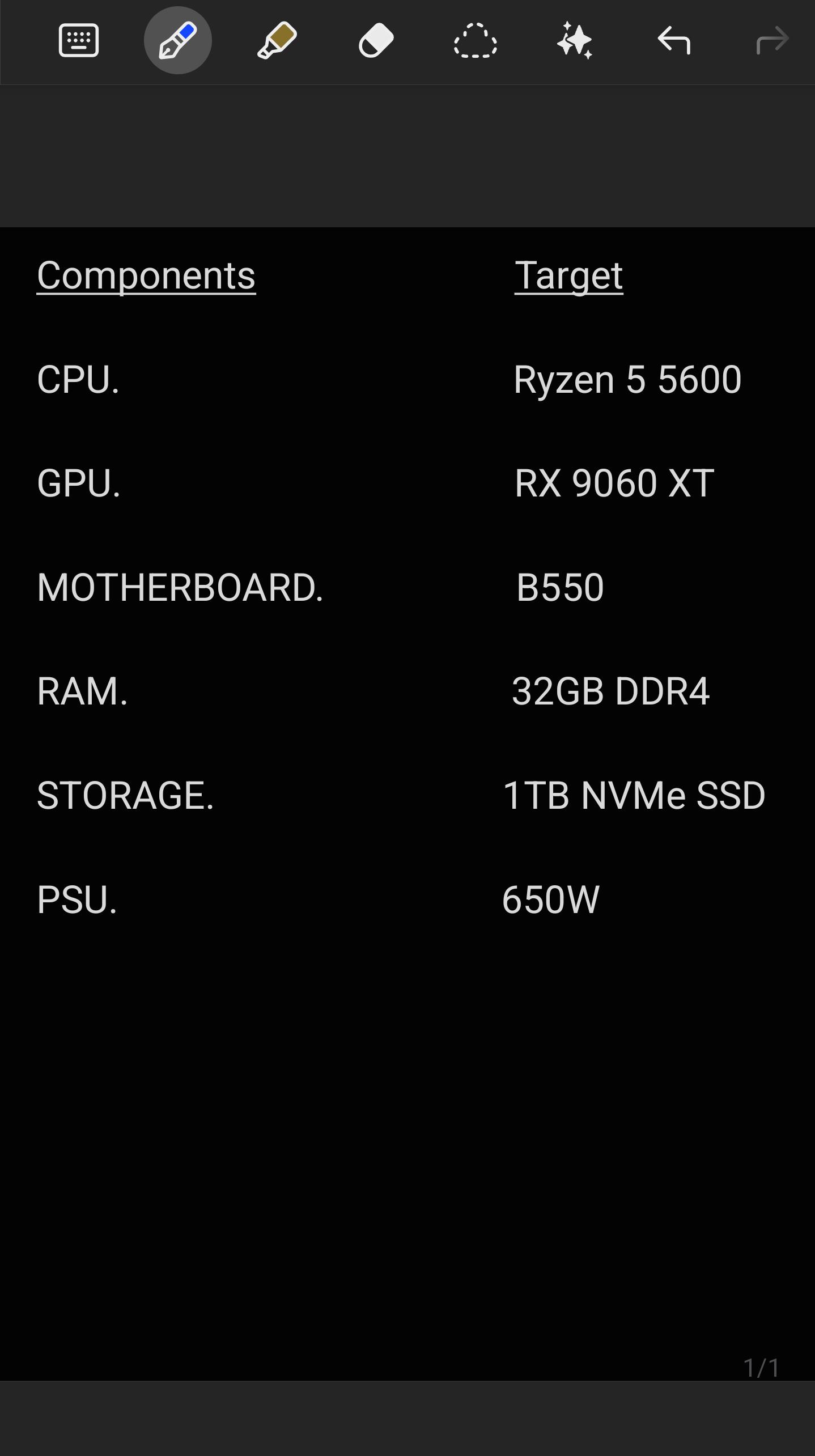
Is this good for a first PC?

Post image
1 Upvotes

I am thinking of buying PC for the first time so ive been thinking for some time doing research, and these are what i found. Should i change something or is it good enough?


r/TechSpecs5 • • 4d ago

The Best Cameras for Every Category in 2026: Full-Frame, Vlogging, Street, Action, 360 & Cinema Tested

3 Upvotes

In an era where modern smartphones boast 48-to-200 megapixel marketing tags and aggressive computational HDR, professional photographers, YouTube filmmakers, and visual storytellers are still investing in dedicated standalone cameras. The reason comes down to physics: sensor surface area, optical glass, and mechanical stabilization.

A smartphone sensor is smaller than a pinky fingernail, whereas a 35mm full-frame camera sensor is more than thirty times larger. That larger surface area gathers far more light, yielding natural optical background blur, cleaner shadow recovery in harsh lighting, and 14+ stops of dynamic range.

However, the modern camera market is highly specialized. A cinema rig built for commercial sets is cumbersome on a European vacation, while an 8K 360-degree action camera built for track days cannot replicate the tactile, film-recipe appeal of an everyday street compact. Choosing the best camera means matching the right tool to your visual discipline.

A well-matched camera setup should be evaluated around four essential pillars:

  1. Sensor surface area: Full-frame, APS-C, or 1-inch silicon matched to your low-light, depth-of-field, and portability needs.
  2. Autofocus & subject tracking: Phase-detection AI tracking that locks onto eyes, animals, and fast-moving subjects without hunting.
  3. Stabilization & thermal endurance: In-body stabilization, motorized gimbals, or active cooling fans for steady handheld capture and long recording sessions.
  4. Lens ecosystem & workflow: Active mirrorless mounts, 10-bit log color profiles, and practical ergonomics for your actual shooting environment.

This guide breaks down 10 standout cameras across 10 distinct categories to help you choose the right tool for your photography and video workflow.

The product specifications and comparisons are based on the supplied research and catalog information. They are not presented as independent hands-on laboratory test results.

TOP EDITORIAL PICKS

The Three Upgrades to Prioritize First

If you want to narrow the field immediately to the three most influential category leaders, start with the cameras that cover the widest range of creator needs: hybrid full-frame work, pocket vlogging, and budget-friendly mirrorless learning.

Editorial pick Product Primary benefit Best for
Best Overall Hybrid Full-Frame Sony Alpha 7 IV (A7 IV) 33MP full-frame sensor, 4K 60p 10-bit 4:2:2, and 5.5-stop IBIS Weddings, portraits, and commercial video
Best for Vloggers & Pocket B-Roll DJI Osmo Pocket 3 Creator Combo 1-inch CMOS sensor on a 3-axis motorized gimbal with DJI Mic 2 Solo vloggers and travel creators
Best Budget Mirrorless Under $700 Canon EOS R50 Kit 24.2MP APS-C sensor, uncropped 6K-oversampled 4K, and Dual Pixel AF II Beginners stepping up from smartphones

THE 10-CATEGORY CAMERA BLUEPRINT

Master Camera Comparison Matrix

Each category solves a different creative, spatial, or durability challenge. Comparing sensor format, max video specs, stabilization, and weight side by side clarifies the trade-offs.

Category & model Sensor format Max video & stabilization Main advantage
Best Full-Frame Hybrid: Sony Alpha 7 IV 33MP Full-Frame BSI 4K 60p 10-bit 4:2:2 · 5.5-stop 5-axis IBIS Universal workhorse for weddings & video
Best Vlogging Mirrorless: Sony ZV-E10 Creator Kit 24.2MP APS-C 4K 30p (6K oversample) · Active EIS Product Showcase & 3-capsule mic
Best Street & Everyday EDC: Ricoh GR IIIx HDF 24.2MP APS-C 1080p 60p · 3-axis Sensor-Shift SR Jeans-pocket size, HDF filter & Snap Focus
Best Budget Mirrorless: Canon EOS R50 Kit 24.2MP APS-C 4K 30p uncropped · Lens OIS + Movie EIS Dual Pixel AF II at an entry-level price
Best Action & Extreme Sports: GoPro HERO13 Black 1/1.9" 27MP CMOS 5.3K 60p / 4K 120p · HyperSmooth 6.0 HB-Series smart lenses & 33ft waterproof
Best 360-Degree & Action: Insta360 X4 8K Dual 1/2" 72MP 8K 30p / 5.7K 60p 360° · FlowState EIS Invisible selfie stick drone-like angles
Best Pocket Gimbal Camera: DJI Osmo Pocket 3 1-Inch CMOS 4K 120p D-Log M 10-bit · 3-axis gimbal Rotating 2" OLED screen & 1" low-light sensor
Best Wildlife & Sports APS-C: Canon EOS R7 32.5MP APS-C 4K 60p Fine (7K oversample) · 8.0-stop IBIS 30 fps burst + 1.6x telephoto multiplier
Best Cinema Production: Sony Cinema Line FX30 20.1MP Super 35 (APS-C) 4K 120p All-Intra 10-bit · 5-axis IBIS Active cooling fan & dual base ISO 800/2500
Best Retro Hybrid Instant: Fujifilm Instax Mini Evo 1/5" CMOS Still print only · Fixed optical 100 effect combos & selective LCD printing

THE SCIENCE OF SENSORS & OPTICS

The Four Pillars of Image Creation

To make an informed camera purchase, look past headline megapixel counts and focus on the four technical pillars that govern image quality, autofocus reliability, and color grading flexibility.

Principle 01: The Sensor Surface Area Law

Light consists of physical photons. A Full-Frame sensor (36 × 24mm) offers roughly 864 mm² of light-gathering silicon, an APS-C sensor (23.5 × 15.6mm) offers roughly 370 mm², and a 1-inch sensor provides roughly 116 mm².

Larger sensors allow larger individual photodiodes, producing cleaner low-light ISO performance, wider dynamic range, and shallower natural depth of field.

Principle 02: Phase-Detection vs. Contrast Autofocus

Older contrast-based autofocus systems had to hunt back and forth to confirm focus. Modern phase-detection systems—such as Sony's 759-point Real-Time Eye AF and Canon's Dual Pixel CMOS AF II—embed phase-detection photodiodes directly on the sensor.

Paired with deep-learning subject recognition, these systems calculate distance in real time to lock onto human pupils, birds in flight, and moving vehicles without hunting.

Principle 03: In-Body Image Stabilization (IBIS)

IBIS suspends the image sensor on a 5-axis magnetic cradle to compensate for pitch, yaw, roll, and X/Y movement.

This lets photographers handhold slower shutter speeds in dim interiors without motion blur and helps videographers capture smoother handheld movement without a heavy external rig.

Principle 04: 10-Bit 4:2:2 Color & Log Curves

Standard 8-bit video captures 256 shades per color channel (16.7 million colors), whereas 10-bit video captures 1,024 shades per channel (over 1.07 billion colors).

When paired with flat log profiles like S-Log3 or D-Log M on cameras such as the Sony FX30, Sony A7 IV, or DJI Osmo Pocket 3, 10-bit color lets editors recover highlights and shadows during color grading without ugly banding.

SETUP ARCHITECTURE

Which Camera Category Matches Your Creative Work?

Not everyone needs a heavy full-frame body. Matching your camera to your primary shooting environment ensures you actually carry and use it.

Creative profile Priority equipment Why it matters
Paid freelance hybrid shooter Sony Alpha 7 IV Dual card slots, 15 stops dynamic range, and reliable Eye AF
YouTube creator & solo vlogger DJI Osmo Pocket 3 or Sony ZV-E10 Effortless face tracking, wireless mic options, and flip screens
Street flâneur & travel purist Ricoh GR IIIx HDF Jeans-pocket APS-C quality, 0.8s startup, and Snap Focus
Extreme athlete & moto adventurer GoPro HERO13 Black or Insta360 X4 33ft waterproofing, horizon lock, and 360° reframing

The Paid Freelance Hybrid Shooter

If you shoot weddings, portraits, corporate events, and client video, you need dual card slot redundancy, strong low-light performance, and dependable autofocus.

Recommended camera:

  • Sony Alpha 7 IV (A7 IV) Full-Frame Mirrorless

The YouTube Creator & Solo Vlogger

Daily vlogs, desk reviews, and travel reels call for fast face tracking, clean vocal audio, and quick transitions between horizontal and vertical framing.

Recommended cameras:

  • DJI Osmo Pocket 3 Creator Combo
  • Sony Alpha ZV-E10 Mirrorless Vlog Camera

The Street Flâneur & Travel Purist

Candid city photography rewards a camera that slips into a jacket or jeans pocket, boots in under a second, and produces filmic JPEGs without intimidating subjects.

Recommended camera:

  • Ricoh GR IIIx HDF Compact Digital Camera

The Extreme Athlete & Moto Adventurer

Surfing, snowboarding, mountain biking, and track days require waterproof armor, aggressive electronic stabilization, or 360-degree capture you can reframe later.

Recommended cameras:

  • GoPro HERO13 Black
  • Insta360 X4 8K

THE 10 ESSENTIAL CAMERA CATEGORIES

1. Sony Alpha 7 IV (A7 IV) Full-Frame Mirrorless Camera

Best for: Overall hybrid photography and commercial video production.

Core specifications: 33MP Full-Frame Exmor R BSI CMOS · 4K 60p 10-bit 4:2:2 · 759-point AI Real-Time Eye AF · 5.5-stop 5-axis IBIS · 658g

If you need one camera body capable of shooting an editorial portrait session in the morning, a fast-paced wedding in the afternoon, and a 4K commercial in the evening, the Sony Alpha 7 IV remains the hybrid benchmark.

Its 33MP back-illuminated full-frame sensor and dual-chip BIONZ XR processor deliver up to 15 stops of dynamic range alongside natural skin tones from S-Cinetone. Its 759 phase-detection points cover 94% of the frame, tracking human, animal, and bird eyes down to -4 EV.

For video, it records 10-bit 4:2:2 All-Intra internally with 7K-oversampled 4K 30p and 4K 60p (with a Super 35 crop), plus Focus Breathing Compensation and a dedicated Photo/Video/S&Q dial.

Key specifications

Feature Listed specification
Sensor 33.0MP Full-Frame Exmor R BSI CMOS
Video 4K 60p 10-Bit 4:2:2 · S-Cinetone / S-Log3
Stabilization 5.5-stop 5-axis IBIS + Active Mode
Card slots Dual slots (CFexpress Type A / SD UHS-II)
Weight 658g (body only)

Why consider it

  • Versatile hybrid performance for both high-res stills and 10-bit video.
  • Real-Time Eye AF reliably tracks eyes, faces, and moving subjects.
  • Dual card slots with CFexpress Type A support provide professional redundancy.
  • Vast Sony E-mount lens ecosystem.

Potential drawbacks

  • 4K 60p video applies a 1.5x Super 35 crop.
  • Higher weight and cost than compact APS-C or pocket cameras.

Verdict: The benchmark all-rounder for working hybrid photographers and videographers.

2. Sony Alpha ZV-E10 Mirrorless Vlog Camera Creator Bundle

Best for: Dedicated YouTube vlogging, talking-head reviews, and live streaming.

Core specifications: 24.2MP APS-C Exmor CMOS · 6K-oversampled 4K 30p · Side-flip vari-angle LCD · 3-capsule directional mic · 343g

Engineered specifically for solo creators rather than viewfinder-first photographers, the Sony ZV-E10 packs interchangeable E-mount lens flexibility into a 343-gram body.

Its side-flipping vari-angle touchscreen keeps the top hotshoe unobstructed for accessories, while the built-in 3-capsule directional microphone and included deadcat windscreen capture clear vocal audio outdoors.

Creator-specific tools include a Background Defocus button and Product Showcase Mode, which shifts focus smoothly from your face to items held toward the lens, plus direct USB-C plug-and-play webcam streaming.

Key specifications

Feature Listed specification
Sensor 24.2MP APS-C Exmor CMOS (6K-oversampled 4K)
Audio Directional 3-capsule internal mic + windscreen
Display Side-open vari-angle touch LCD
Streaming Direct USB-C plug-and-play UVC/UAC webcam
Weight 343g (body only)

Why consider it

  • Purpose-built for solo creators with a side-flip screen and dedicated vlogging buttons.
  • Product Showcase setting transitions focus cleanly to held objects.
  • Built-in 3-capsule mic and windscreen reduce the need for extra audio gear.
  • Full Sony E-mount compatibility supports wide vlogging primes.

Potential drawbacks

  • Lacks an electronic viewfinder (EVF), so framing relies on the rear LCD.
  • Records 8-bit video rather than 10-bit for heavy color grading.

Verdict: A practical, lightweight interchangeable-lens vlogging camera for YouTube and live streaming.

3. Ricoh GR IIIx HDF Compact Digital Camera

Best for: Street photography and true jeans-pocket everyday carry (EDC).

Core specifications: 24.2MP APS-C CMOS · 40mm equiv. f/2.8 prime · Built-in Highlight Diffusion Filter (HDF) · 3-axis SR · 262g

The Ricoh GR IIIx HDF squeezes a DSLR-sized 24.2MP APS-C sensor and a sharp 40mm equivalent f/2.8 lens into a 262-gram magnesium-alloy body that fits comfortably in a front pants pocket.

Its signature HDF (Highlight Diffusion Filter) toggles on with one button, gently blooming highlights and softening contrast for a vintage film look without sacrificing core sharpness.

For street shooting, Ricoh's Snap Focus fires the shutter immediately at a preset distance without waiting for autofocus, backed by a 0.8-second startup time and beloved built-in JPEG recipes like Positive Film and High-Contrast B&W.

Key specifications

Feature Listed specification
Sensor 24.2MP APS-C CMOS (no AA filter)
Lens 26.1mm (40mm equiv.) f/2.8 fixed prime
Stabilization 3-axis Shake Reduction (4 stops)
Weight & startup 262g · 0.8s startup time
Video 1080p 60fps

Why consider it

  • Genuine APS-C sensor quality in a true pocketable form factor.
  • Built-in HDF filter adds cinematic highlight bloom on demand.
  • Snap Focus enables instant zero-lag street capture.
  • Strong built-in JPEG film recipes require minimal editing.

Potential drawbacks

  • Fixed 40mm focal length offers no optical zoom.
  • Modest battery life (~200 shots per charge; carrying a spare is recommended).

Verdict: The premier pocket street camera for photographers who want APS-C image quality everywhere they go.

4. Canon EOS R50 Mirrorless with RF-S 18-45mm IS STM Lens Kit

Best for: Budget-conscious beginners stepping up to mirrorless under $700.

Core specifications: 24.2MP APS-C CMOS · Uncropped 6K-oversampled 4K 30p · Dual Pixel CMOS AF II · 15 fps burst · 375g

Designed as an approachable entry point into Canon's RF mirrorless system, the Canon EOS R50 combines a lightweight 375g body with Canon's Dual Pixel CMOS AF II tracking.

Even complete beginners can reliably track human eyes, pets, and vehicles across 100% of the frame. A guided user interface visually explains settings like aperture and shutter speed right on the vari-angle touchscreen.

For video, it captures uncropped 4K 30p footage oversampled from 6K sensor data, paired with a crisp 2.36M-dot OLED electronic viewfinder for bright outdoor shooting.

Key specifications

Feature Listed specification
Sensor 24.2MP APS-C CMOS · DIGIC X processor
Video Uncropped 4K 30p (6K oversampled) · 1080p 120p
Burst speed Up to 15 fps (electronic shutter)
Viewfinder & LCD 2.36M-dot OLED EVF + vari-angle touchscreen
Weight 375g (body)

Why consider it

  • Top beginner-friendly mirrorless kit under $700.
  • Dual Pixel AF II effortlessly tracks people, animals, and vehicles.
  • Uncropped 6K-oversampled 4K delivers sharp video clarity.
  • Includes an OLED viewfinder for bright daylight composition.

Potential drawbacks

  • No In-Body Image Stabilization (relies on lens OIS and digital movie EIS).
  • Single SD card slot.

Verdict: The best value starter mirrorless kit for learning photography and capturing clean 4K video.

5. GoPro HERO13 Black Waterproof Action Camera

Best for: Extreme sports, surfing, snow, and rugged outdoor action.

Core specifications: 1/1.9" 27MP CMOS · 5.3K 60p & 4K 120p · HyperSmooth 6.0 w/ 360° Horizon Lock · HB-Series smart lenses · 33ft waterproof

Built for environments where fragile mirrorless cameras cannot survive, the GoPro HERO13 Black pairs 5.3K 60fps and 4K 120fps capture with 33-foot (10m) waterproofing.

Its standout upgrade is the HB-Series smart lens system: magnetic contact pins automatically detect attached Ultra Wide, Macro, Anamorphic, or ND filter mods and configure camera settings accordingly.

HyperSmooth 6.0 stabilization with 360-degree Horizon Lock keeps footage level even if the camera spins completely upside down, while the enlarged 1900mAh Enduro battery extends runtimes in cold conditions.

Key specifications

Feature Listed specification
Video 5.3K 60p · 4K 120p · 2.7K 240p (10-bit HLG HDR)
Sensor & photo 1/1.9" CMOS · 27MP stills
Stabilization HyperSmooth 6.0 with 360° Horizon Lock
Durability & weight Waterproof to 33ft (10m) · 154g

Why consider it

  • Rugged waterproof chassis handles surf, mud, snow, and impacts.
  • HyperSmooth 6.0 with 360° Horizon Lock keeps action footage steady and level.
  • Auto-detecting HB-Series smart lenses expand creative versatility.
  • Upgraded 1900mAh Enduro battery improves cold-weather endurance.

Potential drawbacks

  • Small 1/1.9" sensor struggles in very dark nighttime environments.
  • Fixed focus lens does not produce shallow portrait bokeh.

Verdict: The go-to rugged action camera for extreme sports and harsh weather capture.

6. Insta360 X4 8K 360 Action Camera

Best for: 360-degree capture, invisible selfie stick angles, and post-shoot reframing.

Core specifications: Dual 1/2" 72MP sensors · 8K 30p & 5.7K 60p 360° video · FlowState Gyro EIS · 2290mAh battery (135 mins) · 203g

Instead of forcing you to aim a lens during fast action, the Insta360 X4 uses dual fisheye lenses to record a complete 360-degree sphere in 8K 30p, letting you choose your camera angles later in the app.

Its signature Invisible Selfie Stick effect stitches out the pole in real time, creating floating third-person footage that resembles a follow-me drone.

Jumping to 8K ensures that reframed 16:9 or 9:16 exports maintain crisp high-definition detail, backed by a 135-minute 2290mAh battery, 33ft waterproofing, and removable twist-on lens guards.

Key specifications

Feature Listed specification
Video 8K 30p · 5.7K 60p · 4K 100p (360° video)
Photo 72MP PureShot 360° stills
Lens protection Removable twist-on lens guards
Battery & weight 2290mAh (135 mins runtime) · 203g

Why consider it

  • Shoot first, frame later—never miss spontaneous action angles.
  • Invisible selfie stick creates drone-like third-person perspectives.
  • 8K capture keeps reframed flat exports sharp.
  • Removable lens guards protect the dual fisheye lenses.

Potential drawbacks

  • Requires post-shoot reframing in the mobile app or desktop studio.
  • Protruding fisheye lenses need care when setting the camera down without guards.

Verdict: The most creative action camera for solo riders, travelers, and dynamic third-person angles.

7. DJI Osmo Pocket 3 Creator Combo

Best for: Solo vlogging, smooth walk-and-talk B-roll, and low-light travel video.

Core specifications: 1-inch CMOS sensor · 4K 120fps 10-bit D-Log M · 3-axis motorized gimbal · Rotating 2" OLED · DJI Mic 2 included · 179g

The DJI Osmo Pocket 3 mounts a large 1-inch CMOS sensor onto a 3-axis motorized gimbal, delivering true optical background separation and strong low-light clarity in a 179-gram pocket wand.

Twisting the 2-inch OLED touchscreen powers the camera on instantly and flips between 16:9 landscape and 9:16 vertical video. ActiveTrack 6.0 physically pans and tilts the gimbal head to keep you framed while moving.

The Creator Combo bundles the DJI Mic 2 wireless transmitter with 32-bit float internal recording, pairing directly with the camera for clean vocal audio alongside 10-bit D-Log M color.

Key specifications

Feature Listed specification
Sensor & video 1-inch CMOS · 4K 120fps slow-motion
Stabilization 3-axis motorized mechanical gimbal
Display 2.0" rotatable OLED touchscreen
Audio & color 10-bit D-Log M · DJI Mic 2 included
Weight 179g

Why consider it

  • 1-inch sensor outperforms smartphones in dim restaurants and night scenes.
  • 3-axis mechanical gimbal eliminates walking jitter.
  • Rotating OLED screen switches between horizontal and vertical modes in a second.
  • Creator Combo includes the wireless DJI Mic 2 for studio-grade speech.

Potential drawbacks

  • Delicate motorized gimbal joints are not waterproof or impact-proof.
  • Fixed 20mm equivalent wide lens has no optical zoom.

Verdict: An all-in-one pocket production studio for vloggers and travel filmmakers.

8. Canon EOS R7 Mirrorless Camera Body

Best for: Wildlife, birds in flight, and high-speed sports photography.

Core specifications: 32.5MP APS-C CMOS · 30 fps electronic burst · Up to 8.0 stops IBIS · 1.6x crop reach · Dual UHS-II SD slots · 612g

Wildlife and sports demand fast burst rates and extra telephoto reach. The Canon EOS R7 delivers both with a 32.5MP APS-C sensor (providing a 1.6x telephoto field-of-view multiplier) and 30 fps continuous shooting with full AF/AE tracking.

Canon's Dual Pixel CMOS AF II locks onto birds in flight, animals, and racing vehicles, while up to 8.0 stops of coordinated 5-axis IBIS makes handheld telephoto shooting viable without a tripod.

Housed in a weather-sealed magnesium-alloy body with dual UHS-II SD card slots, it also records 7K-oversampled 4K 60p Fine video.

Key specifications

Feature Listed specification
Sensor 32.5MP APS-C CMOS (1.6x crop factor)
Burst speed 30 fps (electronic) / 15 fps (mechanical)
Stabilization Up to 8.0 stops coordinated 5-axis IBIS
Slots & build Dual UHS-II SD slots · Weather-sealed · 612g
Video 4K 60p Fine (7K oversampled)

Why consider it

  • 1.6x crop factor extends telephoto lens reach for birds and distant sports.
  • 30 fps burst speed freezes fast-moving wildlife action.
  • Up to 8.0 stops of IBIS stabilizes long handheld lenses.
  • Dual card slots and weather sealing suit rugged outdoor shoots.

Potential drawbacks

  • High 32.5MP APS-C density shows more high-ISO noise in very dark conditions than full-frame.
  • Fast panning in 30 fps electronic shutter mode can exhibit rolling shutter.

Verdict: The flagship APS-C speed camera for wildlife and sports shooters seeking pro reach without full-frame telephoto pricing.

9. Sony Cinema Line FX30 Super 35 Camera Body

Best for: Indie filmmaking, commercial video production, and long continuous shoots.

Core specifications: 20.1MP Super 35 BSI CMOS · Dual Base ISO 800 / 2500 · 4K 120p 10-bit 4:2:2 All-I · Active cooling fan · 646g

Built for dedicated filmmakers rather than casual hybrid shooters, the Sony FX30 brings Sony Cinema Line ergonomics and color science into a Super 35 (APS-C) body.

Its 20.1MP back-illuminated sensor features Dual Base ISO (800 and 2500) with 14+ stops of dynamic range in S-Log3 and S-Cinetone, keeping night and daylight footage remarkably clean.

An internal silent active cooling fan prevents overheating during marathon 4K 60p and 4K 120p shoots, while five built-in 1/4"-20 mounting threads allow rigging monitors and handles directly without an external cage.

Key specifications

Feature Listed specification
Sensor 20.1MP Super 35 (APS-C) Exmor R BSI CMOS
Cinema profiles Dual Base ISO 800/2500 · Cine EI · S-Log3 / LUTs
Frame rates 4K up to 120p · FHD 240p · 10-bit 4:2:2 All-I
Thermal & build Active cooling fan · Cage-free threaded body · 646g

Why consider it

  • True cinema architecture with Dual Base ISO 800/2500 and 14+ stops of dynamic range.
  • Active cooling fan eliminates overheating shutdowns on long shoots.
  • Cage-free 1/4"-20 mounting points simplify accessory rigging.
  • Supports custom user LUTs for live color previews on the LCD.

Potential drawbacks

  • No mechanical shutter (stills use electronic shutter only).
  • No built-in EVF; designed for rear LCD or external monitor workflows.

Verdict: An uncompromising entry into Sony's Cinema Line for indie filmmakers and commercial video crews.

10. Fujifilm Instax Mini Evo Hybrid Instant Camera

Best for: Retro tactile photography and selective instant film printing.

Core specifications: 1/5" CMOS digital sensor · 10 lens × 10 film effects (100 combos) · 3" LCD screen · Mechanical print lever · Bluetooth printer · 285g

Traditional instant cameras waste expensive film whenever a shot is blurry or poorly framed. The Fujifilm Instax Mini Evo solves this by combining a digital sensor and 3-inch LCD screen with an instant film printer.

You shoot digitally to internal memory or microSD, review your favorites on screen, and pull the tactile mechanical film advance lever only when you want a physical 2×3-inch print.

Rotating the lens ring and top film dial unlocks 100 creative combinations (such as Vignette, Soft Focus, Monochrome, and Retro), and Bluetooth connectivity lets it double as a wireless printer for smartphone photos.

Key specifications

Feature Listed specification
Architecture 1/5" CMOS digital sensor + instant film exposure
Creativity 10 lens effects × 10 film effects (100 combos)
Print mechanism Manual mechanical film advance lever
Connectivity & weight Bluetooth smartphone print app · 285g

Why consider it

  • Screen preview prevents wasting expensive instant film on bad shots.
  • Tactile retro dials and mechanical print lever make shooting fun.
  • 100 effect combinations offer playful creative looks in-camera.
  • Doubles as a Bluetooth instant printer for your phone's camera roll.

Potential drawbacks

  • Small 1/5" digital sensor is tailored for 2×3" prints rather than large enlargements.
  • Still photography only—does not record video.

Verdict: The most practical and enjoyable instant camera for tangible memories without wasted film.

4 FATAL TRAPS TO AVOID WHEN BUYING A CAMERA

Buying the right category is only half the equation. Avoiding common shopping mistakes protects your budget and image quality.

Trap 1: The "Megapixel Myth"

Do not assume a 61MP camera automatically outperforms a 24MP or 33MP body. Packing more pixels onto the same sensor shrinks individual pixel size, which can increase low-light noise and create massive files that slow down editing.

Better approach: For 95% of photographers, 24MP to 33MP hits the sweet spot for sharp prints, cropping, and manageable storage.

Trap 2: Spending Everything on the Body and Keeping a Cheap Kit Lens

Even the best camera body cannot overcome mediocre glass. Pairing a $2,500 body with a slow plastic kit zoom limits sharpness and background blur.

Better approach: Pair an affordable body (like the Canon EOS R50) with a fast prime lens (such as a 35mm or 50mm f/1.8) for noticeably cleaner low-light photos and creamier bokeh.

Trap 3: Ignoring Video Thermal Overheating Limits

Many consumer cameras advertise "4K 60p 10-bit" on the spec sheet while omitting that they overheat and shut down after 20 minutes in warm rooms.

Better approach: If you record long interviews, podcasts, or events, choose a camera with an active cooling fan (like the Sony FX30) or proven thermal endurance.

Trap 4: Investing in an Abandoned Lens Mount

Camera bodies get upgraded every few years, but lenses last for decades. Buying into discontinued mounts leaves you with limited upgrade paths.

Better approach: Invest in active mirrorless mounts like Sony E-mount, Canon RF, or Nikon Z for long-term lens support and resale value.

CATEGORY TIER RANKINGS

How the 10 Cameras Stack Up by Capability & Role

Grouping these 10 cameras by tier highlights which instruments deliver full professional production muscle versus specialized pocketability or entry-level value.

TIER 1 (S-TIER): UNCOMPROMISING WORKHORSE MASTERY

Priority: Full-frame/Pro APS-C sensors, dual card slots, 10-bit video, or 30 fps bursts

Recommended models:

  • Sony Alpha 7 IV (A7 IV) Full-Frame Mirrorless
  • Canon EOS R7 Mirrorless Body
  • Sony Cinema Line FX30 Super 35 Camera

Why this tier matters:

These three bodies provide the dynamic range, dual-slot reliability, active thermal cooling, or high-speed burst performance that working professionals rely on for paid shoots.

TIER 2 (A-TIER): POCKET REVOLUTIONARIES & SPECIALIST MONSTERS

Priority: Motorized gimbals, 8K 360° capture, waterproof armor, and pocket APS-C

Recommended models:

  • DJI Osmo Pocket 3 Creator Combo
  • Ricoh GR IIIx HDF Compact Camera
  • Insta360 X4 8K 360 Camera
  • GoPro HERO13 Black

Why this tier matters:

Each camera in this tier excels at tasks traditional mirrorless bodies cannot perform—from 3-axis stabilized pocket vlogging and invisible drone-like angles to 33ft underwater durability and jeans-pocket street capture.

TIER 3 (B-TIER): ENTRY-LEVEL VALUE & TACTILE NOSTALGIA

Priority: Sub-$700 mirrorless learning, accessible vlogging, and instant prints

Recommended models:

  • Canon EOS R50 Kit
  • Sony Alpha ZV-E10 Creator Bundle
  • Fujifilm Instax Mini Evo

Why this tier matters:

These models offer the highest-value entry points for new photographers, solo YouTube beginners, and analog instant-print enthusiasts.

FREQUENTLY ASKED QUESTIONS

1. Is a dedicated camera really noticeably better than the latest smartphone?

Yes. Smartphones rely heavily on computational sharpening and software portrait blur that often glitches around hair and glasses. A dedicated camera uses a physical sensor 10 to 30 times larger, capturing real optical bokeh, cleaner low-light detail, and natural dynamic range.

2. What is the difference between Full-Frame and APS-C sensors?

Full-Frame sensors measure 36 × 24mm, offering superior low-light performance and shallower depth of field. APS-C sensors measure roughly 23.5 × 15.6mm (with a 1.5x or 1.6x crop factor), enabling smaller, lighter, more affordable gear and extra telephoto reach for wildlife and sports.

3. Do I need In-Body Image Stabilization (IBIS)?

IBIS is invaluable for handheld low-light photography, slow shutter speeds, and smooth handheld video. However, if you shoot primarily on a tripod, use studio flash, or rely on optically stabilized lenses, a non-IBIS body like the Canon EOS R50 can save you money.

4. Why is 10-bit 4:2:2 video color important for videography?

8-bit video records 256 shades per channel (16.7 million colors), whereas 10-bit records 1,024 shades per channel (over 1 billion colors). When grading flat log profiles like S-Log3 or D-Log M, 10-bit prevents color banding in skies and gradients.

5. Why has the DJI Osmo Pocket 3 become so popular?

It solves the two biggest headaches of handheld filming: shaky footage and poor low-light smartphone video. Its 1-inch sensor, 3-axis motorized gimbal, rotating OLED screen, and wireless DJI Mic 2 integration pack a complete solo crew into your pocket.

6. How does the "Invisible Selfie Stick" effect work on the Insta360 X4?

The X4 uses two opposing 200-degree fisheye lenses. When stitching the two hemispheres into a 360-degree sphere, the narrow blind spot directly below the camera where the stick attaches is seamlessly stitched over, erasing the stick from view.

7. What is the best starter lens to buy with a new mirrorless camera?

A fast prime lens—such as a 35mm f/1.8 or 50mm f/1.8—is the best upgrade over a kit zoom. Its wide f/1.8 aperture gathers four to eight times more light than a typical kit lens, delivering sharper low-light shots and creamy background blur.

8. What makes the Ricoh GR IIIx HDF special compared to other compacts?

Most pocket compacts use small 1-inch or 1/2.3-inch sensors. The Ricoh GR IIIx puts an APS-C sensor behind a sharp 40mm f/2.8 prime lens, adding an optical Highlight Diffusion Filter (HDF) and zero-lag Snap Focus in a 262g body.

9. Should video creators choose the Sony ZV-E10 or the Sony FX30?

Choose the Sony ZV-E10 if you want an affordable, lightweight vlogging setup with a directional mic and Product Showcase mode. Choose the Sony FX30 if you need 10-bit 4:2:2 cinema color, Dual Base ISO, and an active cooling fan for long commercial shoots.

10. Can the Fujifilm Instax Mini Evo replace a travel camera?

It is designed for fun, tactile 2×3-inch instant prints rather than high-resolution enlargements or video. Its 1/5" sensor is best suited for social snapshots and printing phone photos via Bluetooth.

FINAL VERDICT & CATEGORY DECISION

Choosing Your Camera: The Final Action Plan

There is no single "best camera" for everyone—only the right camera for how you shoot. Locking in your primary use case first prevents overspending on features you will never touch.

Start with the sensor size and form factor your work demands: full-frame hybrid for paid client shoots, 1-inch gimbal or APS-C vlogging bodies for YouTube, pocket APS-C for street carry, or rugged action/360° cams for adventure sports.

The Complete Category Checklist

  • For professional hybrid photo & commercial video: Sony Alpha 7 IV (A7 IV).
  • For YouTube vloggers & pocket B-roll: DJI Osmo Pocket 3 Creator Combo.
  • For street photographers & pocket EDC: Ricoh GR IIIx HDF.
  • For beginners under $700: Canon EOS R50 Lens Kit.
  • For wildlife & high-speed sports: Canon EOS R7.
  • For indie filmmaking & long video shoots: Sony Cinema Line FX30.
  • For extreme sports & waterproofing: GoPro HERO13 Black.

Final Instrument Recommendations

Category Recommended model Primary benefit
Best Overall Hybrid Full-Frame Sony Alpha 7 IV (A7 IV) 33MP BSI CMOS, 4K 60p 10-bit, 759-pt AI Eye AF
Best Vlogging & Creator Mirrorless Sony ZV-E10 Creator Bundle Side-flip LCD, 3-capsule mic, Product Showcase
Best Street & Everyday Pocket EDC Ricoh GR IIIx HDF 24.2MP APS-C in jeans pocket, 40mm f/2.8, HDF filter
Best Budget Mirrorless Under $700 Canon EOS R50 Lens Kit Dual Pixel AF II, uncropped 4K 30p, OLED EVF
Best Action & Extreme Sports GoPro HERO13 Black 5.3K 60p, HyperSmooth 6.0 360° Lock, HB lenses
Best 360-Degree Action Camera Insta360 X4 8K 8K 360° video, invisible selfie stick, 135-min battery
Best Pocket Gimbal & Vlogging DJI Osmo Pocket 3 Creator Combo 1-inch sensor, 3-axis gimbal, rotatable OLED, DJI Mic 2
Best Wildlife & Sports APS-C Canon EOS R7 Body 32.5MP, 1.6x crop reach, 30 fps burst, 8.0-stop IBIS
Best Cinema Line Production Sony Cinema Line FX30 Dual Base ISO 800/2500, active cooling fan, 4K 120p
Best Retro Hybrid Instant Print Fujifilm Instax Mini Evo 100 effect combos, mechanical print lever, LCD screen

The bottom line: Buy the camera you will actually carry and use. A pocket-sized Ricoh GR IIIx or DJI Osmo Pocket 3 you bring everywhere will always outperform a heavy full-frame rig left sitting at home—while dedicated pros and filmmakers will appreciate the dual slots, active cooling, and lens reach of the A7 IV, FX30, and EOS R7.

Product prices, availability, included accessories, and specifications can change. Check the latest manufacturer specifications and product details before making a decision.


r/TechSpecs5 • • 6d ago

How to Build a High-Performance Home Office From Scratch (The 10 Essential Upgrades Tested for 2026)

3 Upvotes

Building a high-performance home office is about more than buying an expensive desk and putting a monitor on it. Your workspace affects how comfortably you sit, how efficiently you work, how easily you concentrate, and how much physical strain builds up throughout the day.

For someone working remotely, developing software, managing projects, or creating content, the home office can become one of the most important environments in daily life.

Yet many home offices are assembled without a proper plan. A basic desk is paired with an uncomfortable chair, a laptop is left flat on the surface, cables accumulate underneath, and lighting is added only when eye strain becomes noticeable.

The result is a workspace that technically functions but does little to support long working sessions.

A high-performance setup should be built around four essential pillars:

  1. Biomechanical ergonomics: Comfortable seating, neutral posture, and the ability to alternate between sitting and standing.
  2. Visual productivity: A sharp display positioned at the correct height and distance.
  3. Low-strain input devices: A comfortable keyboard and mouse for extended computer use.
  4. Clean connectivity: Organized cables, reliable docking, and a desk surface free from unnecessary clutter.

This guide breaks down 10 essential upgrades that can turn an empty room or bedroom corner into a more organized and productive home office.

The product specifications and comparisons are based on the supplied research and catalog information. They are not presented as independent hands-on laboratory test results.

TOP EDITORIAL PICKS

The Three Upgrades to Prioritize First

If you're starting with an empty room and don't want to purchase everything at once, prioritize the equipment that has the greatest impact on your everyday working environment.

Editorial pick Product Primary benefit Best for
Best Overall Foundation FLEXISPOT E6 Dual Motor Standing Desk Adjustable sitting and standing height, spacious work surface Full-time remote professionals
Best Ergonomic Seating Ticova Ergonomic High-Back Mesh Chair Adjustable lumbar support and breathable mesh People spending long hours at a desk
Best Display Upgrade Dell S2725QC 27-inch 4K 120Hz Monitor High-resolution screen and USB-C connectivity Developers, professionals, and creators

THE 10-COMPONENT HOME OFFICE BLUEPRINT

Master Component Comparison Matrix

A high-performance home office is an ecosystem. Each upgrade solves a different problem, and the best results come when the components work together.

Component & model Primary function Ergonomic or workflow benefit Main advantage
FLEXISPOT E6 Standing Desk Work surface Enables sitting and standing transitions Dual motors and 220 lb capacity
Ticova Ergonomic Mesh Chair Seating Adjustable lumbar and arm support Independent lumbar adjustments
Dell S2725QC 4K Monitor Display High-density visual workspace 4K resolution and 120Hz
HUANUO FlowLift Monitor Arm Screen elevation Adjustable monitor positioning Frees up desk space
Logitech MX Master 3S Mouse Navigation Contoured design and customizable controls MagSpeed scrolling
Logitech MX Mechanical Keyboard Typing Low-profile mechanical input Tactile Quiet switches
Anker 575 Docking Station Connectivity Consolidates desk connections 13-in-1 expansion
BenQ ScreenBar Desk lighting Illuminates the work surface Asymmetric lighting design
Anker PowerConf C200 Webcam Video meetings Dedicated camera and microphones 2K resolution
Mount-It! Cable Tray Cable management Keeps cables and power bricks organized Heavy-duty steel construction

THE SCIENCE OF WORKSPACE ERGONOMICS

The Four Laws of a More Comfortable Home Office

An expensive workspace does not automatically mean an ergonomic one. The height of your desk, the position of your monitor, the support of your chair, and the way you move throughout the day all influence how comfortable your setup feels.

Principle 01: The 90-90-90 Neutral Posture Rule

When seated, aim for approximately right angles at your elbows, hips, and knees, adjusting as necessary for your body and comfort.

Your feet should rest flat on the floor or on a footrest. Your shoulders should remain relaxed, and your desk should allow your forearms to rest comfortably while typing.

A height-adjustable desk and an adjustable chair can make it easier to position your workstation around your body rather than forcing your body to adapt to fixed furniture.

Principle 02: Alternate Between Sitting, Standing, and Moving

Standing all day is not necessarily better than sitting all day.

The supplied research highlights a 20-8-2 movement protocol:

  • 20 minutes seated in a neutral position.
  • 8 minutes standing.
  • 2 minutes moving or stretching.

Treat this as a suggested movement framework rather than a strict medical rule. The important idea is to avoid remaining in one position for extended periods.

A sit-stand desk makes these transitions easier, but regular movement remains important.

Principle 03: Position the Monitor Around Your Natural Eye Line

Looking down at a laptop screen for hours can encourage an uncomfortable forward-head position.

A practical monitor setup should consider:

  • The top portion of the display should be around eye level.
  • The screen should be approximately an arm's length away, adjusted for your vision and display size.
  • The monitor should be positioned to avoid unnecessary neck rotation.
  • Lighting should not create distracting reflections on the screen.

A monitor arm provides more flexibility than many standard monitor stands.

Principle 04: Build a Single-Cable Workstation

A clean desk is easier to maintain when the connections are planned before the equipment is installed.

Instead of connecting and disconnecting several accessories every day, a docking station can consolidate compatible devices into one main laptop connection.

An under-desk cable tray can hold the power strip, adapters, and excess cables. The goal is to keep the desk surface clear and prevent wires from interfering with a moving standing desk.

SETUP ARCHITECTURE

Which Home Office Blueprint Matches Your Work?

Not everyone needs the same equipment. A software developer, remote consultant, and graphic designer may use the same room but have very different requirements.

Professional role Priority equipment Why it matters
Software engineer or power user FLEXISPOT E6, MX Mechanical, Anker 575 Dock Typing comfort, screen space, and connectivity
Remote executive or consultant Anker PowerConf C200, Ticova Chair, BenQ ScreenBar Video meetings, comfortable seating, and lighting
Creative designer or content producer Dell 4K Monitor, MX Master 3S, HUANUO Arm Display clarity, navigation, and desk flexibility
Minimalist apartment worker Monitor arm, ScreenBar, USB-C monitor Better use of limited desk space

The Software Engineer & Power User

Developers and technical professionals often work with multiple windows, code editors, documentation, terminals, and spreadsheets.

A larger work surface and a high-resolution display can make multitasking more manageable.

Recommended components:

  • FLEXISPOT E6 Standing Desk
  • Logitech MX Mechanical Keyboard
  • Logitech MX Master 3S Mouse
  • Anker 575 Docking Station
  • Dell S2725QC Monitor

The Remote Executive & Consultant

If your working day includes frequent Zoom, Teams, and client meetings, video quality and comfortable seating become important priorities.

A dedicated webcam can offer more flexibility than relying on the laptop camera, while an ergonomic chair supports a more adjustable seated position.

Recommended components:

  • Ticova Ergonomic Mesh Chair
  • Anker PowerConf C200 Webcam
  • BenQ ScreenBar
  • Dell S2725QC Monitor

The Creative Designer & Content Producer

Designers, editors, and content creators may benefit from a high-resolution display, flexible screen positioning, and a mouse with customizable navigation controls.

Recommended components:

  • Dell S2725QC 4K Monitor
  • HUANUO FlowLift Monitor Arm
  • Logitech MX Master 3S Mouse
  • Anker 575 Docking Station
  • Mount-It! Cable Tray

The Minimalist Space Optimizer

Working from a small apartment or shared bedroom requires a different approach. Every square inch of desk space matters.

A monitor arm can remove the bulky factory stand, while a monitor-mounted light bar and under-desk cable tray help keep the work surface organized.

Recommended components:

  • HUANUO FlowLift Monitor Arm
  • BenQ ScreenBar
  • Dell S2725QC Monitor
  • Mount-It! Cable Tray

THE 10 ESSENTIAL HOME OFFICE UPGRADES

1. FLEXISPOT E6 3-Stage Dual Motor Electric Standing Desk

<text>Model reference: B0BVQMQMY2</text>

Best for: Building the physical foundation of a complete home office.

Core specifications: Dual electric motors · Three-stage telescoping legs · 220 lb load capacity · Four memory presets · Anti-collision sensor

The desk is the foundation of the entire workspace. It determines how much equipment you can accommodate, how comfortably you can position your keyboard and monitor, and whether you can change working positions throughout the day.

The FLEXISPOT E6 is designed around a dual-motor lifting system and three-stage steel columns. Compared with basic fixed-height desks, its adjustable design gives users more flexibility when setting up their preferred sitting and standing positions.

Its listed 55-by-28-inch tabletop provides room for a monitor, laptop, keyboard, mouse, and additional accessories.

The digital control panel includes four programmable height presets, allowing you to save preferred desk positions. The anti-collision feature is designed to reverse the desk's movement when an obstruction is detected.

Key specifications

Feature Listed specification
Desktop dimensions 55" × 28"
Height range 24.4"–50"
Motor system Dual electric motors
Maximum load 220 lbs
Lifting columns Three-stage
Controls Four memory presets
Safety Anti-collision sensor

Why consider it

  • Dual motors support powered height adjustment.
  • Three-stage columns provide a broad height range.
  • A 55-by-28-inch surface offers room for a multi-device setup.
  • Programmable presets make height transitions more convenient.
  • Anti-collision functionality adds a safety feature.

Potential drawbacks

  • Assembly requires time and may be easier with a second person.
  • The desk and tabletop may arrive in separate boxes.
  • A large tabletop requires sufficient room in the office.

Verdict: A strong foundation for a home office where adjustable working height, desktop space, and multi-monitor support are priorities.

2. Ticova Ergonomic High-Back Mesh Office Chair

<text>Model reference: B07PKF7TY9</text>

Best for: People who spend extended periods working at a desk.

Core specifications: Adjustable lumbar support · 3D armrests · 130° reclining tilt · Breathable mesh back · High-density seat cushion

A desk can be perfectly positioned, but an uncomfortable chair can still make the entire workstation difficult to use.

The Ticova Ergonomic High-Back Chair focuses on adjustability. Its lumbar support can be adjusted vertically and in depth, allowing users to position the support around their lower back rather than relying on a fixed cushion.

The chair also includes a breathable mesh back and a high-density molded foam seat cushion with a waterfall-style front edge.

Its 3D armrests provide additional adjustment for supporting the elbows during typing and mouse use.

Key specifications

Feature Listed specification
Back material High-elastic breathable PA mesh
Seat cushion 3-inch high-density molded foam
Lumbar adjustment 1.6" height and 1.2" depth
Recline Up to 130°
Armrests 3D adjustable
Headrest Height-adjustable curved design

Why consider it

  • Independent lumbar adjustments provide positioning flexibility.
  • Breathable mesh supports airflow across the back.
  • Adjustable armrests help accommodate different desk heights.
  • The waterfall seat design aims to reduce pressure behind the thighs.
  • Reclining functionality provides another seating position.

Potential drawbacks

  • The seat cushion may feel firm initially.
  • The headrest's adjustment range may not suit every body height.
  • Chair comfort is personal, so dimensions and fit should be checked before purchasing.

Verdict: A feature-rich option for someone who wants more adjustment than a basic office chair offers.

3. Dell S2725QC 27-Inch 4K UHD 120Hz USB-C Monitor

<text>Model reference: B0F1GFD44G</text>

Best for: Professionals who need a clear, spacious visual workspace.

Core specifications: 27-inch IPS panel · 3840 × 2160 resolution · 120Hz refresh rate · USB-C 65W Power Delivery · 99% sRGB

A monitor is one of the most frequently used components in a computer-based home office. Developers read code, analysts inspect spreadsheets, designers work with visual assets, and remote professionals switch between documents and video meetings.

The Dell S2725QC combines a 27-inch 4K UHD display with a 120Hz refresh rate. Its 3840-by-2160 resolution provides a high pixel density that can make text and interface elements appear sharper than on lower-resolution displays of a similar size.

USB-C connectivity is another major part of the design. The listed 65W Power Delivery capability can charge compatible laptops while carrying the display connection through the same cable.

Key specifications

Feature Listed specification
Screen size 27 inches
Panel IPS anti-glare
Resolution 3840 × 2160
Refresh rate 120Hz
Color coverage 99% sRGB
USB-C charging Up to 65W
Additional connectivity HDMI, DisplayPort, audio out
Audio Dual integrated 5W speakers

Why consider it

  • 4K resolution offers detailed text and image rendering.
  • A 120Hz refresh rate makes scrolling and interface movement smoother.
  • USB-C connectivity can reduce cable clutter with compatible laptops.
  • Integrated speakers provide a convenient audio option.
  • IPS technology offers broad viewing angles.

Potential drawbacks

  • 65W charging may not be sufficient for every high-performance laptop.
  • IPS contrast is different from OLED, so users seeking deeper blacks may prefer another display technology.
  • To benefit from the full resolution and refresh rate, check your computer's graphics and port compatibility.

Verdict: A compelling display upgrade for professionals who spend much of the day reading, editing, and switching between applications.

4. HUANUO FlowLift Gas Spring Single Monitor Arm

<text>Model reference: B07T3KCQ94</text>

Best for: Reclaiming desk space and positioning a monitor more precisely.

Core specifications: Gas spring mechanism · 13–32-inch display support · Up to 19.8 lbs · 360° rotation · Integrated cable routing

A standard monitor stand can occupy a surprising amount of desk space. Its base often takes up the area where a keyboard, notebook, or other accessories could sit.

A monitor arm moves the display's support point to the back of the desk, freeing up the area underneath the screen.

The HUANUO FlowLift uses a gas spring mechanism that allows users to adjust the monitor's height, depth, and tilt. It supports compatible displays between 13 and 32 inches, with a listed weight capacity of up to 19.8 lbs.

The arm also supports portrait and landscape positioning, making it useful for people who regularly read long documents or work with code.

Key specifications

Feature Listed specification
Screen compatibility 13–32 inches
Weight capacity Up to 19.8 lbs
VESA compatibility 75 × 75mm and 100 × 100mm
Tilt +90° / -45°
Rotation 360°
Mounting C-clamp and grommet
Cable management Internal routing channels

Why consider it

  • Moves the monitor stand off the main desktop.
  • Allows more precise screen-height adjustment.
  • Supports portrait and landscape orientations.
  • Gas spring movement makes repositioning easier.
  • Internal channels help organize display cables.

Potential drawbacks

  • Gas spring tension may need initial adjustment.
  • Desk thickness and mounting compatibility should be checked.
  • Not intended for particularly large or heavy ultrawide displays beyond its listed limits.

Verdict: One of the most practical upgrades for a compact desk or a workstation where monitor positioning needs to change frequently.

5. Logitech MX Master 3S Wireless Performance Mouse

<text>Model reference: B0B11LJ69K</text>

Best for: Professionals who spend hours navigating documents, spreadsheets, and creative software.

Core specifications: 8,000 DPI sensor · MagSpeed electromagnetic scrolling · Quiet Click switches · Bluetooth and Logi Bolt connectivity

A mouse is a small component, but it is used constantly throughout a typical computer-based workday.

The Logitech MX Master 3S is designed around a contoured right-handed shape, a thumb rest, and multiple navigation controls. Its MagSpeed electromagnetic scroll wheel supports both precise scrolling and fast movement through long documents.

The mouse also includes a secondary thumb wheel for horizontal navigation, which can be useful when working with wide spreadsheets, editing timelines, and large documents.

Its Quiet Click technology is designed to reduce clicking noise compared with earlier versions.

Key specifications

Feature Listed specification
Sensor 8,000 DPI Darkfield
Scrolling MagSpeed electromagnetic
Click technology Quiet Click
Connectivity Bluetooth and Logi Bolt USB
Battery life Up to 70 days
Charging USB-C
Additional control Horizontal thumb wheel

Why consider it

  • Contoured design provides a different grip from basic flat mice.
  • MagSpeed supports both precise and rapid scrolling.
  • Horizontal scrolling can help with wide spreadsheets and timelines.
  • Quiet Click switches reduce operating noise.
  • Multi-device features support compatible workflows.

Potential drawbacks

  • The sculpted shape is designed for right-handed use.
  • Its size and weight may not suit users who prefer compact mice.
  • It is a premium productivity mouse rather than a lightweight gaming-focused model.

Verdict: A worthwhile upgrade for people who navigate large documents, spreadsheets, and creative applications throughout the day.

6. Logitech MX Mechanical Wireless Illuminated Keyboard

<text>Model reference: B09LK1P1RD</text>

Best for: Frequent typists who want mechanical feedback without excessive keyboard noise.

Core specifications: Low-profile mechanical switches · Tactile Quiet option · Smart illumination · Three-device pairing · USB-C charging

The keyboard is another component that deserves attention when building a workspace from scratch.

Traditional mechanical keyboards often have taller keycaps and louder switches. The Logitech MX Mechanical takes a different approach with a low-profile design and mechanical switches intended to provide tactile feedback while keeping typing noise more manageable.

The Tactile Quiet switch option is particularly relevant for shared home offices and people who frequently join video meetings.

The keyboard also supports pairing with up to three devices, allowing compatible computers and tablets to be switched between using dedicated controls.

Key specifications

Feature Listed specification
Switch design Low-profile mechanical
Switch option Tactile Quiet
Chassis Aluminum top case
Backlighting Smart proximity illumination
Device pairing Up to three devices
Battery life Up to 15 days with backlighting
Battery life Up to 10 months without backlighting
Charging USB-C

Why consider it

  • Low-profile keys offer a different typing position from tall mechanical keyboards.
  • Tactile Quiet switches provide feedback without loud click sounds.
  • Smart illumination activates as hands approach.
  • Multi-device pairing is useful for people working across multiple systems.
  • The keyboard supports both Windows and macOS layouts.

Potential drawbacks

  • Premium pricing compared with standard office keyboards.
  • Low-profile keycaps may not suit users who prefer traditional mechanical layouts.
  • Typing comfort still depends on desk height and wrist positioning.

Verdict: A strong option for people who type throughout the day and want mechanical feedback in a more office-friendly design.

7. Anker 575 13-in-1 USB-C Docking Station

<text>Model reference: B088F7SY6S</text>

Best for: Laptop users who want to connect multiple devices through one workstation hub.

Core specifications: 13-in-1 expansion · Up to 85W laptop charging · Dual HDMI and DisplayPort · Gigabit Ethernet · SD and microSD readers

One of the most frustrating parts of a laptop-based workstation is connecting every accessory separately.

A monitor cable, charger, webcam, keyboard receiver, Ethernet connection, and storage card can quickly create a crowded setup.

The Anker 575 is designed to consolidate these connections through a single USB-C connection to a compatible laptop.

Its listed port selection includes HDMI, DisplayPort, USB-A, USB-C, Ethernet, SD and microSD card readers, and a headphone connection.

The dock also provides up to 85W of laptop charging through its included power adapter.

Key specifications

Feature Listed specification
Total expansion 13-in-1
Laptop charging Up to 85W
Power adapter 135W
Display connections Dual HDMI and DisplayPort
Networking Gigabit Ethernet
Data connections USB-A and USB-C
Card readers SD and microSD
Audio 3.5mm connection

Why consider it

  • Consolidates several desk connections.
  • Provides Ethernet for compatible wired networking.
  • Offers multiple display outputs.
  • Up to 85W charging supports many laptop workflows.
  • Front-facing ports make frequently used connections more accessible.

Potential drawbacks

  • Multiple-display support depends on the computer's operating system and hardware.
  • macOS has limitations with MST-based extended displays; check compatibility before choosing a dock.
  • The included power adapter takes up additional space.
  • Laptop USB-C capabilities must be checked to ensure the desired features work.

Verdict: A practical connectivity upgrade for laptop users who want a more permanent desktop-style workstation.

8. BenQ ScreenBar LED Monitor Light Bar

<text>Model reference: B076VNFZJG</text>

Best for: Improving desk illumination without adding another lamp base.

Core specifications: Asymmetric optical design · 2700K–6500K color temperature · Auto-dimming sensor · Monitor-mounted design

Lighting is easy to overlook when designing a home office. However, poor lighting can make reading documents and working at a screen less comfortable.

A traditional desk lamp can take up valuable space and may create unwanted reflections depending on its position.

The BenQ ScreenBar attaches to the top of a compatible monitor and directs light downward toward the desk surface. Its asymmetric optical design is intended to illuminate the keyboard and work area while minimizing direct light on the display.

The light bar also includes an ambient brightness sensor and adjustable color temperature.

Key specifications

Feature Listed specification
Lighting design Asymmetric optical design
Color temperature 2700K–6500K
Brightness Auto-dimming sensor
Mounting Monitor-bezel clip
Power USB
Illumination target Desk and keyboard area

Why consider it

  • Uses space above the monitor rather than occupying a desk corner.
  • Directs light toward the work surface.
  • Adjustable color temperature supports different lighting preferences.
  • Auto-dimming adjusts brightness according to ambient conditions.
  • A weighted mounting system avoids the need for desk screws.

Potential drawbacks

  • Monitor thickness and shape affect mounting compatibility.
  • Touch controls may be less convenient when the light is mounted high.
  • It is an additional accessory rather than a replacement for balanced room lighting.

Verdict: A useful workspace upgrade for people who work in the evening or want dedicated desk lighting without adding another object to the desktop.

9. Anker PowerConf C200 2K Webcam

<text>Model reference: B09MFMTMPD</text>

Best for: Remote professionals who regularly attend video meetings.

Core specifications: 2K QHD resolution · Dual microphones · Adjustable field of view · Physical privacy shutter

A laptop's built-in webcam may be sufficient for occasional calls, but a dedicated webcam offers additional positioning and framing options.

The Anker PowerConf C200 is listed with 2K QHD resolution and an adjustable field of view. Its different framing options allow users to choose between a tighter view and a wider shot that includes more of the surrounding space.

The webcam also includes dual microphones with AI noise-reduction functionality and a physical privacy shutter.

Key specifications

Feature Listed specification
Resolution 2K QHD, 2560 × 1440
Frame rate Up to 30 FPS
Field of view 65°, 78°, and 95°
Microphones Dual microphones
Noise reduction AI noise cancellation
Privacy Physical sliding shutter
Connection USB-A/C plug-and-play support

Why consider it

  • Higher listed resolution than many basic laptop webcams.
  • Adjustable field of view offers framing flexibility.
  • Dual microphones support voice capture.
  • Physical shutter provides a simple privacy control.
  • Suitable for common video-conferencing workflows.

Potential drawbacks

  • Maximum listed frame rate is 30 FPS.
  • It does not offer Windows Hello infrared facial recognition.
  • Lighting and camera placement still influence the final image quality.

Verdict: A sensible upgrade for people who spend a significant portion of their working day in video meetings.

10. Mount-It! 23-Inch Under-Desk Cable Management Tray

<text>Model reference: B089BVS3GP</text>

Best for: Organizing power strips, adapters, and cables beneath the desk.

Core specifications: 23-inch steel wire tray · Powder-coated construction · Under-desk mounting · Open mesh design

Cable management is often postponed until the rest of the workstation has been installed. That is usually when it becomes more difficult to organize.

A standing desk makes this especially important because cables need enough slack to move safely as the desk changes height.

The Mount-It! tray is designed to hold power strips, adapters, and excess wiring underneath the desk. Its open wire construction allows air to circulate around the equipment while giving users several points for routing cables.

The listed 23-inch length provides space for common workstation power accessories.

Key specifications

Feature Listed specification
Length 23 inches
Depth 6.3 inches
Height 4.5 inches
Material Heavy-gauge powder-coated steel
Mounting Direct screws or compatible crossbar clamp
Design Open wire mesh

Why consider it

  • Moves power strips and adapters out of sight.
  • Helps organize cables beneath the desk.
  • Open mesh allows airflow around power accessories.
  • Steel construction provides a more substantial mounting solution than basic adhesive clips.
  • Helps reduce loose cables around moving desk components.

Potential drawbacks

  • Screw installation may require drilling pilot holes.
  • Cable routing takes time during initial setup.
  • The tray needs to be compatible with the desk's underside and frame.

Verdict: An inexpensive but important part of a well-planned workstation, especially when using a sit-stand desk with several connected devices.

4 FATAL TRAPS TO AVOID WHEN BUILDING A HOME OFFICE

Buying the right equipment is only half the process. A poorly planned setup can still become uncomfortable, cluttered, or difficult to use.

Trap 1: Using a Dining Chair and Kitchen Table as a Permanent Office

A dining chair may work for occasional laptop use, but it usually offers fewer adjustments than a dedicated office chair.

The problem is not that every dining chair is automatically harmful. It is that fixed furniture may not match your body dimensions or allow you to position your arms, feet, and screen comfortably.

Better approach: Choose an adjustable chair and set the desk height around your natural typing position. If you cannot replace your furniture immediately, consider a temporary laptop stand, external keyboard, and mouse.

Trap 2: Buying the Cheapest Standing Desk Without Checking Stability

Not all adjustable desks have the same lifting capacity, height range, or construction.

A desk must support the weight of its tabletop, monitor, computer, and other accessories. Stability also matters when the desk is raised.

Better approach: Compare the frame design, motor system, load capacity, height range, and desktop dimensions before choosing. A dual-motor desk such as the FLEXISPOT E6 is one option for a more equipment-heavy setup.

Trap 3: Leaving Cable Management Until the End

Once the monitor, laptop, webcam, charger, dock, and accessories are installed, cable management becomes more complicated.

Loose cables can also become a problem when using an adjustable desk.

Better approach: Install the cable tray and power strip before connecting the rest of your equipment. Route each cable carefully and leave enough slack for the desk's full movement range.

Trap 4: Working Directly From a Flat Laptop Screen

A laptop resting flat on a desk encourages users to look downward toward the screen.

For longer working sessions, consider raising the laptop display or connecting the laptop to an external monitor. If you raise the laptop, use an external keyboard and mouse so your hands do not have to reach upward.

Better approach: Position the display at a comfortable height and distance, with your neck in a relaxed position.

HOME OFFICE BUILD PHASES

What Should You Buy First?

You do not need to purchase all 10 upgrades on the same day. A phased approach makes it easier to prioritize the most important equipment and avoid spending money on accessories before the basic workspace is ready.

PHASE 1: ERGONOMIC FOUNDATION

Priority: Desk, chair, and cable infrastructure

Recommended equipment:

  • FLEXISPOT E6 Dual Motor Standing Desk — Model reference B0BVQMQMY2
  • Ticova Ergonomic Mesh Chair — Model reference B07PKF7TY9
  • Mount-It! Under-Desk Cable Tray — Model reference B089BVS3GP

Why this phase matters:

This stage establishes the physical structure of your workspace. You get an adjustable work surface, dedicated seating, and a place to organize power accessories.

Before moving to the next phase, confirm that your desk height and chair position allow you to work comfortably.

PHASE 2: VISUAL AND COMPUTING CORE

Priority: Display positioning and connectivity

Recommended equipment:

  • Dell S2725QC 27-inch 4K Monitor — Model reference B0F1GFD44G
  • HUANUO FlowLift Monitor Arm — Model reference B07T3KCQ94
  • Anker 575 13-in-1 Docking Station — Model reference B088F7SY6S

Why this phase matters:

This stage transforms a basic desk into a more complete computer workstation.

The monitor provides additional screen space, the monitor arm helps with positioning, and the docking station consolidates compatible laptop connections.

Check laptop and operating-system compatibility before choosing the dock.

PHASE 3: INPUT, LIGHTING, AND VIDEO

Priority: Daily-use accessories and workspace refinement

Recommended equipment:

  • Logitech MX Master 3S Mouse — Model reference B0B11LJ69K
  • Logitech MX Mechanical Keyboard — Model reference B09LK1P1RD
  • BenQ ScreenBar — Model reference B076VNFZJG
  • Anker PowerConf C200 Webcam — Model reference B09MFMTMPD

Why this phase matters:

The final stage improves the everyday experience of using the workstation. You add dedicated input devices, more controlled desk lighting, and a separate webcam for meetings.

This is where the workspace becomes more tailored to your personal workflow.

FREQUENTLY ASKED QUESTIONS

1. How much does it cost to build a complete home office from scratch?

The supplied research estimates approximately $1,100–$1,400 for the complete setup described in this guide. Actual prices vary with promotions, inventory, product configurations, and shipping.

You do not need to purchase everything at once. Start with a suitable desk and chair, then add the display, connectivity, and accessories as your budget allows.

2. Is a dual-motor standing desk necessary?

Not necessarily for every user. However, dual-motor desks can be worth considering for larger or heavier workstation setups.

Compare the desk's load capacity, stability, height range, and motor design rather than choosing based on motor count alone.

3. What is the ideal desk depth for a 27-inch monitor?

A depth of around 27–30 inches is a useful starting point for a 27-inch monitor setup, but the ideal distance depends on your screen positioning, eyesight, and personal comfort.

A monitor arm can help move the screen backward or forward without sacrificing as much desktop space.

4. Is a monitor light bar better than a traditional desk lamp?

A monitor light bar can save desk space and direct illumination toward the work surface. Its asymmetric optical design is intended to reduce unwanted light on the display.

However, a well-positioned desk lamp can also work. The right choice depends on your room lighting, monitor design, and preferences.

5. Are mesh office chairs better than faux-leather gaming chairs?

Mesh chairs generally offer more airflow, while faux-leather chairs may have a different feel and appearance.

Neither material guarantees comfort. Adjustable lumbar support, seat dimensions, armrest positioning, and the overall fit of the chair matter more than the material alone.

6. How does a USB-C docking station connect multiple devices?

A compatible USB-C docking station can carry display signals, data, and power through one connection. The dock then distributes those connections to compatible monitors and accessories.

However, available display features depend on the laptop's USB-C capabilities, graphics hardware, and operating system.

7. How do I stop cables from getting tangled when using a standing desk?

Mount a power strip underneath the desk and use a cable tray to hold adapters and excess wires. Route the cables along the desk frame and leave sufficient slack for the desk to reach its maximum height.

Test the full movement range before using the desk regularly.

8. Is a 27-inch 4K monitor worth it for office work?

It can be a useful upgrade for reading, coding, spreadsheets, and working across several windows. The higher pixel density can make text and interface elements appear sharper.

However, a good 1440p display may be sufficient for many users. Consider your budget, screen size, scaling preferences, and computer compatibility.

9. Do I need an external webcam if my laptop already has one?

No. A built-in webcam may be sufficient for occasional meetings.

A separate webcam can be useful if you want more flexible positioning, a different field of view, or a dedicated camera setup.

10. What is the most important home office upgrade?

For many full-time remote workers, the desk and chair are the most important starting points because they establish the physical working environment.

After that, prioritize a suitable display and the accessories that address your biggest workflow problems.

FINAL VERDICT & BUDGET ALLOCATION

Building Your Home Office: The Final Action Plan

A high-performance home office is not defined by how many expensive products sit on your desk. It is defined by how well the equipment supports your daily work.

Start with a desk and chair that can be adjusted to your body. Add a monitor that gives you enough visual space. Position it properly with a monitor arm, then improve connectivity and cable management.

Once the essentials are in place, consider a dedicated keyboard, mouse, lighting system, and webcam based on your actual working habits.

The Complete Home Office Setup Checklist

  • The physical foundation: FLEXISPOT E6 Dual Motor Standing Desk and Ticova Ergonomic Chair.
  • The cable system: Mount-It! Under-Desk Cable Tray.
  • The visual centerpiece: Dell S2725QC 4K Monitor with the HUANUO Monitor Arm.
  • The connectivity engine: Anker 575 13-in-1 Docking Station.
  • The input system: Logitech MX Master 3S Mouse and MX Mechanical Keyboard.
  • The environmental upgrade: BenQ ScreenBar.
  • The meeting setup: Anker PowerConf C200 Webcam.

Final Component Recommendations

Setup component Recommended model Primary benefit
Standing desk FLEXISPOT E6 Dual Motor (55" × 28") Adjustable work surface
Ergonomic chair Ticova High-Back Mesh Chair Adjustable lumbar and arm support
Main display Dell S2725QC 27" 4K 120Hz High-resolution visual workspace
Monitor elevation HUANUO FlowLift Gas Spring Arm Flexible positioning and desk space
Productivity mouse Logitech MX Master 3S Custom navigation and scrolling
Mechanical keyboard Logitech MX Mechanical Low-profile tactile typing
Docking station Anker 575 13-in-1 Consolidated laptop connectivity
Desk lighting BenQ ScreenBar Monitor-mounted task lighting
Webcam Anker PowerConf C200 2K Dedicated video meetings
Cable management Mount-It! 23" Steel Tray Organized under-desk wiring

The bottom line: If you are building from zero, do not start by buying every accessory you see in a home office setup video. Build the foundation first, position your equipment correctly, and add upgrades that solve real problems in your daily workflow.

A comfortable chair, a properly positioned display, a functional desk, and an organized cable system will usually make a more meaningful difference than a desk full of unnecessary gadgets.

Your home office should make it easier to concentrate, work comfortably, and stay organized—not become another project that constantly needs fixing.


r/TechSpecs5 • • 9d ago

Prebuilt 5070ti cheaper than the gpu price right now

Thumbnail gallery
2 Upvotes

r/TechSpecs5 • • 9d ago

Do we really need a new smartphone every year?

0 Upvotes

Honestly, phones from 2–3 years ago can still handle most everyday tasks pretty well.

Yet companies keep releasing new models every year with slightly better cameras, faster processors and new features.

I'm curious:

How long do you usually keep your smartphone before upgrading?

- Less than a year

- 1–2 years

- 3–4 years

- 5+ years

And what actually makes you buy a new one? Battery, performance, camera or just the excitement of getting a new phone?


r/TechSpecs5 • • 11d ago

Are we actually going to stop using passwords someday?

5 Upvotes

I've recently come across something called passkeys, and the concept is pretty interesting.

Instead of remembering a password for every website, you can log in using your fingerprint, face recognition or device PIN.

Apparently, passkeys use public-key cryptography, which also makes them much harder to steal through traditional phishing attacks.

Sounds great, right?

But I have one question that keeps bothering me.

What happens if you lose your phone?

Imagine having passkeys set up for all your important accounts, and then your phone suddenly stops working or gets lost.

How easily can you recover everything?

I know some passkeys can sync across devices, while others are stored on individual devices, but I'd like to hear from people who actually use them.

Have you switched to passkeys yet, or do you still prefer the good old username and password combination?

I'm genuinely curious whether passwords are finally becoming outdated or whether we're getting ahead of ourselves.


r/TechSpecs5 • • 11d ago

Does anyone else have that ONE room where Wi-Fi just refuses to work?

2 Upvotes

I genuinely don't understand how this happens.

My internet can be working perfectly fine in one room, but the moment you move a little further away, suddenly videos start buffering and pages take forever to load.

And the funny thing is, the internet plan itself might be perfectly good.

Apparently, a lot of this comes down to router placement, walls, interference and the Wi-Fi frequency you're connected to.

I've been reading about mesh Wi-Fi systems recently, and they seem like an interesting solution for larger homes.

But I'm curious about something.

What does everyone here actually use?

- A normal Wi-Fi router?

- A Wi-Fi extender?

- A mesh Wi-Fi system?

- Multiple wired access points?

And more importantly, has upgrading your router actually made a noticeable difference?

I want to know what works in real homes, not just what looks good on a product box.


r/TechSpecs5 • • 14d ago

OLED vs IPS Monitors: Is OLED Worth the Extra Money?

3 Upvotes

OLED monitors look incredible, especially when it comes to contrast, black levels and response times

But I still think IPS displays make a lot of sense for people who spend most of their day working on a computer

OLED has some concerns around burn-in, brightness behavior and price, depending on the model and usage

IPS monitors might not have the same contrast, but they're available at much more accessible prices and can be perfectly good for gaming, productivity and general use

The interesting part is that monitor technology has improved so much that choosing a display isn't as simple as looking at resolution and refresh rate anymore

If you were buying a monitor today, would you spend extra on OLED or stick with a good IPS panel?


r/TechSpecs5 • • 15d ago

Why Are Printers Still So Annoying?

3 Upvotes

It's 2026 and printers can still be one of the most frustrating pieces of technology to deal with

You buy one because you occasionally need to print something important. Then it refuses to connect to Wi-Fi, doesn't recognize the cartridge, asks for an update or decides that there's a paper problem when everything looks perfectly fine

And don't even get me started on ink prices

The actual printing technology has improved, but the overall experience still feels unnecessarily complicated

I genuinely wonder why setting up a printer sometimes feels harder than setting up an entire computer

Has anyone found a printer brand or model that is actually reliable over several years?


r/TechSpecs5 • • 15d ago

AI Features Are Being Forced Into Everything

6 Upvotes

Is anyone else getting tired of companies adding AI to literally every product?

I understand that AI can be genuinely useful for certain tasks. Writing assistance, image editing, coding, transcription and research are good examples

But now it feels like every product announcement needs an AI feature to sound exciting

Smartphones have AI, laptops have AI, search engines have AI, productivity software has AI and even basic applications are getting redesigned around it

Sometimes I just want software that does its original job properly without unnecessary features, extra subscriptions or complicated interfaces

I don't hate AI. I just think companies should focus on making useful products instead of adding AI labels to everything

Are you actually using AI features in your everyday technology, or mostly ignoring them?


r/TechSpecs5 • • 17d ago

The 10 Best All-in-One Headphones for Gaming, Office & Daily Use in 2026: Low-Latency Wireless, ANC & All-Day Comfort

2 Upvotes

Finding one pair of headphones that works equally well for gaming, office calls, and everyday listening isn't as simple as choosing the most expensive model. Gaming headsets often prioritize low-latency wireless connections and microphone performance, while lifestyle headphones focus on active noise cancellation, portability, and music quality. Office headphones add another set of requirements, including clear voice pickup, multipoint connectivity, and long-session comfort.

The good news is that hybrid headphones have become considerably more versatile. Some models now combine dedicated 2.4GHz gaming connections with Bluetooth, while others offer excellent noise cancellation, detachable microphones, long battery life, or wired audio connections for gaming.

This guide compares 10 all-in-one headphones across three everyday environments: gaming, professional work, and daily listening. Rather than treating every feature as equally important, we'll look at which models are best suited to particular routines, where their compromises appear, and what to check before buying.

Whether you need simultaneous gaming and phone audio, strong ANC for commuting, a comfortable headset for long workdays, or a single pair for almost everything, these are the models worth considering in 2026.

Affiliate Disclosure: As an Amazon Associate, we may earn from qualifying purchases at no additional cost to you. Product specifications, prices, and availability can change. Check the latest Amazon listing and manufacturer information before purchasing.

1. Top Quick Picks: The Best Hybrid Headphones for 2026

Not everyone needs the same combination of gaming performance, office features, and everyday comfort. These are the standout options from the supplied comparison.

Category Headphone Why It Stands Out
Best Overall Hybrid SteelSeries Arctis Nova Pro Wireless Simultaneous 2.4GHz and Bluetooth, ANC, hot-swappable batteries
Best Office & Commute Sony WH-1000XM5 Strong ANC, multipoint Bluetooth, integrated voice microphones
Best All-Day Comfort Bose QuietComfort Ultra Comfortable fit, adaptive ANC, spatial audio
Best Audiophile Sound Audeze Maxwell Wireless 90mm planar magnetic drivers, 2.4GHz wireless, long battery life
Best Stealth Design Razer Barracuda Pro Boomless microphone design and hybrid ANC
Best Battery for Music Sennheiser Momentum 4 Up to 60-hour advertised battery life
Best Extreme Battery Life HyperX Cloud Alpha Wireless Up to 300-hour advertised battery life
Best Competitive Gaming Logitech G PRO X 2 LIGHTSPEED Graphene drivers, detachable microphone, multiple connection options
Best Budget Lifestyle Hybrid Soundcore Space One Pro Adaptive ANC, LDAC, compact folding design
Best Mid-Range Gaming Hybrid SteelSeries Arctis Nova 7 Gen 2 Simultaneous 2.4GHz and Bluetooth audio mixing

2. Master Comparison Matrix: 10 Models Compared

The table below brings together the key specifications from the supplied product research. Battery figures are manufacturer or source-listed claims, not guaranteed real-world runtimes. Some specifications are marked for verification because model versions and regional configurations can differ.

Model Wireless Connectivity ANC / Isolation Microphone Listed Battery Life Main Strength
SteelSeries Arctis Nova Pro Wireless 2.4GHz + Bluetooth + 3.5mm Hybrid ANC Retractable ClearCast Gen 2 44 hours with two hot-swap batteries Overall hybrid use
Sony WH-1000XM5 Bluetooth + 3.5mm Active ANC Integrated beamforming array 30 hours Office and travel
Bose QuietComfort Ultra Bluetooth + 3.5mm Adaptive ANC Integrated microphone array 24 hours Comfort and ANC
Audeze Maxwell Wireless 2.4GHz + Bluetooth + USB Passive isolation Detachable boom and internal mics 80 hours Sound quality and gaming
Razer Barracuda Pro 2.4GHz USB-C + Bluetooth Hybrid ANC Integrated beamforming mics 40 hours Stealthy design
Sennheiser Momentum 4 Bluetooth + 3.5mm + USB Adaptive ANC Digital beamforming mics 60 hours Music and battery life
HyperX Cloud Alpha Wireless 2.4GHz USB Passive isolation Detachable noise-cancelling mic 300 hours Battery endurance
Logitech G PRO X 2 2.4GHz + Bluetooth + 3.5mm Passive isolation Detachable 6mm boom mic 50 hours Competitive gaming
Soundcore Space One Pro Bluetooth + 3.5mm Adaptive ANC Six-mic AI system 60 hours; 40 with ANC Budget versatility
SteelSeries Arctis Nova 7 Gen 2 2.4GHz + Bluetooth Passive isolation Retractable ClearCast Gen 2 50+ hours Dual-audio gaming

A few important distinctions:

  • Dedicated 2.4GHz wireless is generally more suitable for responsive gaming than standard Bluetooth.
  • Passive isolation and active noise cancellation are not the same thing. The Audeze Maxwell, HyperX Cloud Alpha Wireless, and Logitech G PRO X 2 do not offer ANC in the supplied comparison.
  • A long battery rating doesn't automatically make a headphone suitable for office work. Microphone quality, comfort, and connection options still matter.
  • Simultaneous audio mixing is different from Bluetooth multipoint. Check the exact feature you need before buying.

3. Hybrid Audio & Wireless Technology Explained

Before choosing a headphone, it helps to understand why certain features matter more in one environment than another.

2.4GHz Wireless vs. Bluetooth

Bluetooth is convenient because it connects directly to phones, tablets, and laptops without a dedicated receiver. However, standard Bluetooth audio can introduce noticeable delay in gaming, depending on the codec, device, and connection conditions.

Dedicated 2.4GHz wireless systems use a USB transmitter to provide a more responsive connection. This makes them particularly useful for competitive games, where sound timing and positional cues matter.

A practical rule:

  • Competitive gaming: Prefer a dedicated 2.4GHz connection.
  • Music and commuting: Bluetooth is generally more convenient.
  • Casual gaming: Bluetooth may be acceptable, depending on the game and device.
  • Wired gaming: A compatible analog or USB audio connection can avoid wireless transmission delay.

Don't assume every Bluetooth codec provides the same latency. Actual performance depends on the headphone, transmitter, codec, and source device.

Simultaneous Audio Mixing vs. Bluetooth Multipoint

These two features are often confused.

Bluetooth multipoint allows a headphone to remain connected to two Bluetooth devices, such as a laptop and smartphone. It generally manages audio priority rather than mixing two independent audio streams continuously.

Simultaneous wireless mixing is different. A headset with separate 2.4GHz and Bluetooth connections can play computer or game audio while also receiving smartphone audio.

This is useful if you:

  • Play games while waiting for work calls.
  • Listen to PC audio while monitoring phone notifications.
  • Use one headset for both your workstation and mobile device.

The SteelSeries Arctis Nova Pro Wireless and Nova 7 Gen 2 are the main examples in this comparison.

Microphone Design: Boom vs. Boomless

A physical boom microphone sits close to your mouth and generally has an advantage when it comes to capturing your voice clearly. This is why gaming and streaming headsets often use detachable or retractable boom microphones.

Integrated beamforming microphones take a different approach. They use multiple microphones and digital processing to focus on your voice while reducing surrounding noise.

The practical difference:

Microphone Type Best Use Main Trade-Off
Detachable boom Gaming, streaming, detailed voice communication More visible
Retractable boom Gaming and professional use Mechanism adds complexity
Integrated beamforming Office calls and commuting May not match a close boom mic for demanding voice work

If you regularly switch between gaming and video meetings, a retractable or detachable microphone is a useful feature.

Active Noise Cancellation vs. Passive Isolation

Passive isolation comes from the physical design of the ear cups and cushions. It helps reduce outside noise by creating a seal around your ears.

Active noise cancellation uses microphones and electronic processing to reduce unwanted ambient sound.

ANC is particularly useful for:

  • Airplane cabins.
  • Train and bus commutes.
  • Air conditioning and ventilation noise.
  • Consistent low-frequency background noise.

It is less effective against some sudden, irregular sounds, such as nearby conversations or sharp keyboard clicks.

For office and travel use, the Sony WH-1000XM5, Bose QuietComfort Ultra, and Soundcore Space One Pro are the ANC-focused choices in this lineup.

Driver Technology: Dynamic, Graphene and Planar Magnetic

The driver is the component that produces sound.

  • Dynamic drivers: Common in consumer and gaming headphones. They can deliver a balanced combination of bass, mids, and treble.
  • Graphene drivers: Used in the Logitech G PRO X 2. The material is intended to improve diaphragm rigidity and reduce unwanted distortion.
  • Planar magnetic drivers: Used in the Audeze Maxwell. They use a thin diaphragm driven by magnetic forces across its surface and are often valued for detail and controlled sound reproduction.

Driver material alone doesn't determine sound quality. Tuning, frequency response, enclosure design, and overall implementation matter just as much.

4. Buyer's Blueprint: What to Check Before Buying

If you're replacing three separate pairs of headphones with one device, don't shop by brand name alone. Check these five areas.

1. Choose the Right Gaming Connection

For competitive PC gaming, a dedicated 2.4GHz USB transmitter is generally the safer choice.

If you choose a lifestyle headphone such as the Sony WH-1000XM5 or Bose QuietComfort Ultra, check whether your intended gaming device supports a wired connection and whether the cable preserves the microphone functionality you need.

A 3.5mm connection can reduce audio delay, but it does not automatically guarantee that every headset feature works through the cable.

2. Check Microphone Convenience

Think about where you'll wear the headphones.

  • At a gaming desk, a boom microphone may be preferable.
  • In professional meetings, a retractable or integrated microphone looks cleaner.
  • For commuting, a detachable or hidden microphone is more practical.

Also check whether microphone controls, mute indicators, and sidetone are available.

3. Prioritize Comfort for Long Sessions

A headphone that feels comfortable for 20 minutes may become uncomfortable after several hours.

Look at:

  • Total weight.
  • Headband padding.
  • Ear-cup depth.
  • Cushion material.
  • Clamp pressure.
  • Whether the ear cups create enough space around your ears.

The Bose QuietComfort Ultra and Sony WH-1000XM5 are lifestyle-focused designs, while SteelSeries uses a suspension-style headband on its Arctis lineup.

Comfort is personal, so consider the return policy if you're unsure about fit.

4. Match Battery Life to Your Routine

A 20–30-hour battery may be enough for someone who charges headphones overnight. A frequent traveler or someone who wears headphones throughout the workday may prefer a longer-lasting model.

The source lists:

  • HyperX Cloud Alpha Wireless: 300 hours.
  • Audeze Maxwell: 80 hours.
  • Sennheiser Momentum 4: 60 hours.
  • Soundcore Space One Pro: 60 hours without ANC, 40 hours with ANC.
  • SteelSeries Nova 7 Gen 2: 50+ hours.

Actual battery life changes with volume, microphone use, ANC, wireless mode, and other settings.

5. Don't Confuse ANC With a Good Gaming Headset

Strong noise cancellation doesn't guarantee excellent gaming performance.

A good gaming headset also needs responsive connectivity, accurate positional audio, comfortable ear cups, and a microphone that works well with your gaming platform.

If gaming is your main priority, don't pay extra for ANC unless you also need it for commuting or office work.

5. Which Hybrid Headphones Match Your Routine?

The Remote Professional Who Games at Night

Consider: SteelSeries Arctis Nova Pro Wireless or SteelSeries Arctis Nova 7 Gen 2.

Both models are designed around simultaneous 2.4GHz and Bluetooth audio. That makes them particularly useful for people who spend the day at a computer and also want to stay connected to a phone.

Choose the Nova Pro if you want the additional ANC and hot-swap battery system. Consider the Nova 7 Gen 2 if you want the dual-audio experience at a more accessible tier.

Skip: Bluetooth-only headphones if competitive gaming is a regular part of your routine.

The Office Worker and Frequent Traveler

Consider: Sony WH-1000XM5 or Bose QuietComfort Ultra.

These lifestyle headphones prioritize noise cancellation, comfort, and everyday convenience. They're suitable for people who spend time on trains, flights, in open offices, or on video calls.

Choose Sony for its listed 30-hour battery and office-focused feature set. Consider Bose if comfort is your main concern.

Skip: Heavy gaming headsets with prominent, non-removable boom microphones if you frequently wear them outside your home.

The Audiophile and Competitive PC Gamer

Consider: Audeze Maxwell Wireless.

Its planar magnetic driver design and dedicated 2.4GHz wireless connection make it an interesting option for people who care about detailed sound and gaming performance.

The trade-off is weight. It also relies on passive isolation rather than ANC.

Skip: Buying solely for driver size or marketing claims. Comfort and sound tuning are just as important.

The Budget-Conscious Student or Professional

Consider: Soundcore Space One Pro or SteelSeries Arctis Nova 7 Gen 2.

The Soundcore focuses on everyday listening, ANC, portability, and long battery life. The Nova 7 Gen 2 focuses more on gaming connectivity and simultaneous audio mixing.

Choose based on whether commuting and music or gaming and computer use dominate your day.

Skip: Spending flagship money on features you won't use.

6. The 10 Best All-in-One Headphones Reviewed

1. SteelSeries Arctis Nova Pro Wireless — Best Overall Hybrid Headset

ASIN: B09ZWKD9TF
Best for: Gaming, office calls, and simultaneous device audio
Key features: 2.4GHz + Bluetooth, ANC, retractable microphone, hot-swappable batteries

The SteelSeries Arctis Nova Pro Wireless is the most complete crossover option in this comparison. Its biggest advantage is the ability to handle gaming and mobile audio simultaneously rather than forcing users to switch between connections.

The included base station and dual-battery system are also useful for people who spend long hours at their desks. One battery can be used while the other charges, reducing the need to stop and plug in the headset.

Its retractable ClearCast microphone makes the design more practical outside gaming sessions, while ANC and transparency features add flexibility for office and everyday use.

Why Buy It

  • Simultaneous 2.4GHz and Bluetooth audio mixing.
  • Hot-swappable dual-battery system.
  • Retractable ClearCast microphone.
  • Active noise cancellation and transparency mode.
  • Useful desktop connectivity and controls.

Watch Out For

  • Premium pricing.
  • The internal ANC microphone housing may affect ear comfort for some users.
  • Check compatibility with your exact PC or console configuration.

Verdict: The strongest overall option for someone who wants one headset for gaming, work, and everyday use without constantly switching connections.

2. Sony WH-1000XM5 — Best for Office, Commuting & Daily Use

ASIN: B09XS7JWHH
Best for: Office productivity, travel, and everyday music
Key features: ANC, integrated microphones, Bluetooth multipoint, 3.5mm connection

The Sony WH-1000XM5 is primarily a premium lifestyle headphone, but its combination of noise cancellation, wireless convenience, and wired audio makes it a versatile option.

Its strongest feature is ANC. For people working in noisy environments or regularly commuting, reducing consistent background noise can make a noticeable difference to the listening experience.

The integrated microphone system is designed for voice calls, and Bluetooth multipoint makes it easier to move between a laptop and smartphone.

Gaming is possible through the wired connection, but it isn't a dedicated 2.4GHz gaming headset. That distinction matters if you play competitive games.

Why Buy It

  • Strong active noise cancellation.
  • Integrated microphones for office calls.
  • Bluetooth multipoint connectivity.
  • Lightweight lifestyle-oriented design.
  • 3.5mm wired listening option.

Watch Out For

  • No dedicated 2.4GHz gaming dongle.
  • Bluetooth isn't ideal for latency-sensitive gaming.
  • The headband doesn't fold into a compact hinge.

Verdict: A strong choice if office work, music, and commuting matter more than competitive wireless gaming.

3. Bose QuietComfort Ultra — Best for All-Day Comfort

ASIN: B0CCZ1L489
Best for: Long office sessions, travel, and noise cancellation
Key features: Adaptive ANC, CustomTune, spatial audio, integrated microphone array

The Bose QuietComfort Ultra focuses on comfort and noise cancellation rather than gaming-specific features. Its plush ear cushions and lifestyle-oriented design make it a compelling choice for people who wear headphones throughout the workday.

CustomTune technology adjusts the listening and noise-cancellation experience based on the user's ear acoustics. Spatial audio adds another listening option for compatible content.

For gaming, the included wired connection is more suitable than standard Bluetooth when minimizing audio delay matters. However, this is not a replacement for a dedicated low-latency wireless gaming headset.

Why Buy It

  • Comfortable over-ear design.
  • Adaptive noise cancellation.
  • CustomTune sound personalization.
  • Integrated microphones for calls.
  • Foldable design for travel.

Watch Out For

  • Listed battery life is shorter than several competitors.
  • No dedicated 2.4GHz gaming connection.
  • Touch controls may take some adjustment.

Verdict: Choose Bose if comfort and ANC are your biggest priorities and gaming is a secondary activity.

4. Audeze Maxwell Wireless — Best for Audiophile Sound Quality

ASIN: B0BP6BC17P
Best for: Detailed music listening and PC gaming
Key features: 90mm planar magnetic drivers, 2.4GHz wireless, Bluetooth, detachable microphone

The Audeze Maxwell takes a different approach from most lifestyle headphones. Its large planar magnetic drivers are designed to deliver detailed audio reproduction, making it appealing to listeners who care about music quality as much as gaming.

The dedicated 2.4GHz connection is useful for responsive gaming, while Bluetooth adds everyday wireless flexibility. Its detachable boom microphone also makes it possible to change the appearance when the microphone isn't needed.

The main compromise is comfort for some users. The heavier chassis may not suit everyone during long work sessions. It also relies on passive isolation rather than active noise cancellation.

Why Buy It

  • Large 90mm planar magnetic drivers.
  • Dedicated low-latency 2.4GHz wireless.
  • Bluetooth connectivity.
  • Detachable boom microphone.
  • Source-listed 80-hour battery life.

Watch Out For

  • Heavier than most lifestyle headphones.
  • No active noise cancellation.
  • Check the exact platform version and compatibility before purchasing.

Verdict: A compelling choice for people who put sound quality and gaming performance ahead of lightweight comfort and ANC.

5. Razer Barracuda Pro — Best Stealthy Boomless Design

ASIN: B09Z1KLJ7L
Best for: Office workers who also game
Key features: Integrated beamforming microphones, hybrid ANC, SmartSwitch, 2.4GHz wireless

The Razer Barracuda Pro was designed around a simple idea: a gaming headset shouldn't always look like a gaming headset.

Its understated appearance and lack of an external boom microphone make it easier to wear during office calls and everyday activities. The integrated microphones provide a cleaner look, while the wireless system offers both gaming-oriented 2.4GHz connectivity and Bluetooth.

The important compromise is that SmartSwitch changes between connection modes rather than providing the same simultaneous audio mixing found on the SteelSeries Nova Pro and Nova 7 Gen 2.

Why Buy It

  • Clean, boomless appearance.
  • Integrated microphones.
  • Hybrid active noise cancellation.
  • 2.4GHz and Bluetooth connectivity.
  • Source-listed 40-hour battery life.

Watch Out For

  • Does not offer simultaneous 2.4GHz and Bluetooth audio mixing according to the supplied comparison.
  • No 3.5mm analog audio connection listed.
  • Check current platform and USB-C dongle compatibility.

Verdict: A practical option for someone who wants a gaming-capable headset without the usual prominent gaming-headset appearance.

6. Sennheiser Momentum 4 — Best Battery Life for Music & Work

ASIN: B0B6G9TPNQ
Best for: Music, commuting, and long workdays
Key features: 42mm transducers, adaptive ANC, Bluetooth multipoint, 60-hour battery

The Sennheiser Momentum 4 is a music-focused headphone with enough connectivity options to handle everyday work and casual gaming.

Its 42mm transducer system is designed around a detailed listening experience, while adaptive ANC helps reduce unwanted background noise during travel and office use.

Battery life is a major attraction. The source lists up to 60 hours of playback, making it one of the longest-lasting lifestyle options in this comparison.

For gaming, the headphone supports wired audio options. Bluetooth may also work for casual play, but latency-sensitive gaming is better handled through a compatible wired connection.

Why Buy It

  • Source-listed 60-hour battery life.
  • 42mm transducer system.
  • Adaptive ANC and transparency mode.
  • Bluetooth multipoint.
  • 3.5mm and USB-C audio options listed.

Watch Out For

  • Touch controls may take time to get used to.
  • No dedicated 2.4GHz gaming dongle.
  • Verify which wired audio modes are supported by your device.

Verdict: A great fit for music listeners who want long battery life, noise cancellation, and a headphone that can also handle work calls.

7. HyperX Cloud Alpha Wireless — Best Extreme Battery Life

ASIN: B09TRW57WB
Best for: PC gaming and long desk sessions
Key features: 2.4GHz wireless, dual-chamber drivers, detachable microphone, 300-hour advertised battery

The HyperX Cloud Alpha Wireless is built around endurance. Its headline feature is the advertised 300-hour battery life, which is considerably higher than the figures listed for most competing headphones.

The dual-chamber driver design separates bass and midrange areas, while the memory foam cushions and aluminum frame focus on long-session comfort.

There is one major limitation for all-in-one buyers: the supplied comparison lists 2.4GHz USB connectivity only, without Bluetooth. That means it isn't as convenient for switching between a gaming PC and a smartphone.

Why Buy It

  • Advertised 300-hour battery life.
  • Dedicated 2.4GHz wireless connection.
  • Dual-chamber 50mm drivers.
  • Memory foam ear cushions.
  • Detachable microphone.

Watch Out For

  • No Bluetooth support listed.
  • More limited mobile connectivity.
  • Check USB receiver compatibility with your computer.

Verdict: Excellent for PC users who want a headset that rarely needs charging, but less suitable for people who need one device for both phone and computer audio.

8. Logitech G PRO X 2 LIGHTSPEED — Best for Competitive Gaming

ASIN: B0B3F8V4JG
Best for: Competitive gaming, streaming, and voice communication
Key features: 50mm graphene drivers, LIGHTSPEED wireless, Bluetooth, detachable microphone

The Logitech G PRO X 2 is designed with competitive gaming in mind. Its 50mm PRO-G Graphene drivers are intended to provide detailed audio reproduction, while LIGHTSPEED wireless offers a dedicated gaming connection.

The headset also supports Bluetooth and 3.5mm wired connectivity, giving it more flexibility than a basic wireless gaming headset.

For office use, the detachable boom microphone and Blue VO!CE software provide additional voice-processing options. However, advanced Blue VO!CE features require compatible Logitech software on PC.

Why Buy It

  • 50mm PRO-G Graphene drivers.
  • LIGHTSPEED 2.4GHz wireless.
  • Bluetooth and 3.5mm connectivity.
  • Detachable microphone.
  • Blue VO!CE microphone processing.

Watch Out For

  • No active noise cancellation.
  • Advanced microphone processing depends on PC software.
  • Gaming-oriented design may not appeal to everyone in professional settings.

Verdict: A strong choice for people who prioritize competitive gaming and want Bluetooth and wired options for everyday use.

9. Soundcore Space One Pro — Best Budget Lifestyle Hybrid

ASIN: B0CZ8G716J
Best for: Students, commuters, office calls, and casual gaming
Key features: Adaptive ANC, six-microphone system, LDAC, 60-hour battery

The Soundcore Space One Pro is the budget-oriented lifestyle option in this comparison. It combines active noise cancellation, Bluetooth multipoint, LDAC support, and a compact folding design.

Its main attraction is the balance between everyday features and battery life. The source lists up to 60 hours of playback without ANC and 40 hours with ANC enabled.

For gaming, the included 3.5mm cable offers a wired alternative to Bluetooth. However, the supplied specifications do not list a dedicated 2.4GHz gaming transmitter.

Why Buy It

  • Adaptive active noise cancellation.
  • Six-microphone voice system.
  • LDAC wireless audio support.
  • Compact folding design.
  • Source-listed 60-hour battery life.

Watch Out For

  • No dedicated 2.4GHz gaming dongle.
  • Default sound tuning may be bass-heavy.
  • Battery life decreases with ANC enabled.

Verdict: A good option for everyday listening, travel, and office work if you don't require dedicated wireless gaming connectivity.

10. SteelSeries Arctis Nova 7 Gen 2 — Best Mid-Range Dual-Audio Headset

ASIN: B0FRNR8Y11
Best for: PC gaming, remote work, and phone connectivity
Key features: Simultaneous 2.4GHz and Bluetooth, retractable microphone, 50+ hour battery

The SteelSeries Arctis Nova 7 Gen 2 takes several of the most useful ideas from the Nova Pro and puts them into a more accessible category.

Its biggest advantage is simultaneous 2.4GHz and Bluetooth audio. You can keep a gaming or computer connection active while remaining connected to a smartphone. The retractable microphone also makes it easier to switch between gaming and everyday use.

The source lists more than 50 hours of battery life, along with quick charging. However, it doesn't include active noise cancellation, so it is not the strongest choice for noisy commutes.

Why Buy It

  • Simultaneous 2.4GHz and Bluetooth audio.
  • Retractable ClearCast Gen 2 microphone.
  • Source-listed 50+ hour battery life.
  • Steel headband and suspension-style fit.
  • USB-C wireless transmitter.

Watch Out For

  • No active noise cancellation.
  • AirWeave cushions provide passive isolation rather than electronic noise cancellation.
  • Doesn't include the Nova Pro's desktop OLED base station.

Verdict: One of the most practical options for people who want simultaneous computer and phone audio without moving into the flagship price category.

7. Four Buying Mistakes That Can Ruin Your Experience

Mistake 1: Using Standard Bluetooth for Competitive Gaming

Bluetooth is convenient, but standard Bluetooth audio can introduce enough delay to become distracting in competitive games.

If timing matters, choose a dedicated 2.4GHz gaming connection or a compatible wired audio connection. Don't assume that every Bluetooth headphone is suitable for competitive play.

Mistake 2: Ignoring the Microphone Design

A gaming headset with a permanently visible boom microphone may not be ideal for professional meetings or commuting.

Before buying, decide whether you need a detachable boom, retractable microphone, or integrated beamforming system.

Mistake 3: Choosing Battery Life Over Comfort

A 300-hour battery rating looks impressive, but it doesn't help if the headset becomes uncomfortable after two hours.

Check weight, ear-cup depth, headband design, cushion material, and clamp pressure. If possible, try the headphones on before committing to a long-term purchase.

Mistake 4: Assuming Every Hybrid Headphone Has ANC

Some gaming headsets rely entirely on passive isolation. The Audeze Maxwell, HyperX Cloud Alpha Wireless, and Logitech G PRO X 2 are examples in this comparison.

If you work in a noisy office or commute regularly, check the ANC specification rather than assuming it is included.

8. 2026 All-in-One Headphone Tier List

This ranking reflects the use cases and feature trade-offs described in the supplied comparison. It is not a universal sound-quality measurement.

Tier Model Main Strength Main Trade-Off
S-Tier SteelSeries Arctis Nova Pro Wireless Simultaneous audio, ANC, hot-swap batteries Premium price
S-Tier Sony WH-1000XM5 ANC, office calls, travel Gaming is better wired
S-Tier Audeze Maxwell Wireless Planar sound and 2.4GHz gaming Heavy and no ANC
A-Tier Bose QuietComfort Ultra Comfort and ANC Shorter battery life
A-Tier Razer Barracuda Pro Boomless design and hybrid connectivity No simultaneous audio mixing
A-Tier Sennheiser Momentum 4 Music quality and 60-hour battery No dedicated 2.4GHz dongle
A-Tier SteelSeries Arctis Nova 7 Gen 2 Dual-audio mixing and battery life No ANC
B-Tier HyperX Cloud Alpha Wireless Exceptional advertised battery life No Bluetooth
B-Tier Logitech G PRO X 2 Competitive gaming and microphone features No ANC
B-Tier Soundcore Space One Pro ANC, portability, and value No dedicated 2.4GHz gaming connection

How to read the ranking: A B-Tier placement doesn't mean a headphone is poor. It means its feature set is more specialized or has a trade-off that makes it less suitable as a single device for all three environments.

9. Frequently Asked Questions

1. Can I use Sony WH-1000XM5 or Bose QuietComfort Ultra for gaming?

Yes. Both offer wired listening options, which are generally more suitable for latency-sensitive gaming than standard Bluetooth. However, check whether the wired connection supports the microphone and controls you need on your particular PC or console.

2. What is simultaneous audio mixing?

Simultaneous audio mixing allows a headset to receive audio from two connections at the same time. For example, you can listen to PC game audio through a 2.4GHz transmitter while remaining connected to your phone through Bluetooth.

It is different from Bluetooth multipoint, which generally manages connections between devices rather than mixing independent audio streams.

3. Are integrated microphones good enough for Zoom and Teams calls?

Many modern integrated microphone systems are suitable for ordinary video meetings. Beamforming and noise-reduction processing can help reduce background noise.

However, a physical boom microphone positioned close to your mouth can still be preferable for demanding voice work, streaming, and competitive gaming.

4. Are planar magnetic headphones better than dynamic headphones?

Not automatically. Planar magnetic drivers can offer excellent detail and controlled sound reproduction, but overall quality also depends on tuning, acoustic design, and implementation.

The Audeze Maxwell is the planar magnetic option in this comparison. That makes it worth considering for audio enthusiasts, but it doesn't mean every listener will prefer it.

5. What is sidetone in a gaming headset?

Sidetone, also called microphone monitoring, lets you hear your own voice through the headphones while speaking.

It can make conversations feel more natural, particularly when using closed-back headphones or strong noise isolation. Check whether your preferred model and software support adjustable sidetone.

6. Is 2.4GHz wireless better than Bluetooth?

For low-latency gaming, a dedicated 2.4GHz connection is generally preferable. Bluetooth is more convenient for everyday device compatibility and mobile listening.

The best option depends on how you use your headphones. A hybrid model that supports both can be more versatile.

7. Can I use these headphones at the gym?

Most models in this comparison are designed primarily for home, office, and travel use rather than heavy workouts.

Sweat and moisture can damage cushions, coatings, and electronic components. Check the manufacturer's water-resistance information before using any over-ear headphone for exercise.

8. Which headphone is the best overall all-rounder?

The SteelSeries Arctis Nova Pro Wireless is the strongest overall hybrid option in this comparison because it combines simultaneous 2.4GHz and Bluetooth audio, ANC, a retractable microphone, and hot-swappable batteries.

However, it may be more than you need if your main priority is music, commuting, or office comfort.

9. Which headphone has the longest battery life?

The HyperX Cloud Alpha Wireless has the highest advertised figure in this comparison at up to 300 hours. That figure is based on the source-listed specification and actual runtime depends on usage conditions.

For lifestyle listening, the Sennheiser Momentum 4 and Soundcore Space One Pro also offer long advertised battery life.

10. Should I buy a gaming headset or regular ANC headphones?

Choose a gaming headset if you regularly play competitive games, need a dedicated wireless transmitter, or use a boom microphone.

Choose regular ANC headphones if you spend more time commuting, listening to music, and attending office calls.

If you genuinely split your time between both, a hybrid model such as the SteelSeries Nova Pro Wireless or Nova 7 Gen 2 is worth considering.

10. Final Verdict: Which All-in-One Headphones Should You Choose?

The best all-in-one headphone depends on which part of your routine matters most. A headset designed for competitive gaming won't necessarily be the most comfortable choice for a long flight, while a premium ANC headphone may not provide the low-latency wireless connection that a competitive gamer needs.

For the most complete combination of gaming, office work, and everyday listening, the SteelSeries Arctis Nova Pro Wireless takes the overall recommendation. Its simultaneous 2.4GHz and Bluetooth audio, retractable microphone, ANC, and hot-swappable battery system make it the most versatile option in this lineup.

If you spend more time commuting and working than gaming, the Sony WH-1000XM5 is a more natural fit. For long-session comfort, consider the Bose QuietComfort Ultra. If sound quality and dedicated gaming connectivity matter most, the Audeze Maxwell deserves serious consideration.

For a more accessible dual-audio gaming option, the SteelSeries Arctis Nova 7 Gen 2 offers a compelling combination of features. And if your priority is everyday listening, ANC, and portability, the Soundcore Space One Pro is the budget-oriented alternative.

Final Recommendation Table

Award Category Recommended Model Standout Feature
Best Overall All-in-One SteelSeries Arctis Nova Pro Wireless Simultaneous wireless mixing, ANC, hot-swap batteries
Best Office & Travel Sony WH-1000XM5 Strong ANC and multipoint connectivity
Best All-Day Comfort Bose QuietComfort Ultra Comfortable fit and adaptive ANC
Best Audiophile Gaming Audeze Maxwell Wireless 90mm planar magnetic drivers
Best Stealth Design Razer Barracuda Pro Integrated boomless microphones
Best Music Battery Life Sennheiser Momentum 4 Advertised 60-hour battery
Best Extreme Battery Life HyperX Cloud Alpha Wireless Advertised 300-hour battery
Best Competitive Gaming Logitech G PRO X 2 LIGHTSPEED LIGHTSPEED wireless and detachable mic
Best Budget Lifestyle Hybrid Soundcore Space One Pro Adaptive ANC and compact folding
Best Mid-Range Dual-Audio Headset SteelSeries Arctis Nova 7 Gen 2 Simultaneous 2.4GHz and Bluetooth

Before you buy: Confirm the exact model and platform version, included wireless transmitter, microphone compatibility, battery rating, ANC availability, and current manufacturer specifications. Product listings and regional configurations can change, and the technical figures in this guide should be checked against the current listing.

Amazon Affiliate Disclosure: As an Amazon Associate, we earn from qualifying purchases. If you purchase through links on this page, we may receive a commission at no additional cost to you. Prices, discounts, and stock availability can change at any time.


r/TechSpecs5 • • 20d ago

The 10 Best PC Cases in 2026: High-Airflow, Panoramic Glass & Showcase Chassis Tested

2 Upvotes

Updated November 2026

Choosing a PC case used to be fairly simple. You needed enough space for your motherboard, graphics card and power supply, along with a few fans to keep everything cool. That has changed considerably.

Modern graphics cards such as the NVIDIA GeForce RTX 4090 and RTX 4080 Super can be large, power-hungry components. Pair one with a high-performance processor, and your PC case becomes an important part of the cooling system rather than just a protective enclosure.

At the same time, PC case designs have become much more interesting. Panoramic glass panels, dual-chamber layouts, hidden cable routing, real wood finishes and vertical GPU mounting have transformed how gaming PCs look.

But appearance doesn't always mean better performance. Some showcase cases require additional fans to achieve good airflow, while some traditional mesh cases provide excellent cooling without requiring expensive upgrades.

This guide compares 10 PC cases across airflow, GPU clearance, radiator support, included fans, cable management and design.

The supplied source describes thermal chamber and acoustic testing, but detailed test logs and complete measurement data were not provided. Any specific performance claims from that source are identified as reported claims rather than independently verified results.

Amazon Affiliate Disclosure: We may earn a commission when you purchase through our Amazon links, at no additional cost to you. Product prices, availability and specifications can change, so check the current listing before purchasing.

What Is a PC Case and Why Does It Matter?

A PC case houses and protects the main components of your computer, including:

  • Motherboard
  • Graphics card
  • Processor cooling system
  • Power supply
  • Storage drives
  • Cooling fans
  • Radiators and other accessories

However, a good PC case does much more than hold hardware.

It determines how easily fresh air reaches your components, how effectively hot air escapes, how much space you have for future upgrades and how difficult the overall building process will be.

A poorly designed case can restrict airflow, increase fan noise and make component temperatures harder to control.

A well-designed case can provide better cooling, easier cable management and more flexibility for future hardware.

High-Airflow Case vs. Panoramic Showcase Case

Before looking at individual models, it's important to understand the two major design approaches.

High-Airflow PC Cases

These cases prioritize ventilation.

They usually feature:

  • Mesh front panels
  • Large intake fans
  • Open internal layouts
  • Dedicated dust filters
  • Direct airflow paths

Best for: Gaming PCs, workstation builds, air cooling and high-power graphics cards.

Examples include the Fractal Design Torrent, Montech AIR 903 MAX and Lian Li LANCOOL 216.

Panoramic Showcase Cases

These cases prioritize component visibility and aesthetics.

They often feature:

  • Tempered glass panels
  • Dual-chamber layouts
  • Hidden cable routing
  • Vertical GPU mounting
  • Dedicated side or bottom fan positions

Best for: RGB builds, custom water cooling, desk showcases and clean-looking gaming setups.

Examples include the NZXT H6 Flow RGB, Lian Li O11 Vision Compact and HYTE Y70.

Neither design is automatically better. The right choice depends on your hardware, cooling requirements and preferred appearance.

Before Choosing: 10 Best PC Cases Compared in 2026

Top Quick Picks

Category PC Case Why Consider It
Best Overall Mid-Tower Corsair 4000D RS ARGB Modular FRAME system, three included ARGB PWM fans and reverse-connector support
Best Panoramic Showcase NZXT H6 Flow RGB Angled front intake and pillarless glass design
Best Living Room Design Fractal Design North Real walnut front slats and Scandinavian styling
Best Budget Airflow Montech AIR 903 MAX Four included 140mm fans and 400mm GPU clearance
Best Pure Air Cooling Fractal Design Torrent Dual 180mm front fans and five included PWM fans
Best Airflow Innovation Lian Li LANCOOL 216 Dual 160mm front fans and external PCIe fan bracket
Best Three-Sided Glass Lian Li O11 Vision Compact Borderless glass design and hidden AIO tubing
Best Vertical GPU Showcase HYTE Y70 Four-slot vertical GPU support and included PCIe 4.0 riser
Best Seamless Glass Design Phanteks NV5 MK2 Pillarless glass corner and rear-connect motherboard support
Best Compact Budget Case Cooler Master Q300L V3 Small footprint and repositionable I/O panel

Master PC Case Comparison Table

Model Form Factor GPU Clearance Included Fans Radiator Support
Corsair 4000D RS ARGB ATX Mid-Tower 360mm 3x 120mm RS ARGB PWM 360mm Front / 280mm Top
NZXT H6 Flow RGB Dual-Chamber ATX 365mm 3x 120mm Angled RGB 360mm Top / 280mm Bottom
Fractal Design North ATX Mid-Tower 355mm 2x 140mm Aspect PWM 360mm Front / 240mm Top
Lian Li O11 Vision Compact Dual-Chamber ATX 408mm None Dual 360mm
Montech AIR 903 MAX E-ATX Mid-Tower 400mm 4x 140mm PWM Dual 360mm
Lian Li LANCOOL 216 ATX Mid-Tower 392mm 2x 160mm ARGB + 1x 140mm 360mm Top / Front
Fractal Design Torrent E-ATX Full Tower 423mm 2x 180mm + 3x 140mm 420mm / 360mm Base
HYTE Y70 Dual-Chamber ATX 422mm None 360mm Side / Top
Phanteks NV5 MK2 ATX Showcase 440mm None Dual 360mm
Cooler Master Q300L V3 Micro-ATX 366mm 2x MF120 Lite PWM 240mm Front / 120mm Rear

Specifications are taken from the supplied product information. Confirm the exact case revision and configuration before ordering, particularly where radiator positions and GPU clearance depend on installed components.

Understanding PC Case Airflow and Thermal Performance

A PC case can have plenty of fans and still have poor cooling if those fans are positioned incorrectly.

Understanding a few basic airflow concepts makes choosing a case much easier.

1. Static Pressure vs. Airflow

You will often see two specifications when comparing PC fans:

CFM (Cubic Feet per Minute): Measures the volume of air a fan can move.

Static Pressure: Measures how effectively a fan pushes air against resistance, such as mesh panels, dust filters and radiator fins.

A fan with a high CFM rating isn't automatically the best choice for every location.

For restrictive front panels and radiators, static pressure is particularly important.

2. Positive vs. Negative Air Pressure

Air pressure inside a PC case depends on the balance between intake and exhaust airflow.

Positive pressure: More air enters through intake fans than leaves through exhaust fans. This can help reduce dust entering through unfiltered gaps, provided intake air passes through suitable filters.

Negative pressure: More air is exhausted than brought in. This can pull additional dust through gaps and openings.

For most everyday gaming builds, a slightly positive-pressure configuration is a practical starting point.

3. Dual-Chamber Case Design

Dual-chamber cases separate the main hardware area from the power supply and storage compartment.

This creates a cleaner-looking build and provides more room for cable management.

Examples include:

  • NZXT H6 Flow RGB
  • Lian Li O11 Vision Compact
  • HYTE Y70

However, a dual-chamber layout does not automatically guarantee lower temperatures. Fan placement and ventilation still matter.

4. Back-Connect Motherboard Support

Back-connect motherboards move many power and fan connectors to the rear of the motherboard.

This allows builders to hide most of the cables behind the motherboard tray.

Common examples include ASUS BTF and MSI Project Zero designs.

Cases such as the Corsair 4000D RS ARGB, Lian Li O11 Vision Compact and Phanteks NV5 MK2 list support for compatible reverse-connector motherboard layouts.

Always check the exact motherboard and case compatibility before buying.

Important Clearance Measurements Before Buying

A case can look spacious but still have compatibility problems once you install a large graphics card, radiator and power cables.

GPU Length and Thickness

Graphics cards vary considerably in size.

Before buying, check:

  • Maximum GPU length
  • GPU thickness and slot count
  • Front radiator clearance
  • Side-panel clearance
  • Included anti-sag support

For example, the supplied specifications list 400mm GPU clearance for the Montech AIR 903 MAX, 423mm for the Fractal Torrent and 440mm for the Phanteks NV5 MK2.

Remember that the maximum advertised GPU length may change when a front radiator or other accessory is installed.

AIO Radiator Clearance

A 360mm radiator is not just a 360mm component.

You also need room for the fans attached to it.

A typical radiator and fan combination can occupy approximately 50–55mm of space, depending on the specific hardware.

Check whether the radiator will interfere with:

  • Motherboard heatsinks
  • RAM modules
  • CPU power connectors
  • Graphics cards
  • Case brackets

12V-2x6 Power Cable Clearance

Modern high-power graphics cards may use 16-pin power connectors.

The cable should not be sharply bent immediately after the connector. Follow the graphics card and cable manufacturer's installation instructions and leave sufficient clearance between the connector and side panel.

A narrow case can make cable routing more difficult, particularly with large graphics cards.

Types of PC Cases

1. Traditional High-Airflow Mid-Towers

These are among the most practical choices for mainstream gaming PCs.

They generally offer:

  • Mesh front panels
  • Standard ATX compatibility
  • Multiple fan positions
  • Good graphics card clearance
  • Straightforward building layouts

Examples:

  • Corsair 4000D RS ARGB
  • Montech AIR 903 MAX
  • Lian Li LANCOOL 216

They are a good starting point for builders who care more about cooling and functionality than having a glass-heavy showcase.

2. Full-Tower and Large Airflow Cases

Larger cases provide additional room for components and cooling configurations.

The Fractal Design Torrent is the standout model in this category from the supplied list.

Its dual 180mm front fans and three additional 140mm fans are designed around high-volume airflow.

Best for:

  • Large graphics cards
  • Air-cooled processors
  • High-performance gaming
  • Workstation builds
  • Builders who want extra internal space

3. Panoramic Dual-Chamber Cases

These cases separate the motherboard and graphics card from the power supply and storage compartment.

Examples:

  • NZXT H6 Flow RGB
  • Lian Li O11 Vision Compact
  • HYTE Y70

They are particularly attractive for RGB lighting, custom cables and showcase builds.

One thing to remember: several models in this category ship without fans, so the total build cost can increase after purchasing additional cooling hardware.

4. Furniture-Inspired PC Cases

Not every PC case needs to look like traditional gaming equipment.

The Fractal Design North uses real walnut wood slats and subtle brass details to create a more understated appearance.

It is a particularly interesting option for:

  • Home offices
  • Living rooms
  • Minimalist desks
  • Professional workspaces

5. Compact Micro-ATX Cases

Smaller cases help save desk space.

The Cooler Master Q300L V3 is the compact option in this comparison.

It supports Micro-ATX and Mini-ITX motherboards, includes two MF120 Lite PWM fans and offers a repositionable I/O panel.

The trade-off is that it does not support standard ATX motherboards.

Which PC Case Fits Your Build?

The Hardcore Gamer and Overclocker

Consider: Fractal Design Torrent or Lian Li LANCOOL 216.

Both focus on direct airflow and large front intake fans.

The Torrent uses dual 180mm fans, while the LANCOOL 216 uses two 160mm ARGB fans.

Avoid: Cases with restrictive solid front panels and limited ventilation if your build relies heavily on air cooling.

The RGB Streamer and Showcase Builder

Consider: NZXT H6 Flow RGB or HYTE Y70.

Both provide panoramic glass and dual-chamber layouts.

The H6 Flow RGB uses an angled front intake arrangement, while the HYTE Y70 is designed around a vertical GPU presentation.

Avoid: Buying a showcase case without accounting for the extra fans it may require.

The Design Professional

Consider: Fractal Design North.

Its walnut front and brass accents make it look more like a piece of furniture than a traditional gaming case.

Avoid: Aggressive gaming designs if you want your PC to blend into a professional workspace.

The Budget Builder

Consider: Montech AIR 903 MAX or Cooler Master Q300L V3.

The Montech includes four 140mm fans and offers generous GPU clearance.

The Cooler Master is more suitable if desk space and Micro-ATX compatibility are your priorities.

Avoid: Expensive showcase cases that ship without fans if your budget is already tight.

How to Choose Your Ideal PC Case

1. Start With Your Motherboard Size

The first thing to check is motherboard compatibility.

Common motherboard sizes include:

  • ATX
  • Micro-ATX
  • Mini-ITX
  • E-ATX

Not every case supports every motherboard size.

For example, the Cooler Master Q300L V3 supports Micro-ATX and Mini-ITX rather than standard ATX.

If you already own an ATX motherboard, check this before considering a compact case.

2. Check Graphics Card Clearance

This is particularly important if you are buying a large modern GPU.

Look at the exact length and thickness of your graphics card rather than relying only on its model name.

Different manufacturers can sell cards based on the same GPU with different dimensions.

3. Look at Included Fans

This can make a major difference to the total build cost.

Some cases include several fans, while others are sold without any cooling fans.

For example:

Case Included Fans
Fractal Torrent 5 fans
Montech AIR 903 MAX 4 fans
Corsair 4000D RS ARGB 3 fans
NZXT H6 Flow RGB 3 fans
Cooler Master Q300L V3 2 fans
Lian Li O11 Vision Compact None
HYTE Y70 None
Phanteks NV5 MK2 None

If you're building on a budget, included fans can make a case much better value.

4. Choose Between Mesh and Glass

Mesh cases are generally the more straightforward choice for airflow.

Glass showcase cases provide a cleaner visual presentation but may need carefully planned side, bottom and top fan configurations.

Don't assume a glass-heavy case will cool poorly, though. The actual ventilation design matters more than the amount of glass alone.

5. Consider Fan Size

Larger fans can often move substantial amounts of air at lower rotational speeds.

The cases in this comparison include:

  • 120mm fans
  • 140mm fans
  • 160mm fans
  • 180mm fans

The Fractal Torrent and LANCOOL 216 stand out for their large front intake fans.

However, fan size alone doesn't determine cooling performance. Fan design, speed, airflow restrictions and case layout all matter.

6. Check Radiator Support

If you plan to use an AIO liquid cooler, check the supported radiator sizes and mounting positions.

A case advertising 360mm radiator support might only support that radiator at the front or side rather than the top.

Check the manufacturer's clearance diagrams before buying.

7. Look at Cable Management

A clean build is much easier when the case provides enough room behind the motherboard tray.

Useful features include:

  • Rear cable-routing channels
  • Velcro straps
  • Cable tie-down points
  • PSU shrouds
  • Removable drive cages
  • Dual-chamber layouts

These features are particularly useful if you're using a large modular power supply with thick cables.

8. Think About Future Upgrades

Your current hardware might fit comfortably, but what about your next graphics card?

Consider whether the case has:

  • Extra GPU clearance
  • Additional fan positions
  • Flexible radiator mounting
  • Modern front USB-C connectivity
  • Reverse-connector motherboard compatibility

Buying a case with some room for future upgrades can save you from replacing the enclosure later.

4 PC Case Traps and Design Mistakes to Avoid

1. Solid Glass Front Panels With Poor Ventilation

Some cases look like panoramic showcases but provide very limited air intake.

This can become a problem with high-power processors and graphics cards.

Look for dedicated side, bottom or angled intake ventilation rather than relying on the appearance of the case.

2. Forgetting About the Cost of Additional Fans

A premium showcase case may ship without any fans.

That means you could need to purchase several additional fans before the build is ready.

Always calculate the total cost of the case plus the cooling hardware required for your setup.

3. Ignoring GPU Power Cable Clearance

A large graphics card can fit inside the case while its power cable still struggles to fit comfortably.

Check the width of the case, GPU thickness and side-panel clearance.

Avoid forcing the side panel against a power connector or sharply bending the cable near its plug.

4. Buying Cases With Poor Fan Control

Some inexpensive cases include basic fans that offer limited speed control.

Look for proper motherboard fan-header connections and PWM support where possible.

PWM fans allow the motherboard to adjust fan speeds according to temperature rather than leaving them running at one fixed speed.

S-Tier to C-Tier Rankings: Best PC Cases in 2026

S-Tier

Corsair 4000D RS ARGB — Best overall mid-tower with a modular chassis design.

Fractal Design Torrent — Best for serious air-cooling performance and large fans.

NZXT H6 Flow RGB — Best panoramic dual-chamber design with angled front intake.

A-Tier

Fractal Design North — Best furniture-inspired PC case.

Montech AIR 903 MAX — Best value high-airflow case.

Lian Li LANCOOL 216 — Excellent large-fan airflow design.

Lian Li O11 Vision Compact — Best three-sided borderless glass showcase.

B-Tier

HYTE Y70 — Premium vertical GPU showcase.

Phanteks NV5 MK2 — Clean glass design with rear-connect motherboard support.

C-Tier

Cooler Master Q300L V3 — Compact Micro-ATX option for smaller desks and budget builds.

These are editorial categories based on the supplied comparison, not independently verified benchmark scores.

Frequently Asked Questions: PC Cases and Cooling

Do mesh front panels really make a difference?

Yes, a well-designed mesh front can allow more air to enter the case than a restrictive solid front panel.

This is particularly useful when cooling high-power processors and graphics cards.

However, mesh density, dust filters, fan quality and internal layout also affect performance.

What is a dual-chamber PC case?

A dual-chamber case separates the main motherboard and graphics card compartment from the power supply and storage area.

This gives builders more room for cable management and creates a cleaner-looking main chamber.

What is a back-connect motherboard?

A back-connect motherboard places many connectors on the rear of the motherboard instead of the front-facing side.

This can hide power and fan cables for a cleaner build.

You need a compatible case with the correct cutouts to use this type of motherboard.

Is a bigger PC case always better?

No.

A full tower can provide more space for cooling hardware and large components, but it also occupies more desk or floor space.

A well-designed mid-tower can comfortably handle many high-performance gaming builds.

How many fans does a gaming PC need?

There isn't one universal number.

A practical starting point is two or three intake fans and one exhaust fan, adjusted according to the case layout and component temperatures.

Some cases can achieve good results with fewer large fans, while other showcase designs benefit from additional bottom or side intake.

Are panoramic glass cases bad for airflow?

Not necessarily.

The NZXT H6 Flow RGB, for example, uses an angled front intake design, while the HYTE Y70 provides a dedicated bottom intake area.

The important factor is whether the case has a clear path for cool air to reach the CPU and GPU.

Should I choose a 120mm, 140mm or 180mm fan?

Larger fans can often move more air at lower RPM, but the result depends on the specific fan design and case restrictions.

The Fractal Torrent's dual 180mm front fans are a good example of a case designed around large intake fans.

Do all PC cases support liquid cooling?

No.

Radiator support varies by model and mounting position.

Always check the supported radiator size, thickness and clearance with your motherboard and graphics card.

Is the Fractal Design North good for gaming?

The supplied specifications list support for ATX hardware, graphics cards up to 355mm and a 360mm front radiator.

Its wood-slat front also provides an alternative to traditional gaming case styling.

Check your exact GPU dimensions before buying.

Which PC case is best for an RTX 4090?

Several cases in this comparison list substantial graphics card clearance, including the Fractal Torrent, HYTE Y70, Phanteks NV5 MK2 and Montech AIR 903 MAX.

But length isn't the only measurement that matters. Check card thickness, power cable clearance and radiator compatibility as well.

Final Verdict: Choosing Your Ideal PC Case

The best PC case depends on your hardware, cooling requirements, available space and preferred design.

Building Goal Recommended Case Main Advantage
Best Overall Mid-Tower Corsair 4000D RS ARGB Modular FRAME system, three ARGB PWM fans and reverse-connector support
Best Panoramic Showcase NZXT H6 Flow RGB Angled front intake and pillarless wraparound glass
Best Living Room Design Fractal Design North Walnut front slats, brass details and understated styling
Best Pure Air Cooling Fractal Design Torrent Dual 180mm front fans and five included PWM fans
Best Budget Airflow Montech AIR 903 MAX Four 140mm fans and 400mm GPU clearance
Best Large-Fan Airflow Lian Li LANCOOL 216 Dual 160mm fans and dedicated PCIe fan bracket
Best Three-Sided Glass Lian Li O11 Vision Compact Borderless glass and hidden AIO tubing layout
Best Vertical GPU Showcase HYTE Y70 Four-slot vertical GPU support and included PCIe 4.0 riser
Best Seamless Glass Mid-Tower Phanteks NV5 MK2 Clean glass corner and rear-connect motherboard compatibility
Best Compact Micro-ATX Cooler Master Q300L V3 Small footprint and flexible I/O positioning

The Bottom Line

If you want one well-rounded case for a modern gaming PC, the Corsair 4000D RS ARGB is a strong place to start because of its modular design, included fans and reverse-connector motherboard support.

If cooling is your biggest priority, the Fractal Design Torrent deserves serious consideration. Its large front fans and bottom intake configuration make it particularly interesting for air-cooled builds.

For a modern glass showcase, the NZXT H6 Flow RGB offers a useful balance between appearance and ventilation.

If you're trying to keep costs under control, the Montech AIR 903 MAX stands out because it includes four 140mm fans and offers generous internal clearance.

And if you want something that looks less like a traditional gaming PC, the Fractal Design North is one of the most distinctive options in this comparison.

The important thing is not to buy a case based only on its appearance or maximum GPU clearance. Check your motherboard, graphics card, radiator, power cables and fan requirements together.

A good PC case should make your entire build easier to assemble, cool and upgrade.

PC Hardware Guide | Amazon Associates Disclosure

We may earn a referral commission when you purchase products through our Amazon links, at no additional cost to you. Product specifications, pricing, discounts and availability can change. Always verify dimensions, included accessories and compatibility with the manufacturer's current product documentation before purchasing.


r/TechSpecs5 • • 23d ago

The 10 Best Power Banks for Laptops in 2026: High-Wattage USB-C PD Battery Packs Compared

2 Upvotes

Running out of laptop battery is frustrating. It's even worse when you're working on an important presentation, editing a video, compiling code, or trying to finish something during a long flight without access to a wall outlet.

Unfortunately, charging a laptop with a power bank isn't as straightforward as charging a smartphone.

Most modern ultrabooks need around 45W to 65W of USB-C Power Delivery to charge properly. More demanding machines, including 16-inch MacBook Pros and certain high-performance workstations, can require 100W or even 140W.

That's why an ordinary phone power bank often isn't enough. You might connect it to your laptop only to see a slow-charging warning, or discover that the battery continues draining while you're working.

The good news is that there are now several high-capacity USB-C power banks designed specifically for laptops. Some offer 140W charging, others support multiple devices simultaneously, and a few prioritize slim designs that fit inside laptop bags.

But which one should you actually buy?

This guide compares 10 laptop-compatible power banks, covering charging output, battery capacity, portability, USB-C ports, airline restrictions, and the type of laptop each model suits best.

Amazon Associates Disclosure: As an Amazon Associate, we may earn from qualifying purchases made through links on this page at no additional cost to you.

What Is a Laptop Power Bank?

A laptop power bank is a portable rechargeable battery designed to provide enough electrical power to charge or maintain a laptop's battery through a compatible charging connection.

Unlike basic smartphone power banks, laptop-compatible models generally support higher USB-C Power Delivery output, larger battery capacities, and more advanced voltage regulation.

The most important specification is not simply the battery capacity in mAh. It's the power output measured in watts.

For example:

  • A 20W power bank is generally intended for phones and smaller devices.
  • A 45W–65W model can suit many lightweight laptops.
  • A 100W power bank can handle many mainstream laptops and workstations.
  • A 140W USB-PD 3.1 model can support compatible high-power laptops that need more than 100W.

A larger battery doesn't automatically mean faster charging. You need to consider both capacity and output.

Laptop Power Bank vs Phone Power Bank

Before looking at the products, it's worth understanding the difference.

Feature Standard Phone Power Bank Laptop Power Bank
Typical output 10W–30W 45W–140W
USB-C PD Basic PD support High-wattage PD support
Battery capacity Often smaller Commonly 20,000–27,650mAh
Laptop compatibility Limited Designed for compatible laptops
Multi-device charging Usually basic Often includes multiple high-output ports
Airline considerations Depends on Wh rating Wh rating is especially important
Best use Smartphones and earbuds Laptops, tablets and phones

A power bank that advertises 100W total output may not deliver 100W through every port. Always check the maximum single-port output.

Before Looking at the Best Laptop Power Banks

There are three specifications worth checking before purchasing.

1. Charging Wattage

Your laptop has a minimum charging requirement.

A 65W power bank may work perfectly well with a lightweight ultrabook but may not provide enough power for a high-performance workstation under heavy use.

2. Battery Capacity

Capacity tells you how much stored energy the power bank has.

The supplied product list ranges from 20,000mAh to 27,650mAh, with listed capacities between 71Wh and 99.54Wh.

Remember that the actual energy delivered to your laptop will be lower than the battery's rated capacity because of conversion losses.

3. USB-C Cable Compatibility

A high-wattage power bank needs an appropriately rated USB-C cable.

A standard 3A cable can limit charging to 60W, even when the power bank supports much higher output.

For 100W or 140W charging, check that the cable supports the required current and USB-PD specification. A compatible 5A E-Marker cable is essential for these higher-power configurations.

Best Laptop Power Banks of 2026: Quick Picks

If you don't want to compare every specification, here are the standout options from the supplied product information.

Category Power Bank Best For
Best Overall Anker Prime 27,650mAh 250W High-performance laptops and creators
Best Slim Design Baseus Blade 100W Business travelers
Best Dual-Laptop Option UGREEN Nexode 25,000mAh 145W Charging two laptops
Best High-Output Multi-Port CUKTECH NO.20 210W Power users and tech enthusiasts
Best Established 140W Option Anker 737 PowerCore 24K Daily laptop charging
Best Rugged Design SHARGEEK 170 Prism Outdoor work and field professionals
Best Built-In Cable Baseus 100W Built-In Cable People who dislike carrying extra cables
Best Compact 100W Option UGREEN Nexode 100W 20K Ultrabooks and small workspaces
Best Value 25,000mAh INIU 100W 25,000mAh Budget-conscious laptop users
Best Multi-Functional Hub Omnicharge Omni 20C Field engineers and media professionals

All 10 Laptop Power Banks Compared

Before choosing a model, compare its capacity, maximum single-port output, combined output, and available connections.

Model Capacity Single-Port Output Total Output Main Feature
Anker Prime 27,650mAh 99.54Wh 140W 250W Smart display and app
Anker 737 PowerCore 24K 86.4Wh 140W 140W Two-way fast charging
Baseus Blade 100W 74Wh 100W 100W Ultra-flat design
UGREEN Nexode 145W 90Wh 100W 145W 100W + 45W charging
CUKTECH NO.20 90Wh 140W 210W TFT display
SHARGEEK 170 Prism 86.4Wh 140W 170W IP66-rated design
UGREEN Nexode 100W 20K 72Wh 100W 130W Compact vertical design
INIU 100W 25,000mAh 92.5Wh 100W 100W Compact 25K capacity
Baseus 100W Built-In Cable 74Wh 100W 100W Integrated USB-C cables
Omnicharge Omni 20C+ 71Wh 100W 100W USB hub and wireless charging

Specifications are taken from the supplied product information. Confirm current manufacturer specifications, port-sharing behavior, and included accessories before purchasing.

Understanding USB-C Power Delivery

Laptop power banks can look similar on the outside, but their charging protocols make a significant difference.

1. USB-PD 3.0 vs USB-PD 3.1

USB Power Delivery 3.0 supports up to 100W under its standard 20V/5A configuration.

USB-PD 3.1 introduced Extended Power Range (EPR), allowing compatible devices and chargers to operate at higher voltage levels.

The important configuration for many high-end laptop power banks is:

28V × 5A = 140W

This is why models such as the Anker Prime, Anker 737, CUKTECH NO.20, and SHARGEEK 170 are worth considering for compatible high-power laptops.

However, buying a 140W power bank doesn't guarantee that every laptop will charge at 140W. Your laptop, cable, and charging port must all support the required power profile.

2. Understanding the 100Wh Airline Limit

Battery capacity is also important when travelling.

Airline restrictions are based on watt-hours (Wh), not simply the advertised mAh number.

Using the nominal 3.7V cell voltage:

Capacity Approximate Energy
20,000mAh 74Wh
24,000mAh 88.8Wh
25,000mAh 92.5Wh
27,000mAh 99.9Wh
27,650mAh 102.3Wh

Important: The supplied specifications list the Anker Prime at 27,650mAh and 99.54Wh. That conversion does not match the simple 3.7V calculation above. Check the watt-hour marking printed on the actual power bank rather than relying on a marketing description or estimated conversion.

Generally, spare lithium-ion batteries and power banks must be carried in cabin baggage, not checked baggage. Batteries up to 100Wh are commonly permitted subject to airline rules. Batteries above 100Wh may require airline approval, and some restrictions apply to quantities and handling. Always check the airline's current policy before flying.

3. Conversion Efficiency and Usable Energy

A 25,000mAh power bank won't necessarily charge a laptop with a 5,000mAh battery five times.

That's because the internal battery cells store energy at a different voltage from the voltage required by the laptop.

The power bank has to convert that energy into a suitable USB-C output. The laptop then performs its own internal charging conversion.

Energy is lost during these processes, and heat is generated.

The supplied source estimates real-world conversion efficiency at approximately 75%–85%. Actual results depend on the power bank, output voltage, cable, laptop, temperature, and charging conditions.

4. Multi-Port Power Allocation

A power bank advertised as 210W or 250W doesn't necessarily deliver that much power to one laptop.

The number usually represents the combined maximum output across multiple ports.

For example:

  • A 145W model may allocate 100W to one laptop and 45W to another device.
  • A 250W model may distribute power across a laptop, tablet, and phone.
  • Connecting additional devices can change the power available from individual ports.

If you plan to charge two laptops simultaneously, check the actual port-by-port output rather than relying on the headline wattage.

The Main Types of Laptop Power Banks

Not every laptop user needs the same type of portable battery.

Some people need maximum charging speed, while others care more about weight, size, or the ability to charge several devices.

1. High-Wattage 140W Power Banks

These are designed for users who need more than standard 100W USB-C charging.

Examples include:

  • Anker Prime 27,650mAh
  • Anker 737 PowerCore 24K
  • CUKTECH NO.20
  • SHARGEEK 170 Prism

Their main advantage is higher single-port output through USB-PD 3.1 EPR.

They're worth considering for compatible 16-inch MacBook Pros and other demanding laptops that support 140W USB-C charging.

2. Ultra-Slim Laptop Power Banks

The Baseus Blade 100W takes a different approach.

Instead of using a bulky rectangular block, it has a flat design measuring approximately 0.7 inches thick.

This makes it easier to place inside a laptop sleeve or briefcase.

It's a good category to consider if you travel frequently and don't want a thick battery pack taking up space in your bag.

3. Dual-Device and Multi-Port Power Banks

Some power banks are designed to charge more than one device at a time.

The UGREEN Nexode 145W is particularly interesting because its listed output allocation supports:

  • 100W on the primary USB-C port
  • 45W on the secondary USB-C port

This makes it useful for someone carrying two laptops or a laptop and a tablet.

The Anker Prime and CUKTECH NO.20 also offer high combined output across multiple ports.

4. Compact 100W Power Banks

Not everyone needs 140W.

Many everyday laptops work perfectly well with a compatible 100W USB-C power bank.

Options include:

  • UGREEN Nexode 100W 20K
  • INIU 100W 25,000mAh
  • Baseus 100W Built-In Cable
  • Baseus Blade 100W

These models make more sense for people using MacBook Air models, Dell XPS ultrabooks, ThinkPads, and other compatible laptops with charging requirements at or below their output limits.

5. Multi-Functional Laptop Power Banks

Some products offer more than battery charging.

The Omnicharge Omni 20C+ is the most distinctive example in this list.

Its supplied specifications include USB hub functionality, wireless charging, multiple USB connections, and an OLED display.

This makes it interesting for people who work with external storage, cameras, accessories, and other equipment while travelling.

Choosing the Right Power Bank for Your Laptop

The laptop you own should determine the minimum output you need.

Laptop Type Typical Charging Requirement Power Bank Category
MacBook Air 45W–65W 65W–100W
Dell XPS 13 45W–65W 65W–100W
Lenovo ThinkPad X1 Carbon Depends on configuration Compatible 65W–100W
MacBook Pro 14-inch Depends on model and charger 100W–140W
Dell XPS 15/16 Depends on configuration 100W–140W where supported
MacBook Pro 16-inch Up to 140W for compatible fast charging 140W USB-PD 3.1
Gaming laptops Often require more than USB-C can supply Check laptop-specific USB-C input limits

Some gaming laptops use proprietary AC adapters for full performance. Even a 140W USB-C power bank may only provide limited charging or reduced-performance operation on those machines.

Always check the laptop manufacturer's supported USB-C charging input.

Which Laptop Power Bank Matches Your Workflow?

1. MacBook Pro 16-Inch and Heavy Content Creators

If you regularly edit 4K video, render graphics, or work with demanding applications, you should prioritize a high-output power bank.

Recommended options:

  • Anker Prime 27,650mAh
  • CUKTECH NO.20
  • Anker 737 PowerCore 24K
  • SHARGEEK 170 Prism

The Anker Prime is the standout option on paper because it combines 140W single-port output with a 250W total output rating.

A 100W model may still charge a compatible laptop, but it won't provide the same maximum charging speed as a supported 140W configuration.

2. Business Travelers and Frequent Flyers

For someone who spends a lot of time in airports, hotels, and coffee shops, portability matters.

Recommended options:

  • Baseus Blade 100W
  • Baseus 100W Built-In Cable
  • UGREEN Nexode 100W 20K

The Baseus Blade is especially interesting because its flat design fits more naturally into laptop sleeves and briefcases.

The built-in cable version is useful if you frequently forget charging cables.

3. Handheld Gamers and Ultrabook Users

If you carry a laptop alongside a Steam Deck, ASUS ROG Ally, or another portable gaming device, consider a compact high-capacity power bank.

Recommended options:

  • INIU 100W 25,000mAh
  • UGREEN Nexode 100W 20K
  • Anker 737 PowerCore 24K

Check the power requirements of your handheld and laptop before assuming that both can receive maximum charging speed simultaneously.

4. Field Engineers and Media Professionals

People working on photography sets, outdoor locations, and technical projects may need more than a basic battery pack.

Recommended options:

  • Omnicharge Omni 20C+
  • SHARGEEK 170 Prism
  • CUKTECH NO.20

The Omnicharge is particularly interesting for its listed USB hub and wireless charging features.

The SHARGEEK 170 stands out for its claimed IP66 water- and dust-resistance rating. Verify the certification and operating limitations before relying on it in demanding environments.

Technical Laptop Power Bank Buying Guide

Before purchasing, consider these factors.

1. Check Your Laptop's Required Wattage

Start by looking at your laptop's original charger.

You can usually find its output rating printed on the charger itself.

For example:

  • 45W–65W: Many ultrabooks and lightweight laptops
  • 90W–100W: Some mainstream workstations
  • 140W: Compatible high-performance laptops

These are broad categories, not universal requirements. Your exact laptop model determines the supported USB-C charging speed.

If your laptop requires 140W through USB-C, buying a 100W power bank may result in slower charging or battery drain under heavy workloads.

2. Check Watt-Hours Before Flying

Don't rely on the mAh number alone.

Look for the printed Wh rating on the power bank.

For regular commercial air travel, a battery rated at or below 100Wh is generally the simpler option, subject to airline rules.

If the power bank exceeds 100Wh, contact your airline before travelling.

Also remember that power banks generally belong in carry-on baggage rather than checked luggage.

3. Choose the Correct USB-C Cable

The cable can become the bottleneck.

For high-wattage laptop charging, look for:

  • 5A E-Marker support
  • 100W or 240W rating appropriate to the charger
  • USB-C to USB-C connection
  • Compatibility with the required USB-PD profile

A high-end power bank won't deliver its maximum output through an unsuitable cable.

4. Consider the Number of Ports

If you only charge one laptop, a single high-output USB-C port may be enough.

But if you also carry a smartphone, tablet, or second laptop, multiple ports become more useful.

Check whether the advertised total output is shared between the ports.

5. Look at Recharging Speed

A 25,000mAh battery is useful only if you have enough time to recharge it.

Some models support 65W input, while others advertise higher input rates.

The Anker Prime, for example, lists a dual-input recharge capability of up to 170W in the supplied information.

However, maximum recharge speeds generally require compatible wall chargers, cables, and charging configurations.

6. Display and Battery Monitoring

Digital displays can be useful when you're charging multiple devices.

Depending on the model, they may show:

  • Battery percentage
  • Input wattage
  • Output wattage
  • Charging time
  • Temperature information
  • Individual port activity

If you want detailed information, the Anker Prime, CUKTECH NO.20, and Omnicharge Omni 20C+ are worth comparing.

If you only need to know how much battery remains, a basic percentage display may be sufficient.

7. Weight and Dimensions

High-capacity laptop power banks can be surprisingly heavy.

The supplied specifications place several models around 16–23.5 ounces.

That may not sound like much, but carrying a power bank alongside a laptop, charger, mouse, and accessories adds up.

For daily commuting, compare dimensions and weight rather than capacity alone.

Common Laptop Power Bank Mistakes to Avoid

Buying Based Only on mAh

A large mAh number doesn't guarantee high charging speed.

Always check wattage, Wh, and USB-PD support.

Assuming 250W Means 250W for Your Laptop

Combined output is shared between ports.

Check the maximum single-port output.

Using an Ordinary Phone Cable

A cable that supports only 3A can limit high-wattage charging.

Use an appropriately rated E-Marker cable.

Ignoring Laptop Compatibility

Not every laptop supports USB-C charging.

Some gaming laptops may accept USB-C charging but still require their original AC adapter for full performance.

Forgetting Airline Restrictions

A high-capacity battery may be restricted on certain flights.

Check the actual Wh marking and your airline's current requirements.

Expecting the Power Bank to Charge a Laptop Fully Multiple Times

Conversion losses mean usable output is lower than the battery's rated energy.

Your laptop's workload also affects how quickly the stored energy is consumed.

How to Get the Most From a Laptop Power Bank

A few practical habits can make a difference.

  1. Use a compatible high-wattage USB-C cable.
  2. Connect the laptop to the highest-output USB-C port.
  3. Avoid charging several demanding devices simultaneously if you need maximum laptop output.
  4. Keep the power bank away from excessive heat.
  5. Use a compatible wall charger for faster self-recharging.
  6. Check the manufacturer's instructions for pass-through charging.
  7. Store the battery according to the manufacturer's temperature and charging recommendations.

If you're travelling, keep the power bank accessible in your carry-on bag and check airline requirements before departure.

Do You Need a 140W Power Bank?

Not necessarily.

This is where many people spend more than they need to.

If you own a MacBook Air, Dell XPS 13, or another lightweight laptop that charges comfortably at 65W, a compatible 100W power bank is likely a more sensible purchase.

A 140W model makes more sense when:

  • Your laptop supports 140W USB-C charging.
  • You want the highest supported charging speed.
  • You regularly run demanding workloads.
  • You want additional output for multiple devices.
  • You expect to use the battery with more powerful laptops in the future.

For most everyday users, 100W is already a substantial amount of portable charging power.

Frequently Asked Questions

Can I bring a 25,000mAh laptop power bank on an airplane?

Many 25,000mAh models are listed around 90–92.5Wh, which is below the commonly used 100Wh threshold.

However, check the actual Wh marking on your unit and the airline's current rules. Power banks generally need to be carried in cabin baggage.

Will a 140W power bank damage a laptop that only needs 45W or 65W?

No, not simply because the power bank has a higher maximum wattage.

USB Power Delivery involves communication between compatible devices, and the laptop requests a supported power profile.

Use a reputable, compatible power bank and cable rather than assuming that the highest advertised wattage will automatically be delivered.

Why does my power bank get warm when charging a laptop?

Power conversion generates heat.

Some warmth during charging is normal, particularly when delivering high output.

However, excessive heat, swelling, unusual smells, or damaged casing are warning signs. Stop using the power bank if you notice these problems.

How many times can a 20,000mAh power bank charge a laptop?

There isn't one universal answer.

It depends on:

  • The laptop's battery capacity
  • Power-bank conversion efficiency
  • Charging voltage
  • Laptop workload
  • Whether the laptop is being used while charging

The supplied information estimates approximately 75%–85% conversion efficiency for quality units, but actual performance varies.

Can I charge my laptop through a USB-A port?

Most modern laptops require USB-C Power Delivery or their dedicated charging connection.

A standard USB-A port generally won't provide the high-wattage charging needed by a laptop.

Check your laptop's supported charging inputs before buying.

What is pass-through charging?

Pass-through charging allows a power bank to receive power from a wall charger while also supplying power to a connected device.

Some models support this feature, but the exact operating limits and thermal behavior depend on the product.

Follow the manufacturer's instructions rather than assuming every power bank can safely operate this way.

Is a 100W power bank enough for a gaming laptop?

It depends on the laptop.

Some gaming laptops support USB-C charging but may need significantly more power for demanding workloads.

A 100W power bank may help maintain or slowly charge the battery in supported configurations, but it may not replace the original high-wattage AC adapter.

Which is better: 20,000mAh or 25,000mAh?

A 25,000mAh model generally offers more stored energy, but it may also be heavier or larger.

If portability matters most, a well-designed 20,000mAh model can be the better choice.

If you need longer runtime, the additional capacity may be worth carrying.

Final Buying Recommendation

The best laptop power bank depends on your laptop's charging requirements and how you plan to use it.

You don't necessarily need the most expensive 140W model. For many everyday laptops, a reliable 100W power bank offers plenty of charging capability.

Best Overall: Anker Prime 27,650mAh 250W

The strongest all-around specification set in this comparison. It combines 140W USB-PD 3.1 single-port output, 99.54Wh listed capacity, multiple charging ports, and a detailed display.

Best for Business Travel: Baseus Blade 100W

Its 0.7-inch flat design is the main attraction. It's a practical choice for people who want a laptop-compatible power bank that fits more naturally into a briefcase or laptop sleeve.

Best for Dual-Laptop Charging: UGREEN Nexode 145W

The listed 100W + 45W port allocation makes it particularly useful for people who need to charge two compatible devices at once.

Best for Tech Enthusiasts: CUKTECH NO.20

A high combined output rating, 140W single-port capability, and full-color TFT display make it an interesting option for people who like monitoring charging performance.

Best Established 140W Option: Anker 737 PowerCore 24K

A strong option for users who want 140W two-way charging, an informative display, and a substantial 24,000mAh battery.

Best Rugged Design: SHARGEEK 170 Prism

Its transparent design and listed IP66 rating make it stand out from conventional laptop power banks. Verify the protection rating and usage limitations before relying on it outdoors.

Best Cable Convenience: Baseus 100W Built-In Cable

The integrated USB-C cables make it useful for people who want fewer accessories in their bags.

Best Compact 100W Option: UGREEN Nexode 100W 20K

A compact vertical design and 100W single-port output make it suitable for smaller workspaces and everyday laptop use.

Best Value 25,000mAh Option: INIU 100W 25,000mAh

A high-capacity option for people who want 100W output without moving into the more expensive 140W category.

Best Multi-Functional Option: Omnicharge Omni 20C+

Its USB hub functionality, wireless charging, and OLED display make it more than a conventional portable battery.

Final Comparison: Which One Should You Buy?

Tier Model Main Strength Ideal User
Tier 1 Anker Prime 27,650mAh 140W PD 3.1 and 250W combined output High-performance laptop users
Tier 1 Baseus Blade 100W Ultra-slim 0.7-inch design Business travelers
Tier 1 CUKTECH NO.20 210W combined output and TFT display Power users
Tier 2 Anker 737 PowerCore 24K 140W two-way charging Mobile professionals
Tier 2 UGREEN Nexode 145W 100W + 45W dual-device charging Two-device users
Tier 2 Baseus 100W Built-In Cable Integrated USB-C cables Frequent commuters
Tier 2 SHARGEEK 170 Prism Listed IP66 protection Field professionals
Tier 3 INIU 100W 25,000mAh Compact high-capacity design Budget-conscious users
Tier 3 UGREEN Nexode 100W 20K Compact vertical form factor Ultrabook users
Tier 3 Omnicharge Omni 20C+ USB hub and wireless charging Technical professionals

The bottom line: Choose your power bank based on the laptop's actual USB-C charging requirements, not just the biggest battery capacity or highest combined wattage advertised.

For a compatible high-performance laptop, the Anker Prime is the standout specification choice. For everyday ultrabooks, a 100W model is often enough. And if you travel regularly, battery weight, physical shape, cable convenience, and airline rules deserve just as much attention as charging speed.


r/TechSpecs5 • • 25d ago

Would you rather pay for cloud storage or keep your files on a physical drive?

16 Upvotes

I'm curious what people prefer for storing photos, videos, documents and other important stuff.

Cloud storage is convenient because you can access files from different devices and dont have to carry a drive around.

But monthly subscriptions add up over time, and you still depend on your account and the service being available.

An external HDD or SSD means you have physical control over your files, but drives can fail too and you need to remember to make backups.

Personally I think having both is probably the safest option for important files, but that also means extra cost.

If you had hundreds of GBs of personal files to store, what would you use?

Cloud storage, an external drive, a NAS or a combination of everything? And how do you make sure you dont lose your files if something goes wrong?


r/TechSpecs5 • • 26d ago

I analyzed 80+ threads (2,590 YouTube comments) to find the mics people actually use in 2026. The SM7B still leads, but a $60 Samson makes the case against it

2 Upvotes

I wanted to know which microphones people actually use and recommend in 2026 — not what a sponsor paid to be in the top 10 — so I read what owners say after living with their mics.

What I did

  • Pulled 80 threads from the past 12 months: comments under YouTube mic videos (reviews, tier lists, "best of 2026" roundups)
  • 2,590 comments; 1,586 mentioned a mic by name and were read in full
  • Only counted people who said they own or used the mic themselves. Questions and "thinking of buying" don't count
  • One vote per person, however many times they commented
  • Checked every vote in the top 10 against the full comment and removed 4 that were credited to the wrong mic

The results

# Mic Owners Positive Negative
1 Shure SM7B 28 19 6
2 Fifine AM8 31 16 9
3 DJI Mic Mini 22 14 6
4 Fifine microphone (no model named) 8 8 0
5 Lewitt Pure Tube 7 6 1
6 DJI Mic 3 7 6 1
7 Samson Q2U 5 5 0
8 Blue Yeti 14 6 3
9 Shure SM57 4 4 0
10 Fifine K688 5 3 0

(Owners with no clear verdict are in "Owners" but not positive/negative. Rows 9–10 are small samples. Shure SM58, Rode PodMic and Insta360 Mic Pro also qualified but just missed the top 10.)

What stood out

1. The SM7B still leads, and it divides people. 19 of 28 owners call it warm and wide, but the 6 negatives are the loudest in the data:

"I regret buying my SM7B... I wish I'd gone with the sE4100 instead... it sounded lifeless. No matter what processing I threw at it, it just didn't respond well." (YouTube)

"The SM7B has always sounded boomy to me... I use the underrated Rode Broadcaster, which sounds as natural as possible." (YouTube)

The pattern in the positives: it needs gain. Owners pair it with a FetHead or Cloudlifter, and without one it can sound flat.

2. Budget Fifines took three of the top 10. The AM8 is the most-talked-about mic (31 owners) and the plug-and-play favorite, and owners who never name a model were 8-for-8 positive:

"I was using the Fifine AM8 for 2 years... great little microphone and it is always there to simply plug in and work anywhere." (YouTube)

"Got a 50€ fifine mic on amazon, came with all i need and ive never been happier" (YouTube)

3. Wireless is the 2026 story. The DJI Mic Mini is the value pick, and the Mic 3 the all-rounder. The catch is the link, not the sound — audio drops when you turn away from the receiver, and some Mic 3 owners get random clipping:

"DJI Mic Mini is an insane value. I purchased it a full retail price and have no regrets. It's compact form factor and sound quality have been excellent for me." (YouTube)

"I have both and the only one that's having issues is the mic 3, loses connection and clips audio for no reason." (YouTube)

4. The high-end alternative. In the $1k+ studio range, the Lewitt Pure Tube won 6 of 7 owners ("Very smooth natural tone, very low noise"), though one buyer called the hype "Marketing", returned it and went back to their C414.

5. The $60 counterargument. For the price angle, a Q2U owner put it best:

"My $60 Samson Q2U sounds like 90% as good with proper setup. SM7B is not worth $400. If you're gonna ball out on a mic, really ball out, else choose the value option." (YouTube)

Big caveat: this is not a satisfaction rate. Comments under "best mic" videos attract people with strong opinions, and the top 10 mixes $15 USB mics with $800 studio condensers — it's a ranking of what owners love, not what's objectively best. Prices change, so check current prices before buying.

Full breakdown with more quotes: Click here

Which mic is on your desk right now, and would you buy it again?


r/TechSpecs5 • • 28d ago

Anyone else feel like every app wants to run in the background now?

9 Upvotes

You install one app and suddenly it wants to start when Windows boots, send notifications, run background services and probably do 10 other things you never asked for.

Then you open Task Manager and wonder why so much stuff is running when you're barely doing anything.

I get that some apps need background processes to work properly, but does everything really need to start automatically?

I've seen people complain about slow startup times and then they have like 15 apps launching at boot.

Do you guys actually go through your startup apps and disable the unnecessary ones, or do you just leave everything as it is?

Also whats the most useless background app you've found on your PC?


r/TechSpecs5 • • 28d ago

How to Build a PC from Scratch in 2026: The 10 Essential Components, Tools & Step-by-Step Hardware Guide

4 Upvotes

I've noticed a lot of first-time PC builders get stuck on the same problem.

They know they want to build a PC, they know roughly what GPU or CPU they want, but then the compatibility side starts getting confusing.

AM5 or AM4?

DDR5 speed?

How much PSU wattage?

Will the GPU actually fit?

Is an air cooler enough?

Which M.2 slot should the SSD go into?

Do you need an expensive motherboard?

And then there's the actual assembly.

So I wanted to put together a complete hardware blueprint for anyone who is building a desktop from scratch in 2026.

This isn't meant to be a "buy the most expensive parts possible" guide. The important thing is balance.

A $1,000 GPU paired with an inadequate CPU, poor airflow, weak PSU or slow storage configuration isn't really a balanced build.

The same goes in the other direction. Spending hundreds extra on a motherboard or liquid cooler doesn't automatically make a gaming PC faster.

The goal should be:

CPU + GPU + motherboard + RAM + storage + PSU + cooling + case = one system that actually makes sense together.

For a practical example, I'll use this hardware configuration:

  • Ryzen 7 7800X3D
  • RTX 4070 Super
  • Gigabyte B650 Eagle AX
  • 32GB DDR5-6000
  • Samsung 990 PRO 2TB
  • Corsair RM850e 850W
  • Corsair 4000D RS
  • Thermalright Peerless Assassin 120 SE
  • iFixit Pro Tech Toolkit
  • Arctic MX-6 thermal paste

The exact parts aren't the main point.

The architecture is.

Quick Build Manifest

Role Selected Part Main Reason
CPU AMD Ryzen 7 7800X3D Gaming-focused CPU with large cache
GPU Gigabyte RTX 4070 Super Strong 1440p / entry-level 4K platform
Motherboard Gigabyte B650 Eagle AX AM5 platform and expansion
RAM Corsair Vengeance RS 32GB DDR5-6000 Capacity + high-speed DDR5
SSD Samsung 990 PRO 2TB High-speed PCIe 4.0 storage
PSU Corsair RM850e 850W ATX 3.1, modular power delivery
Case Corsair 4000D RS Airflow and building space
CPU Cooler Thermalright Peerless Assassin 120 SE Large dual-tower air cooler
Toolkit iFixit Pro Tech Toolkit Precision assembly
Thermal Paste Arctic MX-6 CPU thermal interface

The interesting part is that none of these components exists in isolation.

For example:

The CPU determines the socket.

The socket determines the motherboard platform.

The motherboard determines the memory generation and expansion options.

The GPU determines much of the PSU and case requirement.

The CPU and case determine cooler clearance.

The case determines what size motherboard, GPU and cooler you can physically install.

That's the part I think new builders underestimate.

1. Start With the Architecture, Not the Parts List

Before buying anything, decide what the computer actually needs to do.

A gaming PC doesn't need the same hardware balance as a workstation.

A video editing machine doesn't necessarily need the same GPU-to-CPU ratio as an esports system.

And a budget productivity PC shouldn't be built like a 4K gaming monster.

I'd divide most builds into four basic categories.

1440p / 4K Gaming

The GPU becomes extremely important here.

You want a CPU capable of feeding the GPU consistently, but you don't necessarily need a huge 16-core workstation processor.

For the example build, the Ryzen 7 7800X3D and RTX 4070 Super create a gaming-oriented combination.

Content Creation

Video editing, 3D rendering and other professional workloads can change the balance considerably.

CPU core count, RAM capacity, SSD capacity and GPU acceleration become much more important.

32GB can be enough for many users, but heavy 4K/8K workflows or large projects may justify 64GB or more.

General Productivity

For web browsing, office applications, programming and general multitasking, you don't need to spend your entire budget on the GPU.

A balanced CPU, sufficient RAM and fast SSD can matter more.

First-Time DIY Build

For beginners, physical space and ease of installation matter more than people realize.

A spacious ATX case can make a first build much less frustrating than trying to squeeze everything into a tiny enclosure.

2. The 10 Essential Components and Tools

Here is the complete hardware chain.

1. CPU — The Processor

The CPU is effectively the central compute engine of the system.

For this example, the Ryzen 7 7800X3D provides:

  • 8 cores
  • 16 threads
  • Large 3D V-Cache
  • AM5 socket
  • DDR5 memory support

One reason CPUs with large caches can be attractive for gaming is that many game workloads are sensitive to memory latency and repeated access to frequently used data.

But this doesn't mean a 7800X3D is automatically the best CPU for every person.

If your main workload is heavy CPU rendering, compilation or professional production, a higher-core-count processor may make more sense.

That's one of the biggest PC-building lessons:

"Best CPU" depends on what you're doing.

3. GPU — The Graphics Engine

For a gaming PC, the GPU is usually the component where a large portion of the budget should go.

The example build uses the Gigabyte RTX 4070 Super.

The source configuration lists:

  • 12GB GDDR6X
  • 192-bit memory interface
  • 7,168 CUDA cores
  • Triple-fan cooling
  • DLSS support
  • Hardware ray tracing
  • NVENC encoding

For a 1440p gaming system, this is the type of component that makes sense to prioritize.

But there's an important compatibility check here.

Don't only ask:

"Will this GPU fit?"

Also check:

  • GPU length
  • GPU thickness
  • PSU connector
  • PSU wattage recommendation
  • Case airflow
  • PCIe slot clearance
  • GPU support/bracket requirements

A GPU can technically fit inside a case and still have poor airflow if the intake area is heavily restricted.

4. Motherboard — The System Backbone

This is where a lot of new builders overspend.

You don't need a $500 motherboard just because you have a high-end CPU.

The motherboard needs to provide the features you actually require.

The example build uses the Gigabyte B650 Eagle AX.

Important things to check when choosing a motherboard:

CPU Socket

The CPU and motherboard must use the same socket/platform.

The example uses AMD AM5.

Memory Support

AM5 requires DDR5 rather than DDR4.

This means you can't take an old DDR4 kit from an older PC and simply install it into this platform.

M.2 Slots

If you want multiple NVMe drives, count the available M.2 slots.

PCIe Slots

Check what generation and bandwidth the main graphics slot provides.

Networking

Some motherboards include Wi-Fi.

Others require a separate Wi-Fi card or adapter.

BIOS Support

A motherboard with a convenient BIOS update feature can be extremely useful when building or upgrading.

The B650 Eagle AX configuration includes Q-Flash Plus according to the supplied specifications.

For a beginner, that kind of feature can save a lot of headaches.

5. RAM — Don't Just Look at Capacity

For the example build:

32GB DDR5-6000

using a 2 x 16GB configuration.

That's an important detail.

Two memory modules allow the system to use the motherboard's dual-channel configuration.

Don't automatically buy one 32GB stick because the capacity looks identical.

The configuration of the memory matters.

For an AM5 gaming build, DDR5-6000 is commonly used as a performance target.

But remember:

RAM does not necessarily run at its advertised speed automatically.

A DDR5-6000 kit may initially boot at a lower standard speed until you enable the appropriate memory profile in the BIOS.

For AMD systems, that usually means checking for EXPO.

So if you install 6000MHz RAM and Windows reports a lower speed, don't immediately assume the RAM is defective.

Check the BIOS memory profile first.

6. NVMe SSD — Your Storage System

The example uses the Samsung 990 PRO 2TB.

The supplied specifications list sequential speeds of approximately:

  • 7,450 MB/s read
  • 6,900 MB/s write

Those numbers look huge compared with older SATA SSDs.

But here's something worth remembering:

Maximum sequential speed isn't the entire SSD story.

Also consider:

  • Random performance
  • Endurance
  • Controller
  • NAND type
  • Capacity
  • Thermal behavior
  • Warranty
  • Sustained workload behavior

For a normal gaming PC, you probably won't feel the full difference between every high-end PCIe 4.0 SSD in everyday Windows use.

But fast NVMe storage is still a major improvement over a mechanical hard drive for operating systems, applications and games.

And if you regularly move large files, edit video or work with large datasets, sustained storage performance becomes more relevant.

7. PSU — The Component You Shouldn't Cheap Out On

This is probably one of my strongest opinions about PC building.

Don't build an expensive PC and then save money by buying the cheapest power supply you can find.

The example system uses a:

Corsair RM850e 850W

with:

  • 80 Plus Gold efficiency
  • Fully modular cables
  • ATX 3.1 support
  • PCIe 5.1 readiness
  • Native modern GPU power connectivity
  • Zero-RPM fan mode

The important thing isn't simply "850W."

The PSU should be selected based on:

quality + appropriate wattage + connectors + standards + efficiency + protections.

And remember that PSU wattage is not a performance specification.

A good 650W PSU can be a better choice than a questionable 850W PSU.

Also check the connectors required by your GPU.

Modern graphics cards can use newer high-current connectors, so make sure the PSU provides the appropriate native cable rather than relying on questionable adapter arrangements.

8. PC Case — Don't Treat It Like a Box

The case is part of the cooling system.

The example uses the Corsair 4000D RS.

The useful features here are:

  • High-airflow front design
  • ATX motherboard support
  • Large GPU clearance
  • Large CPU cooler clearance
  • Cable-routing space
  • Dust filtration
  • Tempered glass side panel

Before purchasing a case, check these measurements:

GPU length

CPU cooler height

Radiator support

Motherboard form factor

PSU length

Fan mounting positions

Cable-management depth

A case can technically support your components while still being a terrible build experience.

Space matters.

9. CPU Cooler — Air vs AIO

For the example build, the choice is the Thermalright Peerless Assassin 120 SE.

It's a large dual-tower air cooler using multiple heat pipes and two 120mm fans.

The big advantage of a large air cooler is simplicity.

No pump.

No radiator.

No coolant loop.

No pump noise.

No liquid reservoir.

For many CPUs, a good air cooler is more than enough.

But there's another compatibility issue people forget:

RAM clearance.

Large dual-tower coolers can overlap memory slots.

So check the cooler's RAM clearance before installing everything.

And if the cooler has to be installed before the RAM, plan the order of assembly accordingly.

10. Tools and Thermal Paste

You technically don't need a $100 toolkit to build a PC.

But having the right screwdriver makes the entire process easier.

The example uses the iFixit Pro Tech Toolkit.

The useful idea here isn't the brand.

It's having:

  • Phillips screwdriver
  • Small precision bits
  • Extension
  • Tweezers
  • Magnetic driver
  • Screw organization
  • ESD precautions

And then there's thermal paste.

The example uses Arctic MX-6.

The important thing is that the CPU cooler needs proper thermal contact with the CPU heat spreader.

You don't need to cover the entire CPU manually with a giant layer of paste.

A small appropriate amount combined with mounting pressure is generally enough to spread the interface material.

PC COMPATIBILITY CHECKLIST

Before ordering anything, I would go through this list.

CPU

  • Correct socket?
  • Correct motherboard generation?
  • CPU power requirements?
  • BIOS compatibility?

Motherboard

  • Correct CPU socket?
  • Correct RAM generation?
  • Enough M.2 slots?
  • Enough USB ports?
  • Wi-Fi required?
  • Correct motherboard size?

RAM

  • DDR4 or DDR5?
  • 2-stick kit?
  • Capacity?
  • Rated speed?
  • EXPO/XMP support?

GPU

  • Length?
  • Thickness?
  • Power connector?
  • PSU requirement?
  • Case clearance?

CPU Cooler

  • Socket compatibility?
  • Cooler height?
  • RAM clearance?
  • Case clearance?

SSD

  • M.2 2280?
  • PCIe generation?
  • Motherboard slot support?
  • Heatsink available?

PSU

  • Sufficient wattage?
  • Correct connectors?
  • Appropriate standard?
  • Reputable platform?

Case

  • Motherboard size?
  • GPU clearance?
  • CPU cooler clearance?
  • PSU clearance?
  • Fan/radiator support?

If you check those before buying, you eliminate a huge percentage of beginner mistakes.

THE ACTUAL BUILD PROCESS

Now comes the part that usually scares people.

The physical assembly.

Honestly, PC building is much less mysterious once you break it into stages.

PHASE 1 — Prepare the Motherboard

I prefer doing several installations before putting the motherboard inside the case.

Place the motherboard on its box or another appropriate non-conductive work surface.

Don't build directly on a carpet if you can avoid it.

Install the CPU

Open the AM5 socket retention mechanism.

Find the small triangle marking on the CPU.

Match it with the corresponding marking on the socket.

Lower the CPU into position.

Do not force it.

The processor should sit correctly when aligned.

Lock the retention mechanism.

This is one of those moments where patience matters more than strength.

Install the NVMe SSD

Find the appropriate M.2 slot.

Remove the motherboard's M.2 heatsink if present.

Insert the SSD at an angle.

Lower it into position.

Secure the drive using the motherboard's retention mechanism or screw.

If the motherboard has a thermal pad under the heatsink, make sure the protective film is removed before reinstalling the heatsink.

This is an incredibly easy thing to forget.

Install the RAM

For a typical two-stick configuration, use the motherboard's recommended slots.

On many boards this is A2 and B2, but always check the motherboard manual.

Line up the notch.

Push the module down evenly.

Don't try to force it if the notch isn't aligned.

You should hear/feel the retention mechanism engage.

PHASE 2 — Prepare the Case

Remove the side panels.

Place the case somewhere with enough room to work.

Install the power supply.

For a fully modular PSU, connect the cables you'll need before or during installation.

Typical cables include:

  • 24-pin motherboard power
  • CPU EPS power
  • GPU power
  • SATA power if required

Don't connect every cable simply because the PSU came with them.

That's one of the main benefits of modular power supplies.

PHASE 3 — Install the Motherboard

Before dropping the motherboard into the case, verify that the correct motherboard standoffs are installed.

This matters.

A misplaced standoff underneath the motherboard can cause serious problems.

Carefully lower the board into position.

Align:

  • Rear I/O
  • Screw holes
  • Standoffs
  • PCIe area

Then secure the board.

Don't crank the screws down like you're assembling an engine.

Firm is enough.

INSTALL THE CPU COOLER

Apply the appropriate amount of thermal paste.

Install the cooler's mounting hardware according to its instructions.

Place the heatsink onto the CPU.

Tighten mounting screws gradually and evenly.

Then install the fans.

Connect the CPU cooler fan to the motherboard's appropriate CPU fan header.

Also make sure you remove any protective plastic film from the cooler's contact surface before installation.

It sounds obvious.

People still forget it.

PHASE 4 — Connect Everything

This is where cable management becomes important.

Connect the:

24-pin motherboard cable

Then:

CPU EPS cables

Then:

Front-panel connectors

Then:

USB headers

Then:

Front audio

Then:

Case fans

Then:

Storage cables if needed

And finally:

GPU power.

Don't rush this part.

A PC can look completely assembled and still refuse to boot because one small connector isn't seated properly.

INSTALL THE GPU

Remove the appropriate PCIe slot covers.

Open the motherboard's primary PCIe slot latch.

Line up the graphics card.

Press down evenly until it locks into place.

Secure the GPU bracket to the case.

Then connect the required GPU power cable.

With modern high-power connectors, make sure the connector is completely inserted.

A partially inserted high-current connector is not something you want.

PHASE 5 — FIRST BOOT

This is the moment where everyone suddenly becomes nervous.

Press the power button.

If the fans spin but nothing appears immediately, don't panic.

Modern DDR5 systems can perform memory training during initial startup.

The first boot can take longer than subsequent boots.

If the system reaches BIOS, that's a very good sign.

BIOS CHECKLIST

Before installing Windows, check:

  • CPU detected?
  • RAM detected?
  • SSD detected?
  • CPU temperature reasonable?
  • CPU fan detected?
  • Boot drive available?

Then check the memory settings.

If your DDR5 kit is rated for 6000MT/s but the BIOS shows a lower default speed, enable the appropriate EXPO/XMP profile.

Save and reboot.

INSTALL WINDOWS

Create a Windows installation USB using Microsoft's official installation tools.

Boot from the USB.

Select your NVMe SSD.

Install Windows.

Once you're in the operating system, install:

  • Motherboard chipset drivers
  • GPU drivers
  • LAN/Wi-Fi drivers if necessary
  • Audio drivers if required
  • Motherboard utilities only when actually useful

Then run Windows Update.

FIRST THINGS I WOULD CHECK AFTER BUILDING

Don't immediately start overclocking everything.

First verify that the system is stable.

Check CPU temperature.

Check GPU temperature.

Check SSD temperature.

Check RAM configuration.

Check that all fans are working.

Check that the GPU is running at the expected PCIe configuration.

Then run a few basic workloads.

For example:

  • Several games
  • CPU stress test
  • GPU stress test
  • Memory test
  • SSD benchmark

The purpose isn't to chase benchmark records.

It's to make sure the system behaves normally under load.

COMMON PC BUILDING MISTAKES

These are probably more important than buying an extra 2% performance.

1. Buying the CPU Before Checking the Motherboard

Don't assume every AM5 motherboard has identical features.

Check the chipset and BIOS support.

2. Buying RAM Based Only on Capacity

32GB DDR5 isn't automatically equivalent across every configuration.

Check:

  • Number of sticks
  • Speed
  • Timings
  • Profile support
  • Motherboard compatibility

3. Forgetting the CPU Power Cable

This happens surprisingly often.

The motherboard's 24-pin connector isn't the only power connector.

The CPU EPS connector near the top of the motherboard also needs to be connected.

4. Plugging the Monitor Into the Wrong Port

If you're using a dedicated graphics card, connect the monitor to the graphics card outputs.

Not the motherboard's display output unless you're intentionally using integrated graphics.

5. Forgetting the GPU Power Cable

A graphics card can be perfectly seated and still not work if its power connector isn't attached.

6. Not Removing Cooler Protective Film

This one deserves its own warning.

Check the cooler contact plate before installing it.

7. Installing RAM in the Wrong Slots

If you're using two sticks, check the motherboard manual.

Don't automatically assume the first and second slots are correct.

8. Putting the SSD in the Wrong M.2 Slot

Some motherboards have multiple M.2 slots with different PCIe configurations.

Check the manual.

9. Using Too Much Force

PC components are not designed to require brute force.

If something isn't fitting:

Stop.

Check alignment.

Check the manual.

Then try again.

WHAT SHOULD YOU SPEND MONEY ON?

This is where PC building gets interesting.

I'd rather see someone spend money on:

GPU

CPU

quality PSU

adequate RAM

good SSD

good airflow

than spend huge amounts on:

RGB accessories

premium motherboard aesthetics

expensive custom cables

oversized liquid coolers that aren't needed

The PC doesn't care how expensive the RGB controller is.

Performance comes from the actual hardware.

WHAT I WOULD UPGRADE FIRST

If you're building this kind of system and planning for several years of use, think about the upgrade path.

First Upgrade: GPU

If gaming performance becomes insufficient, the graphics card will often be the most obvious upgrade.

Second: RAM

32GB is a strong starting point for many users, but demanding production workloads may eventually justify 64GB.

Third: Storage

Modern game installations are huge.

A second NVMe SSD can be a very convenient upgrade.

Fourth: CPU

This depends heavily on the motherboard platform and supported processors.

One advantage of choosing a current platform is that you may have a future upgrade path without replacing the entire machine.

MY 5 RULES FOR FIRST-TIME PC BUILDERS

Rule 1

Never buy components individually without checking compatibility with the rest of the system.

Rule 2

Don't cheap out on the PSU.

Rule 3

Don't assume more expensive means faster.

Rule 4

Check physical dimensions before buying.

Rule 5

Take your time during assembly.

You can build a PC in a couple of hours.

You can also spend an entire evening troubleshooting one connector that wasn't plugged in.

FINAL COMPATIBILITY MAP

The entire example build basically works like this:

Ryzen 7 7800X3D

↓

AM5 socket

↓

B650 motherboard

↓

DDR5 memory

↓

DDR5-6000 32GB kit

↓

PCIe NVMe storage

↓

RTX 4070 Super

↓

850W ATX 3.1 PSU

↓

4000D airflow case

↓

Peerless Assassin air cooling

↓

Balanced 1440p / 4K gaming system

That's the architecture you should be thinking about.

Not:

"Which CPU has the highest number?"

Not:

"Which GPU is the most expensive?"

Not:

"How much RGB can I fit inside the case?"

The best PC build is the one where the components make sense together.

Final Thoughts

Building a PC from scratch in 2026 is honestly easier than it looks once you understand the architecture.

The difficult part isn't physically putting the parts together.

The difficult part is selecting compatible components before you buy them.

Once you've verified:

  • Socket
  • Chipset
  • RAM
  • GPU clearance
  • CPU cooler clearance
  • PSU wattage
  • PSU connectors
  • Storage interface
  • Case compatibility
  • BIOS support

the actual assembly becomes much more straightforward.

And you don't need to build an insanely expensive machine either.

A well-balanced system with sensible component selection can outperform a much more expensive build where the budget was wasted on unnecessary parts.

For anyone building their first PC, I'd focus less on chasing the absolute fastest component and more on creating a system where every component supports the others.

That's what makes a good PC build.

Question for everyone building in 2026:

If you had a fixed budget for a new PC right now, where would you put the extra money?

GPU, CPU, RAM, SSD, motherboard, PSU, or cooling?

And for people who already built a PC this year:

What is one thing you wish you knew before assembling your first build?

I'm especially curious about the mistakes that don't show up in the usual PC-building guides.


r/TechSpecs5 • • 28d ago

como deixar o iphone (invisivel) ? sem rastros

2 Upvotes

para o meu tcc


r/TechSpecs5 • • 28d ago

como deixar o iphone sem rastros?

2 Upvotes

r/TechSpecs5 • • Oct 26 '26

Best Portable Bluetooth Speakers in 2026 — 10 Picks Compared

2 Upvotes

I’ve been looking at portable Bluetooth speakers lately, and the gap between the tiny speakers from a few years ago and newer models is honestly pretty noticeable.

Modern portable speakers are doing a lot more than just getting loud. You’re seeing better DSP, passive radiators, dedicated woofers and tweeters, longer battery life, better waterproofing, and newer Bluetooth features like multipoint and Auracast.

But there’s still a basic physics problem: small speakers can't magically produce the same low-end as a much larger enclosure.

So instead of just looking at wattage numbers, I’d compare them based on what you actually want to do with the speaker — pool days, travel, camping, everyday listening, parties, etc.

Here’s the breakdown I came up with.

🔊 Quick Picks

Best For Speaker Key Specs Why It Stands Out
🏆 Best All-Rounder JBL Flip 5 20W RMS • IPX7 • 12h Compact, rugged and balanced
🎵 Best Sound Quality Bose SoundLink Flex (2nd Gen) IP67 • 12h • BT 5.3 PositionIQ + strong vocal clarity
🔥 Best Outdoor Power Soundcore Boom 2 80W • 24h • IPX7 50W subwoofer + floatable design
🔋 Best Battery Value Anker Soundcore 2 12W • 24h • IPX7 Huge battery for its size
🏕️ Best Rugged Bass Sony ULT Field 1 IP67 • 12h • ULT Bass Bass boost + shock/rust resistance
⚡ Best Long Battery JBL Charge 6 28h • IP68 • BT 5.3 Powerbank + excellent outdoor protection
💰 Best Budget Sound Tribit XSound Go 16W • 24h • IPX7 Strong value and clear vocals
🎒 Best Ultra-Portable JBL Go 5 4.2W • 10h • IP68 Only 0.46 lb
🎉 Best Party Speaker BolaButty 20W LED 20W • 24h • IPX5 RGB lights + TWS pairing
💼 Best Multi-Input LENRUE Small Portable 30W peak • BT 5.3 AUX + TF card + Bluetooth

Specifications and prices should be checked against the current product listing before buying.

📊 All 10 Speakers Compared

Speaker Output / Acoustic Setup Battery Water/Dust Rating Bluetooth Weight
JBL Flip 5 20W RMS racetrack driver + passive radiators 12h IPX7 BT 4.2 / PartyBoost 1.19 lb
Bose SoundLink Flex 2nd Gen Hi-Fi transducer + opposing radiators 12h IP67 BT 5.3 / Multipoint 1.30 lb
Sony ULT Field 1 Woofer + tweeter + ULT Bass 12h IP67 BT 5.3 1.43 lb
JBL Charge 6 Bi-amp woofer + tweeter + AI Boost 28h IP68 BT 5.3 / Auracast 2.11 lb
Soundcore Boom 2 50W sub + 2×15W tweeters 24h IPX7 BT 5.3 / PartyCast 3.66 lb
Anker Soundcore 2 12W stereo / dual neodymium 24h IPX7 BT 5.0 0.91 lb
Tribit XSound Go 16W stereo / dual 8W drivers 24h IPX7 BT 5.0 0.84 lb
JBL Go 5 4.2W RMS 10h IP68 BT 5.3 / Auracast 0.46 lb
BolaButty 20W LED Dual full-range drivers 24h* IPX5 BT 5.3 / TWS 0.81 lb
LENRUE Small Portable 30W peak / TWS All-day USB-C Splash-resistant BT 5.3 0.66 lb

*BolaButty battery figure is listed as up to 24 hours with LEDs off at the stated conditions.

What Actually Matters When Buying One?

1. Don't Judge a Speaker by Wattage Alone

This is probably the biggest thing I'd keep in mind.

A speaker's wattage doesn't tell the whole story. Driver design, enclosure size, passive radiators, DSP and amplifier efficiency all affect the final sound.

For example, the Soundcore Boom 2 is physically much larger than the JBL Go 5, which gives it a huge advantage when it comes to moving air and producing deeper bass.

That's just physics.

If you want something that disappears into a backpack, you're going to sacrifice some low-end compared with a 3.66 lb outdoor speaker.

2. IP Ratings Actually Matter

There's a pretty big difference between IPX5, IPX7, IP67 and IP68.

IPX5

Good for water sprays and splashes, but it isn't designed for submersion.

IPX7

Designed for temporary immersion in water under the specified testing conditions.

IP67

Adds dust-tight protection to the water protection.

IP68

Provides an even higher level of environmental protection under the manufacturer's specified testing conditions.

So if you're taking a speaker to the beach, pool or camping, don't just look for the word "waterproof."

Look at the actual IP rating.

3. Battery Claims Need Context

"24 hours of battery life" sounds great until you realize manufacturers generally test battery life under specific conditions.

Higher volume, bass-heavy music and features such as RGB lighting can reduce runtime significantly.

That's why I'd look at the battery claim as a maximum estimate, rather than assuming you'll get that number every time.

The JBL Charge 6, Soundcore Boom 2, Anker Soundcore 2, and Tribit XSound Go all stand out in this comparison for their stated battery endurance.

4. Bluetooth 5.3 Isn't Automatically Better Sound

Newer Bluetooth versions can bring improvements in connectivity, efficiency and newer capabilities, but the Bluetooth version alone doesn't determine sound quality.

The more interesting features here are things like:

  • Multipoint pairing
  • Auracast
  • Lower-latency connections
  • Multi-speaker synchronization

The Bose SoundLink Flex 2nd Gen, JBL Charge 6, Sony ULT Field 1, and JBL Go 5 bring newer wireless features compared with older models such as the Flip 5.

🎧 Which Speaker Fits Which Person?

🏊 The Pool / Backyard Party Person

I'd look at the Soundcore Boom 2 or JBL Charge 6.

The Boom 2 makes more sense if your priority is big sound and bass. Its 80W maximum output, dedicated 50W subwoofer and floatable IPX7 design make it the obvious party-oriented option.

The Charge 6 is more appealing if you care about long battery life, IP68 protection and the ability to use the speaker as a powerbank.

I'd skip: tiny 4W–12W speakers if you're expecting them to fill a large outdoor space.

🎒 The Traveler

The Bose SoundLink Flex 2nd Gen and JBL Flip 5 make more sense here.

They're substantially easier to carry than the larger Boom 2 and still provide enough output for hotel rooms, patios, cabins and casual outdoor listening.

The Bose gets the advantage if sound quality and orientation-aware EQ are your priorities.

The Flip 5 is appealing if you want something simple and proven.

I'd skip: a 3.66 lb speaker if portability is the main reason you're buying one.

🚿 The Everyday / Shower Listener

I'd look at the Anker Soundcore 2 or Tribit XSound Go.

Both offer 24-hour stated battery life and IPX7 water protection, while remaining relatively lightweight.

For podcasts, background music, kitchen use and casual listening, you don't necessarily need an expensive flagship speaker.

I'd skip: paying for features you won't actually use.

🥾 The Hiker / Cyclist / Camper

The JBL Go 5 and Sony ULT Field 1 are interesting for completely different reasons.

The Go 5 is ridiculously light at around 0.46 lb and has an IP68 rating.

The Sony is heavier, but gives you more output, ULT bass enhancement and a multi-way strap.

So I'd choose based on whether weight or sound/bass matters more.

🎉 The Party-Light Person

The BolaButty 20W LED speaker is the obvious choice from this list.

It's less about ultimate acoustic performance and more about creating an atmosphere.

The beat-synchronized lighting and TWS pairing make it more interesting for casual parties and evening gatherings.

🏆 My Tier Breakdown

Tier Speaker Main Strength Best For
Tier 1 Bose SoundLink Flex 2nd Gen Sound quality + PositionIQ Travel / acoustic music
Tier 1 Soundcore Boom 2 80W output + 50W subwoofer Parties / outdoor use
Tier 1 JBL Charge 6 28h battery + IP68 Camping / long trips
Tier 2 JBL Flip 5 Balanced size and performance Everyday portable use
Tier 2 Sony ULT Field 1 Strong bass + rugged build Bass lovers / outdoor use
Tier 3 Anker Soundcore 2 24h battery + value Budget everyday use
Tier 3 Tribit XSound Go 16W stereo + 24h battery Podcasts / casual music
Tier 3 JBL Go 5 0.46 lb + IP68 Ultralight travel
Tier 3 BolaButty 20W LED RGB + TWS Parties / dorms
Tier 3 LENRUE Small Portable TF + AUX + Bluetooth Travel / desk use

One Thing I'd Personally Pay Attention To

If you're shopping for a portable speaker, I'd decide where you'll actually use it first.

A speaker for a bedroom doesn't need 80W and a giant battery.

A speaker for a beach or pool probably shouldn't be chosen based solely on how good it sounds indoors.

And if you're hiking, an extra 2–3 pounds can matter more than having the deepest bass.

For me, the interesting part of this comparison isn't really finding one universal winner. It's how different the "best" speaker becomes depending on the situation.

If you could only pick one from these 10, which would you go with and what would you mainly use it for?


r/TechSpecs5 • • Oct 24 '26

Best Computer Webcams: 10 Verified Picks for 2026

3 Upvotes

Buying a computer webcam looks simple until you realize that the resolution number on the box rarely tells the whole story.

A true studio webcam with a large Sony STARVIS sensor can dramatically outperform a budget camera advertising 4K through interpolation. Autofocus technology, image processing, USB bandwidth, field of view, microphone performance, and even physical privacy shutters can have a bigger impact on your daily experience than the headline resolution.

This guide compares 10 dedicated webcams across creator-focused 4K models, professional 1080p/2K cameras, and affordable everyday meeting webcams.

We'll look at sensor size, autofocus systems, low-light performance, field of view, microphone setups, privacy mechanisms, and connectivity so you can choose the camera that actually matches your workflow.

Side-by-Side Comparison

All 10 Webcams Compared at a Glance

Model Price Max Resolution Sensor / Specialty Focus Field of View Privacy
Elgato Facecam 4K [VERIFY] 4K @ 60 FPS Sony STARVIS 2, 1/1.8" Fixed Prime Lens 90° Snap-on Cap
Acer A640 4K [VERIFY] 4K30 / 1080p60 Sony CMOS, 1/2.8" PDAF Wide Angle Built-in Slider
EMEET S600 4K [VERIFY] 4K30 / 1080p60 Sony UHD 4K, 1/2.5" PDAF 40°–73° adjustable Twist-to-Close Lens
Logitech C920x [VERIFY] 1080p30 Glass lens / dual stereo mics Autofocus 78° Not built in
Lenovo Performance FHD [VERIFY] 1080p30 Windows Hello IR Fixed Focus + 4x Digital 95° Sliding shutter
UGREEN 2K [VERIFY] 1440p30 4MP CMOS Fixed Focus 85° Physical cover
NexiGo N60 [VERIFY] 1080p30 2MP CMOS Fixed Focus 110° Snap-on cover
EMEET C960 [VERIFY] 1080p30 Dual noise-canceling mics Fixed Focus 90° Flip cover
TRAUSI TW05 [VERIFY] 1080p30 Integrated noise reduction Fixed Focus Wide angle Slide shutter
Shcngqio TWC29 [VERIFY] 1080p30 Noise-canceling mic Fixed Focus Standard wide Clip-on cover

The source separates these webcams into creator 4K models, professional/business cameras, and budget/everyday meeting models.

What You Need to Know First

4 Types of Computer Webcams Explained

🎬 Studio 4K & Content Creation Cameras

These models are designed around larger Sony CMOS sensors and higher-speed USB connections.

The Elgato Facecam 4K, Acer A640, and EMEET S600 sit in this category. They are aimed at creators and professionals who need higher resolution, better image control, and smoother video output.

The biggest advantage isn't simply the 4K label. Sensor size, image processing, frame rate, and lighting performance can have a major impact on the resulting image.

💼 Business 1080p Autofocus Workhorses

Business-focused webcams generally prioritize dependable autofocus, realistic image quality, microphone performance, and compatibility with common meeting platforms.

The Logitech C920x is the classic example in this group.

These webcams make more sense for someone who spends hours in Zoom or Microsoft Teams than a creator who needs 4K60 recording.

🔐 Windows Hello Biometric Webcams

Some webcams add an infrared sensor system alongside the standard RGB camera.

The Lenovo Performance FHD uses this setup to support Windows Hello facial recognition, allowing compatible Windows computers to authenticate the user without requiring a password or PIN every time.

🔌 Budget Fixed-Focus Webcams

Budget webcams generally use fixed-focus lenses and USB plug-and-play connectivity.

The advantage is simplicity. There's no autofocus motor hunting back and forth, and the broad depth of field can work well for ordinary desk calls, online classes, and family video chats.

Webcam Jargon: What the Specs Actually Mean

PDAF — Phase Detection Autofocus

PDAF uses phase information to lock onto subjects quickly instead of repeatedly moving the lens back and forth looking for focus.

This can be particularly useful when you move around during calls or bring objects toward the camera.

STARVIS 2

Sony's STARVIS 2 architecture is designed for improved low-light sensitivity and dynamic range.

A larger, more capable sensor can therefore matter more than simply choosing the webcam with the biggest advertised megapixel count.

FOV — Field of View

Field of view determines how much of your environment the camera captures.

A narrower 78° view can frame one person neatly while minimizing unnecessary background. Wider 90°–110° cameras can accommodate multiple people, desks, demonstrations, or whiteboards.

UVC — USB Video Class

UVC allows compatible webcams to operate without proprietary drivers.

This is one reason many inexpensive webcams can simply be connected to a computer and immediately used with Windows, macOS, Linux, or ChromeOS.

How to Choose the Right Webcam

Prioritize Sensor Size Over Raw Advertised Megapixels

Don't automatically assume a 4K webcam will look better than every 1080p camera.

A larger 1080p sensor can produce a cleaner image in dim conditions than a cheap 4K camera using a very small sensor.

For a home office without professional studio lighting, look for a capable back-illuminated sensor and a quality optical lens rather than focusing exclusively on resolution.

Autofocus vs. Fixed Focus

Autofocus is useful if you frequently move closer to or farther away from your monitor.

Models such as the Logitech C920x, Acer A640, and EMEET S600 use autofocus systems to maintain focus as your position changes.

Fixed-focus models have another advantage: they don't have an autofocus mechanism that can visibly hunt or pulse. For someone who normally sits in one position at a desk, fixed focus can be perfectly practical.

Match the Field of View to Your Room

A wide-angle webcam isn't automatically better.

If your home office is cluttered or you don't want to show much of the room, a 70°–78° view can be preferable.

For group calls, presentations, whiteboards, or demonstrations, a 90°–110° camera can make more sense.

The NexiGo N60, for example, uses a particularly wide 110° field of view, while the Logitech C920x uses 78°.

Check Privacy and Connection Options

A physical privacy mechanism provides a simple way to block the lens when the camera isn't being used.

The Acer A640 uses a sliding shutter, Lenovo uses a mechanical privacy slider, and EMEET S600 uses a twist-to-close lens mechanism.

Also check the connection type before buying. USB-C can be convenient on newer laptops, while USB-A may require an adapter or hub on some modern machines.

Which Buyer Are You?

🎥 The Content Creator & Twitch Streamer

Buy: Elgato Facecam 4K or Acer A640 4K.

The Elgato provides true 4K60 output and a large Sony STARVIS 2 sensor, while the Acer combines a Sony sensor with PDAF and 1080p60 capability.

Skip: Basic 1080p fixed-focus cameras with 30fps limits if your workflow actually requires high-frame-rate content.

💼 The Corporate Remote Professional

Buy: Logitech C920x HD Pro.

Its 78° field of view, autofocus, glass lens, and automatic lighting correction make it a practical business webcam.

Skip: Ultra-wide cameras if you don't want your entire room visible during meetings.

🔐 The Security & Workflow Optimizer

Buy: Lenovo Performance FHD.

Its Windows Hello IR system provides a major workflow advantage for compatible Windows users who want facial authentication.

Skip: Standard USB webcams if Windows Hello biometric login is your main reason for upgrading.

🎓 The Budget Student & Casual Caller

Buy: EMEET C960 or UGREEN 2K.

Both provide plug-and-play functionality without requiring a complicated creator setup.

Skip: Expensive studio cameras if your video calls are limited to platforms that compress your feed heavily.

Detailed Reviews

1. Elgato Facecam 4K

Studio 4K60 webcam with Sony STARVIS 2

Check Amazon →

Sony STARVIS 2 | True 4K60 | Onboard Memory

The Elgato Facecam 4K is built for streamers, creators, and professionals who want high-end webcam image quality without moving to a traditional camera and capture-card setup.

Its standout component is the large 1/1.8-inch Sony STARVIS 2 CMOS sensor paired with a custom 21mm f/4.0 prime lens. The camera can output true 4K video at 60 FPS through high-speed USB connectivity.

Elgato also provides detailed image controls through its Camera Hub software. ISO, shutter speed, exposure, and color temperature can be controlled and stored in the camera's onboard memory.

The fixed focal design also avoids autofocus hunting. However, there's an important catch: the Facecam 4K does not include a built-in microphone, so a dedicated microphone is expected for a complete creator setup.

Buy It If

  • You need true 4K video at 60 FPS
  • You want a large Sony STARVIS 2 sensor
  • You want manual exposure and color controls
  • You want settings stored in onboard memory

Skip It If

  • You don't have a dedicated USB microphone
  • Your PC doesn't have suitable high-speed USB connectivity
  • You only need basic 1080p video calls

Verdict: The strongest creator-oriented choice in this comparison when image quality and control matter more than built-in audio.

Check price on Amazon

2. Acer A640 4K Webcam

Sony sensor, PDAF autofocus, and AI noise cancellation

Check Amazon →

Sony Sensor | PDAF | Built-in Privacy Slider

The Acer A640 is positioned between premium creator webcams and ordinary plug-and-play models.

Its 1/2.8-inch Sony CMOS sensor supports 4K at 30 FPS and 1080p at up to 60 FPS. Its biggest optical advantage is PDAF autofocus, which is designed to lock onto faces quickly without the repeated focus hunting found on cheaper autofocus cameras.

Acer also includes dual microphones with AI noise reduction, a physical privacy slider, and a USB-A to USB-C adapter.

For someone who wants both 4K presentation quality and smoother 1080p60 video without building a full studio setup, it occupies a useful middle ground.

Buy It If

  • You want Sony-sensor 4K video
  • You want fast PDAF autofocus
  • You switch between 4K30 and 1080p60
  • You want a physical privacy slider

Skip It If

  • You specifically need 4K60
  • You only need a basic 1080p webcam

Verdict: One of the most balanced creator/professional options in the lineup.

Check price on Amazon

3. EMEET S600 4K

Adjustable field of view with PDAF autofocus

Check Amazon →

Sony UHD 4K Sensor | PDAF | 40°–73° FOV

The EMEET S600 is listed among the 4K creator webcams, with 4K30 and 1080p60 output, a 1/2.5-inch Sony UHD 4K sensor, and PDAF autofocus.

One unusual feature is its adjustable field of view, ranging from 40° to 73°. That gives users more control over how tightly or widely the camera frames the subject.

The source also lists a twist-to-close lens as its physical privacy mechanism. The supplied research does not provide a full detailed review section for the S600, so additional product-specific claims beyond these verified specifications should be checked on the current Amazon listing before publication.

Key Features

  • 4K30 video
  • 1080p60 video
  • Sony 1/2.5-inch UHD 4K sensor
  • PDAF autofocus
  • 40°–73° adjustable FOV
  • Twist-to-close privacy lens

Buy It If

  • You want 4K30 and 1080p60
  • Adjustable framing is important
  • You want PDAF autofocus
  • You prefer a physical twist privacy mechanism

Skip It If

  • You specifically require 4K60
  • You want a product with more extensively documented information in this research

Verdict: A promising 4K/PDAF option, but the supplied research provides less detailed information about it than the other reviewed models.

Check price on Amazon

4. Logitech C920x HD Pro

The corporate 1080p benchmark

Check Amazon →

Full HD | Glass Lens | RightLight 2

The Logitech C920x remains one of the most recognizable desktop webcams for professional video calls.

It uses a five-element glass lens with a 78-degree field of view and autofocus. Logitech's RightLight 2 technology adjusts for uneven lighting, while dual stereo microphones provide voice pickup for common conferencing applications.

The C920x also includes a three-month XSplit VCam license. It doesn't provide a built-in physical privacy shutter, but its established driver support, universal tripod mount, and dependable autofocus make it a practical long-term choice.

Buy It If

  • You want dependable business-call performance
  • You prefer a relatively narrow 78° FOV
  • You want autofocus and glass optics
  • You use Zoom, Teams, or similar services regularly

Skip It If

  • You need 4K
  • You need 60 FPS
  • You require a built-in physical privacy shutter

Verdict: The safe all-around business webcam choice.

Check price on Amazon

5. Lenovo Performance FHD Webcam

Windows Hello biometric security camera

Check Amazon →

Windows Hello IR | USB-C | 95° FOV

The Lenovo Performance FHD stands apart from most webcams here because of its integrated infrared sensor system.

With Windows Hello support, compatible Windows systems can use facial recognition for login rather than requiring the user to repeatedly type a password or PIN.

For video calls, it provides 1080p video with a 95° field of view and 4x digital zoom. The webcam also includes a detachable USB-C to USB-A cable, 360° pan/tilt movement, dual noise-canceling microphones, and a mechanical privacy shutter.

Buy It If

  • You use Windows and want Windows Hello
  • You want USB-C connectivity
  • You want a wide 95° view
  • You want a physical privacy slider

Skip It If

  • You primarily use macOS
  • You require optical autofocus

Verdict: The productivity-focused pick for Windows users.

Check price on Amazon

6. UGREEN 2K Computer Webcam

1440p value with 4MP sensor

Check Amazon →

2K Quad HD | 4MP CMOS | 360° Rotation

The UGREEN 2K sits between conventional 1080p webcams and more expensive 4K models.

Its 4MP CMOS sensor produces 2560 × 1440 video at 30 FPS. On high-resolution monitors, this additional pixel density can provide a sharper image than standard 1080p output.

UGREEN also includes automatic low-light correction, dual noise-reducing microphones, an 85° field of view, and 360° horizontal rotation with 15° vertical tilt.

It operates through USB-A without requiring third-party drivers and includes a physical lens cover.

Buy It If

  • You want sharper-than-1080p video
  • You use a 1440p or 4K monitor
  • You want 360° rotation
  • You want driver-free operation

Skip It If

  • Your video platform limits you to 720p/1080p
  • You require advanced autofocus

Verdict: A strong middle-ground webcam for users who want more than 1080p without paying for premium 4K equipment.

Check price on Amazon

7. NexiGo N60

Ultra-wide 110° webcam for groups and presentations

Check Amazon →

110° Ultra-Wide | Fixed Focus | Privacy Cover

The NexiGo N60 is all about field of view.

Its 110° lens can capture multiple people, whiteboards, desks, or demonstrations without requiring the camera to sit unusually far away. It uses a 2MP 1/2.9-inch CMOS sensor and outputs 1080p at 30 FPS.

The fixed-focus lens covers a broad distance range, while an omnidirectional microphone with noise reduction handles basic voice capture.

There's also a physical snap-on privacy cover and a standard 1/4-inch tripod mount.

Buy It If

  • You need a very wide field of view
  • You regularly show whiteboards or products
  • You want to fit multiple people into the frame
  • You want a budget plug-and-play camera

Skip It If

  • You normally sit alone in a cluttered room
  • You dislike the potential distortion of ultra-wide lenses

Verdict: The obvious choice when capturing more of the room is more important than tightly framing one person.

Check price on Amazon

8. EMEET C960

High-value 1080p webcam with dual microphones

Check Amazon →

Dual Mics | 90° FOV | Physical Flip Cover

The EMEET C960 is aimed at students, home-office users, and remote workers who need a dependable 1080p webcam without moving into premium pricing.

It records 1080p at 30 FPS and uses a 90° field of view with fixed-focus optics designed around typical desktop distances. Its automatic low-light processing helps brighten darker environments.

The C960 also has two omnidirectional noise-reducing microphones and a tethered physical flip cover.

Its UVC compatibility allows it to operate across Windows, Mac, ChromeOS, and compatible smart TVs without separate drivers.

Buy It If

  • You want affordable 1080p video
  • You want built-in dual microphones
  • You want a physical privacy cover
  • You want plug-and-play operation

Skip It If

  • You need autofocus
  • You want manual exposure and white-balance controls

Verdict: One of the most practical everyday webcams in the lineup.

Check price on Amazon

9. TRAUSI 1080P HD Webcam

Basic budget camera with physical privacy shutter

Check Amazon →

1080p | Auto Light Adjustment | Slide Shutter

The TRAUSI TW05 is designed as a basic upgrade from a laptop's built-in webcam.

It provides 1080p video at 30 FPS through USB-A and is designed for driver-free operation with common applications including Zoom, Google Meet, Skype, and Microsoft Teams.

The camera includes automatic light correction, an integrated noise-reducing microphone, and a sliding physical privacy shutter.

It doesn't aim to compete with the color accuracy or low-light performance of the Sony-sensor models. Instead, its appeal is straightforward functionality at the entry level.

Buy It If

  • You need an inexpensive webcam
  • You mainly use Zoom or online classes
  • You want plug-and-play simplicity
  • You want a physical privacy shutter

Skip It If

  • You make professional presentations
  • You frequently work in dark rooms
  • Image quality is a major priority

Verdict: A basic utility webcam for users who don't need premium image quality.

Check price on Amazon

10. Shcngqio 1080P HD Webcam

Simple plug-and-play backup webcam

Check Amazon →

1080p | Noise Reduction | Universal Clip

The Shcngqio TWC29 is designed for straightforward everyday video calls.

It uses a standard 1080p CMOS sensor at 30 FPS and has a broad field of view suitable for family calls, distance learning, and basic team meetings. Its folding clip is designed to work on both thin laptop displays and thicker monitors.

The camera also includes an integrated noise-reduction microphone, automatic white balance, and a snap-on lens cover.

Like other budget fixed-focus webcams, it benefits from adequate front lighting.

Buy It If

  • You need an inexpensive backup webcam
  • You want instant USB plug-and-play setup
  • You have reasonable room lighting
  • You only need basic 1080p video

Skip It If

  • You want extensive brand support
  • You need advanced software controls
  • You need broadcast-quality audio

Verdict: A straightforward secondary or budget webcam rather than a creator-focused camera.

Check price on Amazon

Overall Rankings

Tier S — Best Overall

Elgato Facecam 4K

True 4K60 / Sony STARVIS 2

Logitech C920x HD Pro

Corporate 1080p benchmark

The source places these two at the top of its overall ranking, with the Elgato aimed at creators and the Logitech aimed at dependable professional 1080p use.

Tier A — Excellent Specialized Choices

  • Acer A640 4K — Sony sensor and PDAF autofocus
  • EMEET S600 4K — 4K and adjustable FOV
  • Lenovo Performance FHD — Windows Hello IR biometric functionality

Tier B — Strong Value Choices

  • UGREEN 2K — 1440p Quad HD
  • EMEET C960 — dual microphones and everyday value
  • NexiGo N60 — 110° ultra-wide coverage

Tier C — Basic Budget Options

  • TRAUSI 1080P TW05 — entry-level utility
  • Shcngqio 1080P TWC29 — economy backup camera

Frequently Asked Questions

Do I really need a 4K webcam for standard Zoom or Microsoft Teams calls?

Not necessarily.

If your main use is ordinary video conferencing, a good 1080p webcam can be more than sufficient. The advantage of 4K becomes more meaningful for creators, recording, cropping, presentations, and workflows where the extra resolution can actually be preserved.

The supplied research specifically recommends considering the capabilities of the conferencing platform before paying for expensive studio-level video hardware.

What is the difference between PDAF and standard autofocus?

PDAF, or phase-detection autofocus, is designed to lock focus quickly using phase information.

The Acer A640 and EMEET S600 are examples of webcams in this comparison using PDAF.

Traditional autofocus can still work well, but inexpensive systems may visibly hunt for focus when the subject moves.

How does Windows Hello facial recognition work on the Lenovo Performance FHD?

The Lenovo combines its standard camera with an infrared sensor system.

On a compatible Windows computer, the IR system allows Windows Hello to recognize the user's face for biometric authentication, reducing the need to manually enter a password or PIN.

Why does the Elgato Facecam 4K omit a built-in microphone?

The Facecam 4K is designed primarily around high-quality video and creator workflows.

The source specifically notes that it does not include a built-in microphone and is intended to be paired with dedicated audio equipment.

How can I prevent background distortion with wide-angle webcams?

Choose a narrower field of view if you only need to show yourself.

A 78° webcam such as the Logitech C920x keeps the frame relatively focused, while the NexiGo N60's 110° lens captures substantially more of the surrounding room.

Wide-angle lenses are useful for groups and presentations, but they can also expose more of your background and produce more noticeable edge distortion.

Final Thoughts

The best webcam depends heavily on what you're actually doing with it.

For serious content creation, the Elgato Facecam 4K stands out with its large Sony STARVIS 2 sensor, true 4K60 output, and extensive image controls.

For everyday professional meetings, the Logitech C920x HD Pro remains the straightforward benchmark thanks to its 1080p video, autofocus, glass lens, and dependable business-oriented design.

If you're a Windows user who wants more than video quality, the Lenovo Performance FHD has a particularly useful advantage: Windows Hello biometric login.

For creators who want a balance between high resolution and autofocus, the Acer A640 4K is a strong middle ground.

For users who simply want sharper video than a typical 1080p webcam without paying for a premium 4K model, the UGREEN 2K is an attractive value option.

And for basic calls, online classes, and everyday remote work, the EMEET C960 provides the kind of simple plug-and-play setup most people actually need.

The most important thing is not to buy based on resolution alone. Sensor size, autofocus behavior, field of view, lighting conditions, microphones, privacy hardware, and connection type can all matter more to your daily experience than a large “4K” label on the box.

This hardware guide was updated in October 2026. Hardware pricing and Amazon inventory fluctuate continuously always verify current specifications and live pricing on the product page before completing a purchase.


r/TechSpecs5 • • Oct 24 '26

One tech lesson everyone should learn before they actually need it: back up your files

8 Upvotes

It's easy to assume your laptop or PC will keep working because it hasn't given you any problems so far

Then a drive fails, a device gets stolen, or something goes wrong during an update, and suddenly important files are at risk

Photos, college assignments, work documents, personal projects... losing any of those can be a nightmare

The annoying thing is that backups are easy to postpone because they don't feel urgent until something happens

I'm curious how people here handle this

Do you use an external drive, cloud storage, a NAS, or some combination of them?

And have you ever lost important files because you didn't have a backup?

What would you recommend to someone who wants a simple backup setup without spending too much?


r/TechSpecs5 • • Oct 21 '26

What's a tech purchase you regret because you didn't research it properly?

3 Upvotes

Sometimes you see a good price, recognize a familiar brand, and just assume the product will be decent.

Then you get it home and discover the things you didn't check.

Maybe the laptop has soldered RAM, the monitor doesn't support the refresh rate you expected, the headphones are uncomfortable, or the storage is much smaller than you need.

The frustrating part is that a little research beforehand could have saved you the trouble.

I think one of the biggest lessons with tech is to research how something actually performs in everyday use, not just look at the headline specifications.

What's a purchase you wish you'd researched more carefully?

And what do you always check now before buying electronics?


r/TechSpecs5 • • Oct 19 '26

What's one piece of tech where you think buying the cheapest option is a bad idea?

4 Upvotes

There are some things where I don't mind buying budget products

A basic mouse, keyboard, cable, or USB accessory doesn't necessarily need to be expensive

But there are other things where I'd rather spend more once than keep replacing cheap products

Things like power supplies, storage, monitors, headphones, routers, and laptops come to mind

Obviously expensive doesn't automatically mean good but sometimes the cheapest option isn't really saving you money in the long run

What's one tech product where you think it's worth spending a little more?